


Introduction: The Challenge of Multiple Systems
Salesforce is often used to manage customer relationships, track sales, and support day-to-day decisions. But Salesforce is rarely the only place where work happens. Teams usually rely on several other tools for support, finance, marketing, or project planning. Each tool holds important information, and that information changes often.
Imagine a customer reports a problem, and the support team handles it in Zendesk. They need help from development, so they manually recreate the issue in Jira. Developers update the Jira issue, but support never sees the progress unless they ask.
At the same time, nothing appears in Salesforce, so the account manager has no idea the customer is waiting for a fix. They enter a call unprepared, and the customer feels ignored.
This raises a clear question: how do you keep all systems aligned when different teams update data at different times?
The solution is simple: using connectors, such as a Salesforce Jira connector, to link systems together. A ticket or task in one system can automatically create a related record in another system, so updates flow without manual work. Especially now, with AI, these connectors can do even more. They help keep records consistent across tools by following the configured rules and applying field mappings during synchronization.
In this article, we will look at how AI is changing common Salesforce integrations, what benefits it brings, and how tools are helping teams keep multiple systems in sync.
Key Takeaways:
- Most mid-size and enterprise companies operate multiple core business systems alongside Salesforce.
- If systems are not connected, teams in Salesforce may not see open issues or delays.
- Connectors automatically sync records between platforms based on defined field mappings.
- AI can improve integration processes.
- When systems are connected, teams work with the same information and avoid duplicate effort.
- Salesforce Integrations Without AI
- The Role of AI in Modern Integrations Salesforce Teams Use
- Benefits of Connected Systems for Teams
- Understanding AI in Connectors: The Example of Exalate
- Exalate and Flexible Integrations
- Example of AI-Assisted Integration with Exalate
- Best Practices for AI-Driven Integrations
- FAQs on Salesforce AI Integration Capabilities
- 1. How can AI simplify Salesforce integrations with other systems?
- 2. Does AI replace human oversight in integrations?
- 3. What types of data can AI assist in synchronizing with Salesforce?
- 4. How does AI improve efficiency and reduce errors in Salesforce integrations?
- 5. What best practices should teams follow when using AI for Salesforce integrations?
- Conclusion: Smarter Integrations with AI Assistance
Salesforce Integrations Without AI
Today, Salesforce can be connected to other systems using various connectors. These include iPaaS solutions, native connectors, for example, present on AppExchange, and other integration tools. They can automatically move data between platforms, reducing the need for manual copying and helping teams keep information in sync.
However, these connectors can require human work for both setup and ongoing maintenance. Teams need to configure field mappings, define workflows, and update settings whenever processes change or new data appears. If something is missing or misaligned, employees must step in to correct it.
Connectors work well for straightforward data sharing between systems, but they can struggle with complex processes. They still rely on people to ensure data is accurate and complete across multiple platforms.
The Role of AI in Modern Integrations Salesforce Teams Use
AI is making it easier to set up and manage integrations between systems. Modern connectors can still move data automatically, but AI helps reduce the human effort required to configure those connections correctly.
Instead of writing complex scripts or manually mapping fields, users can describe in simple terms what they want to sync. The AI generates an initial configuration, which can then be reviewed and adjusted. This makes integration setup faster, less error-prone, and more accessible for teams without deep technical skills.
Salesforce AI integration capabilities include:
- Creating sync configurations: AI can generate draft scripts or rules based on simple descriptions of the desired data flow.
- Reducing manual mapping: By suggesting field mappings and record relationships, AI minimizes the work required to link systems.
- Lowering setup errors: AI-produced scripts help ensure that the configuration captures all needed data and reduces mistakes during initial setup.
- Supporting flexible connections: AI makes it easier to adapt integrations when new systems, fields, or workflows are added.
- Faster and more efficient troubleshooting: AI can accelerate resolving integration issues, reducing the time teams spend fixing problems.
With AI in integration setup, teams can focus on connecting systems effectively while minimizing the time and effort needed to define complex workflows manually.
Insight:
The incorporation of automation and artificial intelligence (AI) into iPaaS platforms has changed how integrations work.
Over 49% of companies now use AI-driven automation to manage workflows, reduce errors, and cut down on manual tasks.
Benefits of Connected Systems for Teams
Connecting systems keeps information consistent and available across all tools. AI makes setup faster and helps ensure the right data flows between platforms, supporting cost-effective Salesforce integrations.
1. Improved Visibility
Teams can see updates from different tools in one place. This provides a complete picture of customers, projects, or cases. For example, a support case, a sales opportunity, and a development task can all be viewed together, helping employees understand the full situation.
2. Faster Decision-Making
Up-to-date data allows teams to act quickly. They do not need to wait for manual updates or check multiple sources for information. Decisions are made using the most recent and accurate information.
3. Reduced Errors and Redundancy
Automatic syncing removes repeated work and reduces mistakes caused by outdated or inconsistent records. Employees no longer have to copy data between tools manually or fix conflicting entries.
4. Better Collaboration
Sales, support, and development teams can share context easily. Everyone works with the same information, which helps coordinate actions, assign tasks correctly, and avoid miscommunication.
5. Simpler Setup and Maintenance
AI-assisted connectors help create and adjust integrations faster. Teams spend less time configuring systems, writing scripts, or fixing mapping issues, highlighting the benefits of Salesforce AI integration.
Understanding AI in Connectors: The Example of Exalate
To understand the real value of AI in integration connectors, we reviewed several platforms used to connect CRM, issue-tracking, help-desk, and operational systems. One example is Exalate, which shows how AI can reduce the effort required to design and maintain integrations.
In its latest experience, AI is embedded directly into the integration workflow, helping teams define sync logic, adjust rules, and manage changes with less manual work. This approach makes complex, multi-system integrations easier to build and maintain, even when technical resources are limited.
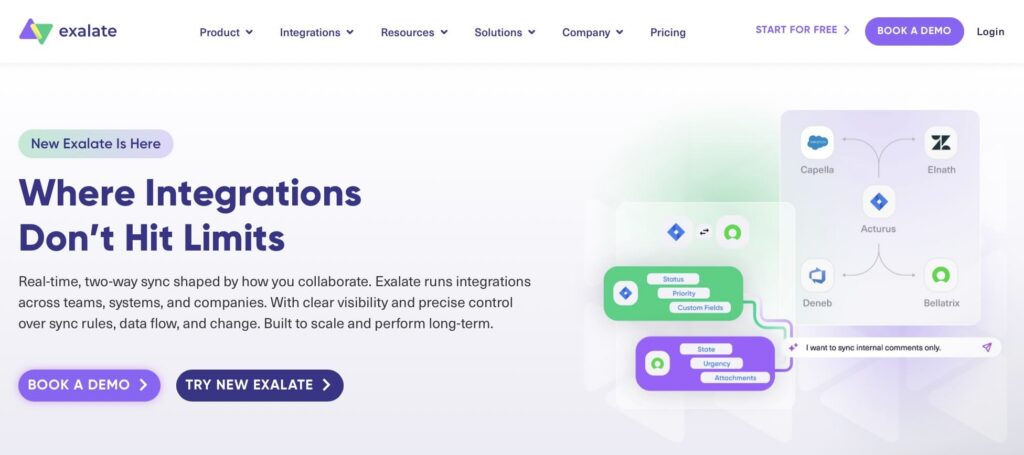
This example matters because it shows how AI can simplify complex integration work. Teams can connect systems faster, reduce configuration mistakes, and keep data consistent and up to date across platforms.
In the next sections, we will look at how AI-enhanced connectors like Exalate support Salesforce AI integration, the benefits they provide, and what organizations should consider when adopting these tools.
Exalate and Flexible Integrations
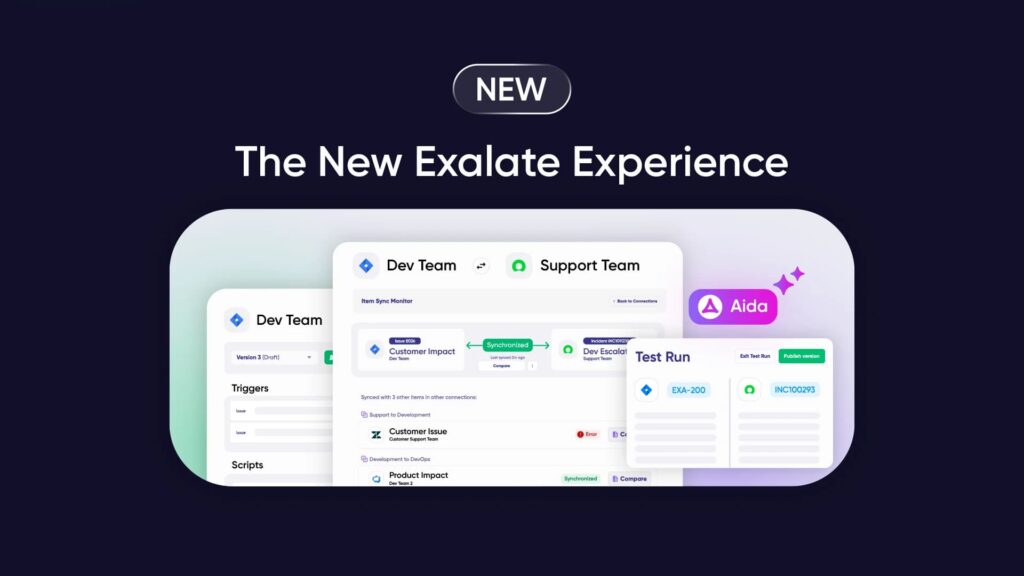
Exalate works across multiple platforms, not just Salesforce. Companies can connect Salesforce with tools such as Jira, Azure DevOps, GitHub, Zendesk, ServiceNow, Freshdesk, Freshservice, Asana, and more.
This allows teams to synchronize data while keeping control over what information is shared between systems. Every system participating in the integration requires Exalate to be installed, and pricing is based on the number of active items being synchronized within each integration.
Exalate can handle a wide range of data, from standard records like customers, tickets, tasks, and issues, to custom fields, attachments, and workflow statuses. On the Salesforce side, it can synchronize any available entity, including both standard and custom objects. It supports two-way synchronization, meaning updates in one system appear in the connected systems according to the rules defined in the configuration.
Benefits of Exalate:
- Support for multiple platforms: Connect Salesforce with Jira, Azure DevOps, GitHub, Zendesk, ServiceNow, Freshdesk, Freshservice, Asana, and more.
- Two-way sync with control: Users decide what data is shared in each direction, ensuring only relevant information flows between systems.
- Customizable workflows: Teams can define their own Groovy-based sync rules to transform fields, filter updates, and match business processes; this flexibility comes from configuration, not runtime AI.
- Faster setup with AI: AI Assist generates initial configuration scripts, reducing manual scripting effort.
- Accurate and consistent data: Once sync rules are applied, updates flow according to configuration, keeping data aligned across systems. AI helps speed up troubleshooting and script setup, while Exalate’s built-in versioning and rollback ensure safe, reversible changes to configurations.
- Cross-department collaboration: Teams can work in their preferred tools while sharing up-to-date information across the organization.
How Exalate Uses AI
In the latest Exalate experience, AI is integrated directly into the script editor workflow instead of being a separate help tool. This reflects Exalate’s shift toward an integration platform where governance, visibility, and change management are built into the process of creating and maintaining sync logic, not just providing guidance.
At the center of this AI functionality is Aida, the in-product assistant embedded in both the Outgoing and Incoming script editors. Aida helps users translate plain-language requirements into working script configurations and provides contextual support as they refine their integration logic.
AI-Driven Script Configuration with Aida
Here is how Aida works in practice:
1. Where to find Aida
To use Aida, navigate to your connection and either add a new version or open the latest draft. Click Edit to enter the script editor, where you will see the Aida chat interfaces at the bottom of both the Outgoing and Incoming script sections. Each chat works independently, allowing you to configure both sides of the connection simultaneously.
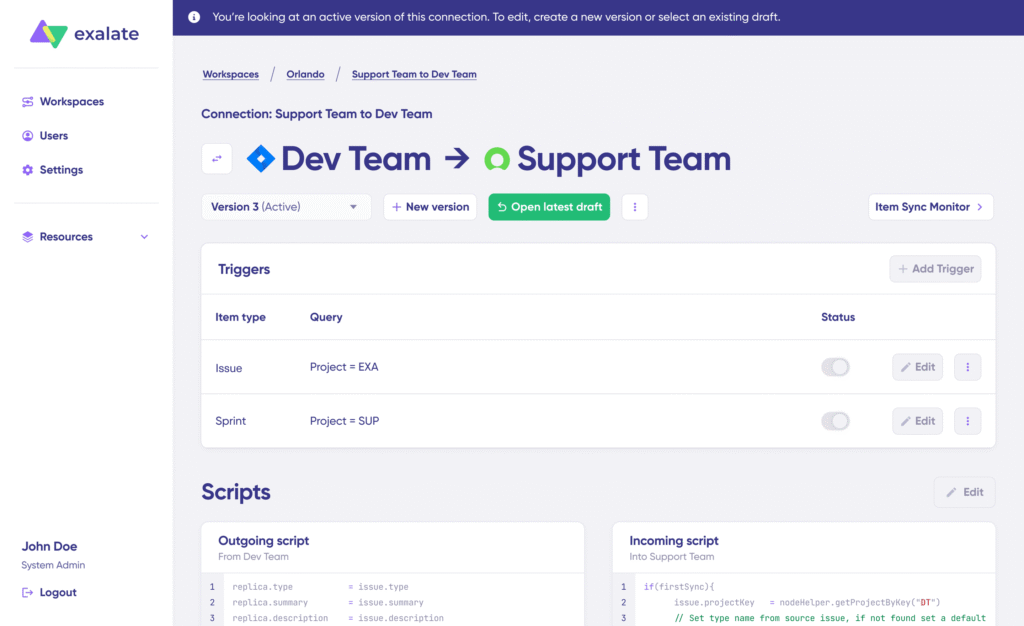
Aida supports both directions of your integration. For Outgoing scripts, it helps define what information your system should send to the connected platform, such as filtering records or selecting specific fields to synchronize. For Incoming scripts, it guides how external information is processed and applied in your system, including mapping values, transforming fields, or setting defaults when source data is incomplete.
2. Working with Aida
To create or refine your integration scripts, type a clear, plain-language instruction into the Aida input box and submit it by clicking Send or pressing Enter. Aida interprets your request and generates a draft script that reflects the actions you want to perform.
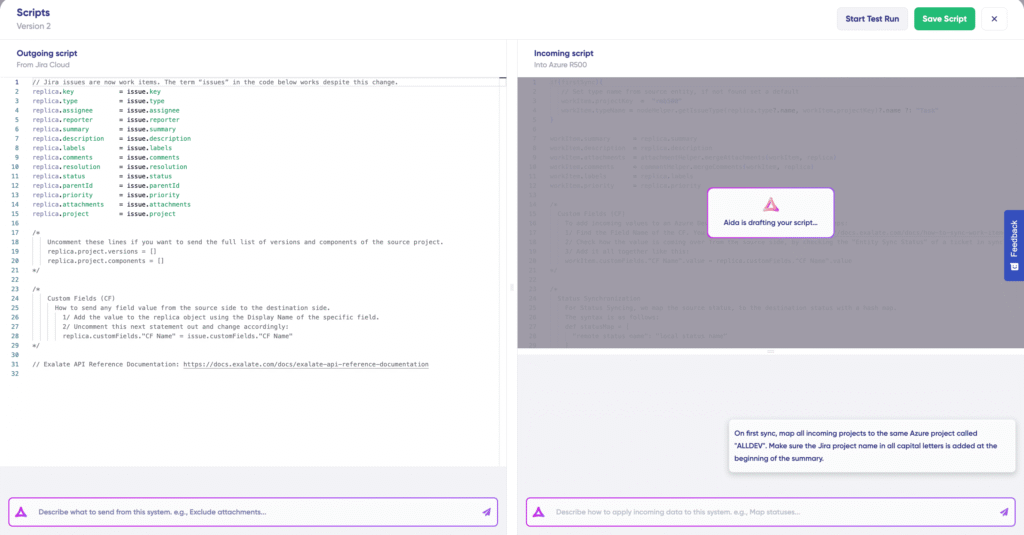
You can ask Aida to handle a variety of tasks, such as filtering which records are synchronized, mapping fields between systems, combining multiple incoming projects into a single target project, or setting default values when source information is missing.
3. Review the draft
After processing your prompt, Aida presents the draft script with visual indicators: lines to be added are highlighted in green, while lines to be removed are highlighted in red. A textual explanation is included to help you understand what each change does.
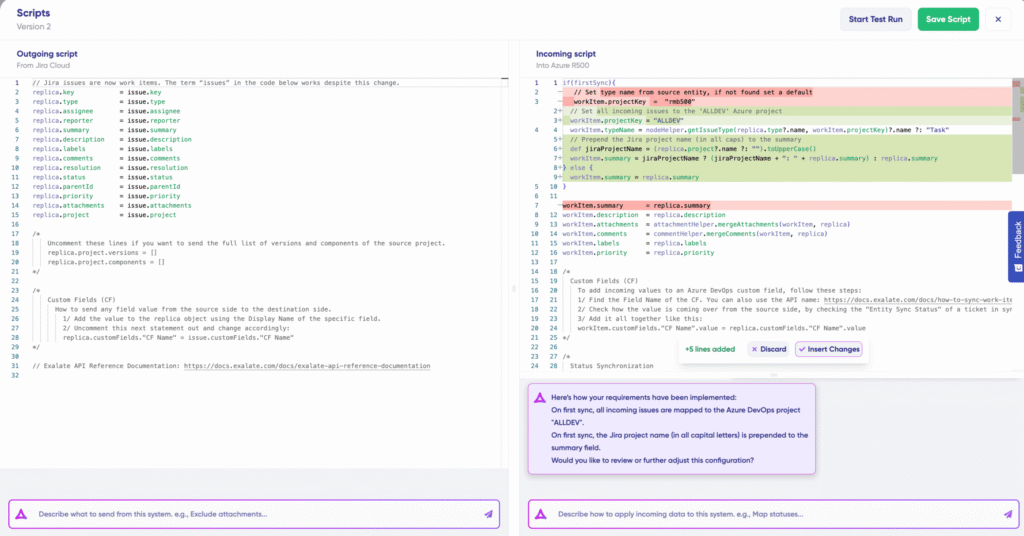
While reviewing the draft, the editor becomes read-only to prevent accidental edits. You must either insert the suggested changes or discard them before continuing. Once inserted, you still have the option to manually fine-tune the script to ensure it aligns with your business requirements and governance standards.
4. Working with both sides
Aida functions independently for outgoing and incoming scripts. This allows you to work on one side while Aida processes the other, keeping the logic for each direction separate. Each chat maintains its own context, so suggestions remain relevant to the specific data flow.
5. Adjusting the workspace
You can customize the editor layout to suit your workflow. Resize the Aida chat panels by dragging the top handle, or adjust the divider between outgoing and incoming scripts to focus on the area you need most.
Example of AI-Assisted Integration with Exalate
Imagine a company using Salesforce to manage customer accounts and Zendesk for support tickets. Normally, integrating these systems would involve manually mapping fields, matching statuses, and writing scripts to synchronize updates, a process that is time-consuming and prone to errors.
With Aida, you can describe what you need in plain language, and the system generates draft synchronization logic to support those requirements.
For example, if your integration needs to filter and map status values between Zendesk tickets and Salesforce cases, you describe that requirement, and Aida drafts the corresponding script. Aida can propose field mappings and transformation logic based on your prompt, reducing manual script writing. This accelerates setup, helps avoid configuration mistakes, and allows teams to focus on business rules rather than scripting details.
This approach saves time, prevents mistakes, and allows teams to focus on their work instead of managing data manually. It also sets the stage for scaling integrations to multiple platforms, like connecting project management tools, issue trackers, or other CRMs, with predictable, consistent data synchronization.
Best Practices for AI-Driven Integrations
AI can make integrations faster and easier, but it does not replace human oversight. The most effective approach combines automation with careful human review. Teams should automate routine data synchronization while maintaining control over critical processes. Staying up to date with evolving tools like Exalate helps address Salesforce AI integration challenges and ensures businesses can take advantage of new AI-assisted features safely and effectively.
| Best Practices for AI-Driven Integrations | |
|---|---|
| Best Practice | Description |
| Review AI-generated configurations | Always check the scripts or mapping suggestions provided by AI before activating the integration to ensure accuracy and prevent unintended data changes. |
| Start small, scale gradually | Begin by connecting a few key systems or workflows, test thoroughly, then expand to additional tools as confidence in the integration grows. |
| Maintain clear ownership | Assign team members responsible for each system’s data. Human oversight is essential for resolving conflicts and handling exceptions that AI cannot detect. |
| Document workflows and rules | Keep a clear record of how data flows between systems and what rules govern synchronization. Documentation helps maintain consistency as teams or processes change. |
| Monitor and adjust regularly | Even with AI assistance, integrations may need updates when fields, statuses, or workflows change in connected systems. Regular reviews prevent errors and maintain alignment. |
| Train teams on tools and features | Ensure that users understand how AI-assisted integrations work, what can be automated, and when human intervention is required. |
FAQs on Salesforce AI Integration Capabilities
As Salesforce integrations grow more complex, AI is playing an increasing role in helping teams connect multiple systems, keep data consistent, and automate routine tasks. While AI can accelerate setup and reduce errors, understanding its capabilities and limitations is essential.
The following questions address common concerns and considerations for using AI in Salesforce integrations.
1. How can AI simplify Salesforce integrations with other systems?
AI can help automate the creation of integration logic by interpreting plain-language instructions. It can generate draft conditions and workflows, reducing the manual effort required to connect Salesforce with tools like help desks, project trackers, or other CRMs.
2. Does AI replace human oversight in integrations?
No. AI can accelerate setup and reduce errors, but humans remain responsible for reviewing configurations, validating data flows, and managing exceptions. Oversight ensures accuracy, compliance, and alignment with business rules.
3. What types of data can AI assist in synchronizing with Salesforce?
AI can support a wide range of data, including standard objects like accounts, contacts, tasks, and cases, as well as custom objects. It can help define how this data should move between systems and how transformations should be applied.
4. How does AI improve efficiency and reduce errors in Salesforce integrations?
By generating draft configurations or providing recommendations, AI reduces manual work and setup mistakes. It ensures consistency across systems, helps maintain up-to-date records, and minimizes redundant or conflicting data entries.
5. What best practices should teams follow when using AI for Salesforce integrations?
Teams should start small and scale gradually, review AI-generated configurations carefully, maintain clear ownership of data, document workflows and rules, monitor integrations regularly, and train users to understand which tasks can be automated and which require human intervention.
Conclusion: Smarter Integrations with AI Assistance
AI is changing how companies set up and manage integrations, making it easier to connect systems and share data consistently. Tools like Exalate show how AI-assisted features can help generate integration scripts, reducing manual work and saving time in scenarios such as a Salesforce ServiceNow integration.
While AI simplifies setup, human oversight remains essential to ensure accuracy, define workflows, and maintain control over data. By combining automation with careful review, teams can focus on high-value tasks rather than routine data management.
Seamless AI Salesforce integration allows companies to keep multiple systems aligned, improve collaboration across teams, and maintain reliable, up-to-date information. With platforms like Exalate, organizations can create flexible, scalable integrations that support their processes and adapt as their needs evolve.
For teams exploring smarter ways to manage data across systems, Exalate offers a free trial, which can be a practical next step to see how AI-assisted integration works in practice.

Antonina is a Salesforce Admin with six certifications: Salesforce Certified Platform Foundations, Platform Administrator, Platform Administrator II, CPQ Administrator, AI Associate, and Agentforce Specialist. She started working with Salesforce in 2021 as Intern Salesforce Developer. Now, a 2-Star Ranger on Trailhead, she continues to expand her skills and knowledge. She helps manage Salesforce systems, automate tasks, and improve processes. Antonina loves learning new things and exploring better ways to use technology. In her free time, she enjoys reading, playing sports, and exploring new tech ideas.
 Previous Post
 Next Post
4 Responses to “How AI Is Changing Common Salesforce Integrations”