






Why Power BI Users Struggle with Salesforce Data
When you refresh a Power BI dashboard and the Salesforce metrics do not match what you expect, it becomes clear that the connection is not as reliable as it should be. When users see mismatched numbers or missing objects, it often becomes the moment when they start searching for practical Salesforce Power BI integration options, but they quickly discover that built-in connectors, manual exports, and custom scripts all come with limits, slow updates, or extra maintenance.
Another issue appears when data is stored in more than one place. Many companies also keep information in Excel files, internal databases, or systems such as PostgreSQL. Power BI users then have to combine several sources manually. When they want to understand how to connect Salesforce to Power BI without this extra effort, they realize that the real problem is the lack of a stable and predictable way to integrate Salesforce data.
Recent research confirms how widespread the integration problem is. The MuleSoft 2025 Connectivity Benchmark Report shows that 83% of organizations say integration challenges slow down their digital transformation, and 95% of IT leaders report facing challenges with integration. These issues make it harder for teams to work with accurate and current data across reporting tools.
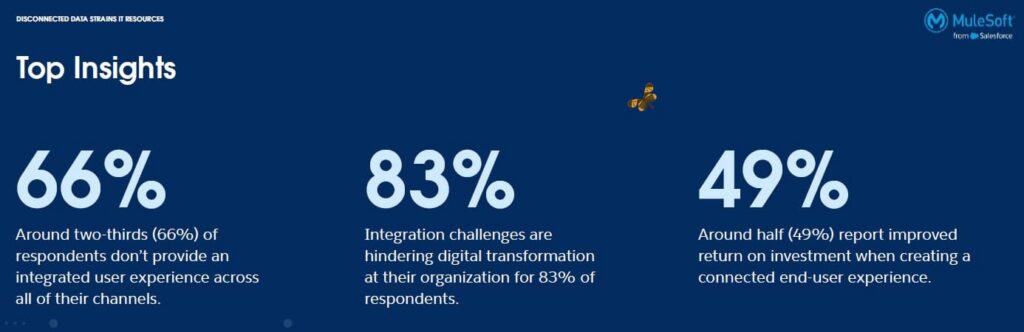
This situation affects analytics, forecasting, and decision-making. Teams want to work with current information, yet the process slows them down. As a result, they begin looking for a reliable method to integrate Salesforce data so that Power BI can show a clear and updated picture.
In this article, we will look at where these problems appear in real reporting workflows and how the ODBC Driver for Salesforce can help create a more stable Power BI integration with Salesforce.
- A Practical Example: When Teams Cannot Combine Salesforce Data with Power BI Reports
- Where the ODBC Approach Solves Common Power BI Integration Issues
- How to Connect Power BI to Salesforce Using an ODBC Driver
- Key Improvements You Get with an ODBC-Based Connection
- Extra Capabilities for Advanced Reporting Needs
- Example Results: How the ODBC Connection Improved the Agency’s Reporting
- In Summary: Your Next Steps Toward Faster Salesforce to Power BI Insights
A Practical Example: When Teams Cannot Combine Salesforce Data with Power BI Reports
Imagine a mid-size marketing agency uses Salesforce to track leads and opportunities. Their campaign performance metrics sit in PostgreSQL, and the team wants to analyze everything inside Power BI. The idea seems simple, but in practice, the numbers never fully match.
- Different data sources create mismatched dashboards: The marketing team checks campaign metrics. Sales managers focus on opportunity progress. Leadership wants full visibility across all channels. Since the information lives in separate systems, the dashboards in Power BI do not show a complete picture. Salesforce displays one set of values, PostgreSQL stores another, and the refresh time in Power BI becomes too slow for day-to-day work. As a result, they cannot clearly see which campaigns generate ROI because the data remains split between systems.
- Manual processes quickly become unreliable: To close the gaps, analysts export CSV files, prepare small scripts, or combine tables manually. This works for a short period until the Salesforce structure changes or the number of campaigns increases. Each change results in new maintenance work, and the dashboards become even less reliable.
- The team starts looking for a better approach: At this point, the agency realizes that the issue is not only about moving data. They need a predictable and stable method to run data integration in Salesforce, something that keeps the information consistent when building mixed dashboards. They also see the need for Salesforce integration master data management to ensure lead, opportunity, and campaign records stay aligned.
- A clear requirement appears: The team begins searching for a connection method that can bring Salesforce data into Power BI in a stable and repeatable way. Their goal is simple: one source of truth that supports daily reporting without gaps or delays.

Where the ODBC Approach Solves Common Power BI Integration Issues
When teams start reviewing possible Salesforce data integration options, they often compare several ways to bring Salesforce data into Power BI. The common options include:
- the native Salesforce connector,
- custom API scripts,
- third-party automation platforms,
- and ODBC drivers.
Each method has its own use cases, yet many Power BI users notice that the ODBC approach gives them more control and fewer refresh problems.
- The built-in connector works well for small datasets, but it struggles when objects become large or when the Salesforce structure changes.
- Custom API scripts create flexibility at the beginning, but they become time-consuming to maintain.
- Automation platforms can move data between systems, although they still add extra steps before the information arrives in Power BI.
- An ODBC driver gives users a more direct path. It allows Power BI to read Salesforce objects in a predictable way and lets analysts work with the data as SQL tables. This approach supports filtering, sorting, and loading only the fields that matter. It also helps avoid issues with changing schemas because the connection is based on a stable standard.
To illustrate a practical setup in this guide, we selected the Devart ODBC Driver for Salesforce because it is built specifically for Salesforce objects and supports SQL-92, joins, aggregation, and custom queries, which are useful for handling Salesforce data in Power BI.
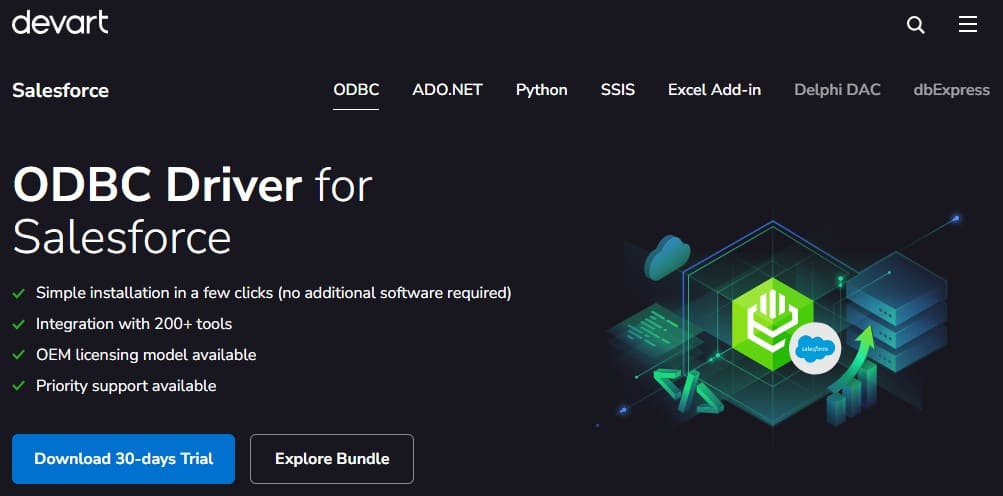
The driver provides a direct ODBC connection to Salesforce and supports several authentication methods, including OAuth and username-and-password access. Communication runs over encrypted HTTPS, which keeps the data transfer secure during each refresh. Devart also offers cross-platform support for Windows, macOS, and Linux, and the driver works with Power BI, Excel, Tableau, and common ETL tools.
Here you can watch a short introductory video:
With an ODBC connection, Salesforce data becomes available to Power BI through a standard SQL interface. This creates a stable way to prepare dashboards and work with mixed datasets while using one of the most flexible methods available to teams searching for the best Salesforce data integration solution for analytics.
How to Connect Power BI to Salesforce Using an ODBC Driver
Once a team decides to improve the way Salesforce data appears in Power BI, the next step is to set up a stable ODBC connection. The process includes installing the driver, creating a data source, and linking Power BI to it. These steps help avoid manual exports and allow analysts to build reports with clear and current Salesforce information.
Step 1. Install the ODBC Driver
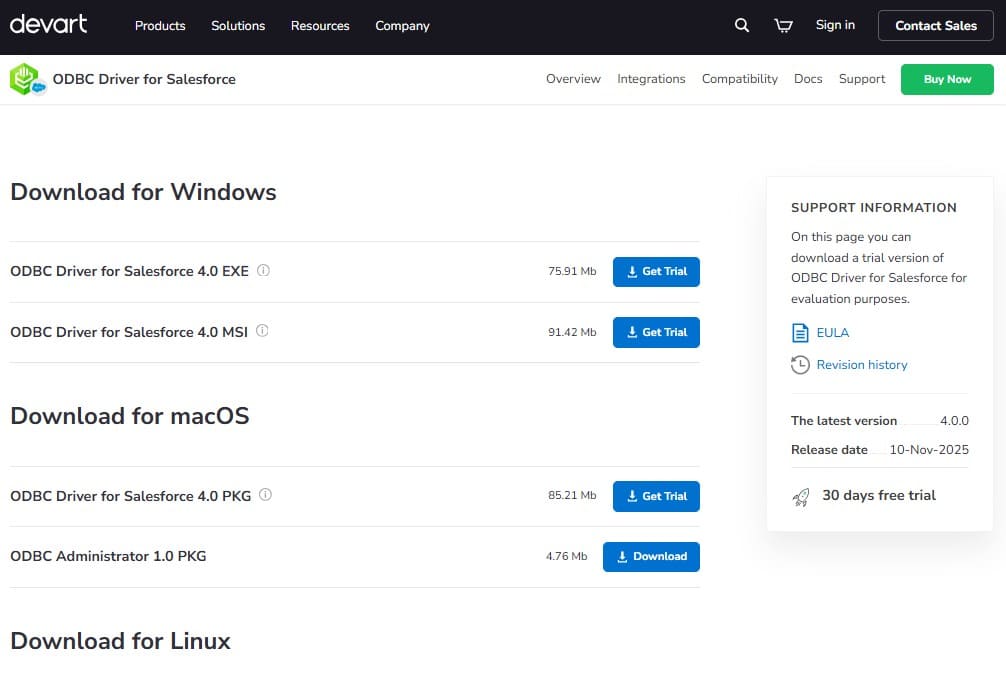
Start by creating a Devart account. This account is needed to download the installer, manage your licenses, and get support in the future. Devart provides a 30-day free access period for the ODBC Driver for Salesforce, so users can test the connection before making a purchase.
After registering, download the installer from the Devart website. The driver works on Windows, macOS, and Linux and does not require additional client libraries. Run it and follow the setup instructions until the installation is complete. Once the installation finishes, the driver appears in the system’s ODBC tools and is ready for configuration.
Step 2. Create a Salesforce Data Source
The next step is creating a DSN. Open the ODBC Data Source Administrator and add a new data source based on the installed driver. Enter the Salesforce credentials and choose an authentication method. OAuth is the most common option because it provides a secure login and does not require storing passwords. You can also check ODBC connection, and once the test is successful, the DSN becomes available for use in Power BI and other tools.
Step 3. Load Salesforce Data Into Power BI
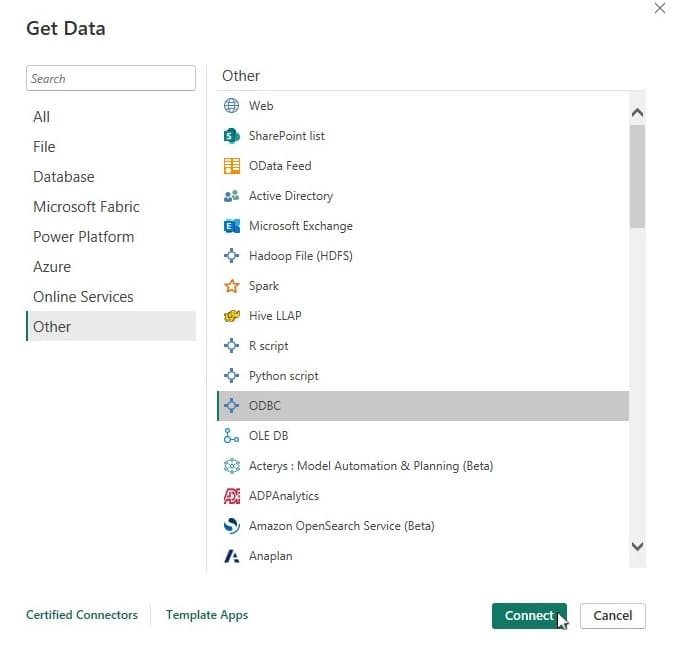
In Power BI Desktop, select Get Data and choose ODBC from the available connectors. Pick the DSN you created and continue to the Navigator screen. Here you can select objects such as Leads, Contacts, Opportunities, or Campaigns. Power BI loads these objects as tables that can be used in reports. At this stage, users can also apply filters to reduce the dataset size and optimize refresh time.
Step 4. Build Dashboards with Current CRM Data
After importing the data, you can create models, visualizations, and calculations in Power BI. When the dataset refreshes, the driver retrieves the latest CRM values, which support real-time Salesforce data in Power BI use cases. This approach helps build dashboards that stay consistent and reflect what users see inside Salesforce.
As you can see, the ODBC connection offers a predictable way to connect Salesforce to Power BI and supports real time data integration with Salesforce. It also allows Power BI to combine Salesforce objects with other sources, giving teams a clear and organized view.
Key Improvements You Get with an ODBC-Based Connection
Once the ODBC connection is fully set up, teams can start working with Salesforce information more predictably. The first change they notice is how much easier it becomes to prepare reports. Power BI no longer depends on manual exports or temporary scripts, and the dashboards refresh using a single consistent source.

- More stable and faster report cycles: Large Salesforce objects often cause delays when pulled through the native connector. With an ODBC layer, Power BI receives data through a structured SQL interface. The structured connection helps dashboards refresh more quickly and reduces mistakes that appear when reports rely on exports or temporary scripts.
- Better control over the data you load: An ODBC driver lets analysts select only the fields they need. Many teams use this to keep their datasets small and to avoid bringing unnecessary objects into Power BI. They can also apply filters during the import stage, which keeps the reporting model easier to maintain.
- Secure connection and controlled access: The driver uses encrypted HTTPS communication and supports OAuth authentication, which helps organizations keep their Salesforce data access safe and aligned with internal security requirements.
- A simpler way to combine multiple sources: Most organizations work with more than one system. They may store financial or marketing records in separate databases. With ODBC, Power BI reads Salesforce as tables, which makes it easier to combine CRM information with other sources without additional steps.
- No coding required for setup or ongoing work: Teams use the driver through standard ODBC connectors in Power BI or Excel, without writing custom scripts or managing complex integrations.
- Suitable for different reporting environments: The same connection approach works for small teams preparing regular dashboards and for larger organizations that manage more complex Salesforce datasets.
- A move toward consistent reporting practices: These improvements support Salesforce data integration best practices by helping teams build reports on top of structured and controlled datasets. As a result, they get a clearer approach to data integration for Salesforce CRM and avoid repeated work across their reporting workflows.
This foundation plays a key role when teams want to build dashboards that stay reliable.
Extra Capabilities for Advanced Reporting Needs
An ODBC connection also supports tasks that require more control over how Salesforce data is prepared and organized.

The following features are especially helpful when teams work with more detailed dashboards:
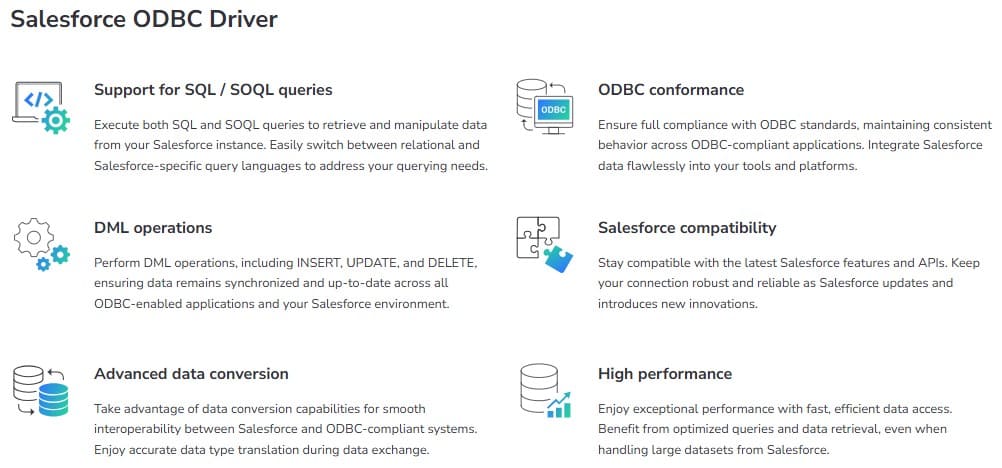
- Working with related Salesforce objects: The ODBC approach can bring linked Salesforce records, such as Accounts, Contacts, and Opportunities, into one clear structure. This helps Power BI show relationships that would otherwise require several separate steps.
- Preparing data on the Salesforce side: SQL logic can be applied before Power BI loads the data. This includes limiting rows, applying conditions, or combining related objects. It reduces the amount of work Power BI needs to perform and helps keep large reporting models easier to maintain.
- Two-way data access: The driver can read and update Salesforce records, which helps teams manage CRM information in reporting or operational workflows without switching tools.
- Easy connection to ETL tools: It works with common ETL platforms and scripts, including Python, SSIS, and Skyvia. This makes it easier to move data between Salesforce and other systems when preparing models or automation steps.
- Support for main Salesforce editions and APIs: The driver works with different Salesforce editions and API versions, which helps organizations run projects that rely on multiple environments or integrations.
Devart designed the driver to work with all main Salesforce editions and APIs, which makes it suitable for projects that rely on different environments inside the same organization.
Insight:
Across all departments, the need for integration keeps rising.
For example, over 80% of data science, engineering, sales, and customer service teams report growing integration needs, which increases pressure on IT to deliver accurate analytics.
These capabilities help maintain consistent records across systems and support master data management practices. For teams that need flexible deployment options, the driver is available with pricing options that include site and OEM options.
Example Results: How the ODBC Connection Improved the Agency’s Reporting
When the marketing agency from the example above moves to the ODBC connection, the effect on their reporting becomes clear during the very next reporting cycle. The dashboards in Power BI begin to refresh in a more stable way, and the values match what users see inside Salesforce. Instead of waiting for long refresh times or dealing with failed loads, the analysts can work with clear and current CRM data.

1. A Single View of Salesforce and Campaign Activity
The agency finally builds combined dashboards that show Salesforce opportunities alongside campaign performance results from PostgreSQL. These dashboards give a full picture of how each campaign contributes to pipeline growth. Sales managers use the new reports to check how quickly leads convert, and the marketing team can compare the performance of different campaigns without switching tools.
2. No More Mismatched Numbers
Because the data now passes through a structured ODBC connection, the agency stops relying on CSV exports. The errors caused by manual steps disappear, and the dashboards show consistent values during each refresh. When a field changes in Salesforce, the updated information appears in Power BI during the next data pull.
3. More Predictable Reporting
With fewer interruptions, managers track updates throughout the day, and the analysts spend less time fixing broken scripts. The ODBC layer strengthens the Salesforce data integration capabilities available to the agency and helps them run their reporting workflows with fewer delays. As a result, the entire team works with the same numbers and prepares reports in a more organized way.
These improvements save the team time during each reporting cycle and reduce the number of corrections they need to make after sharing dashboards. The reports also show more accurate revenue figures because Salesforce updates appear during every refresh, giving managers a near-real-time view of how campaigns influence pipeline growth.
In Summary: Your Next Steps Toward Faster Salesforce to Power BI Insights
Teams that reach the end of this guide usually want one thing: a reporting process they can trust every day. The steps described above show how an ODBC connection helps Power BI work with clear and current Salesforce information.
Devart’s ODBC Driver for Salesforce helps organizations keep their CRM data unified across reporting tools. Many teams choose it for its speed, reliable refresh behavior, and simple setup process, especially when working with mixed data environments.
- Start by testing the ODBC connection: A good way to begin is to try the Devart ODBC Driver for Salesforce. It includes a 30-day free access period, which allows teams to check how the connection works with their own Salesforce objects. The installer and documentation are available on the Devart website, and the setup process follows a clear sequence of steps.
- Review the connection with your own reporting model: During the trial, analysts can load the objects they use most often and confirm how the refresh cycle behaves. They can also review how the connection handles combined models that include other sources. This helps the organization decide whether the structure is suitable for long-term reporting.
- Using the connection across other tools: Once the setup is complete, the same ODBC configuration can support other reporting environments, such as Excel. This creates a consistent way to integrate Salesforce data across several tools and helps teams maintain dashboards that stay aligned with the information inside Salesforce.
A reliable connection method is the foundation of any reporting system. With the right setup, Power BI becomes a dependable place to check progress, compare results, and support decisions across the organization.

Mykhailo is a Salesforce Certified Platform Administrator with development experience in the fintech field. Since 2021, he has gained the Double Star Ranger rank on the Salesforce Trailhead education platform, where he acquired 26 Superbadges in Business Administration, Process Automation, Security, and more. With a decade of expertise in consulting and compliance, he aspires to translate complex technical concepts into accessible content, helping organizations make the most of Salesforce. Mykhailo is passionate about using technology for everyday needs, enjoys reading sci-fi and non-fiction books, and playing video games. He also has an interest in history and outdoor activities such as hiking, camping, and kayaking.
 Previous Post
 Next Post
I will highly recommend this blog!