






Why Offline Forms for Salesforce Matter
How easy is it to combine Salesforce with real-world data? The difficulties are most evident during inspections, audits, and site visits.
These activities depend on context, visual proof, and timing. They also happen in basements, construction sites, rural locations, and customer locations where network connectivity may not be available. The problem is not that Salesforce is weak. The problem is that most standard data entry patterns assume a desk, a browser, and a stable connection.
Insight:
According to Salesforce’s State of Service, 7th Edition (2025) research,
field service professionals spend about 18% of their working time, more than seven hours per week,
on administrative tasks such as filling out forms and searching for information, reducing the time available for field work.
And 37% of field service technicians say administrative tasks prevent them from spending enough time on their actual field work.
Very often, the situation looks like this. A specialist is on site. Mobile internet is weak or completely unavailable. The checklist stays on paper. Photos are taken on a personal phone. Notes are added later, sometimes hours or even days after the visit. By the time everything finally reaches Salesforce, some details are lost or become unclear.
Salesforce still holds the final record, but it is no longer the place where the work actually happens. Let’s look more closely at why this problem exists in Salesforce projects and what requirements a workable field data capture process needs to meet.
- The Core Problem: Why Field Data Collection Does Not Fit Salesforce by Default
- First Look at Forms by SharinPix: What the App Is Trying to Solve
- Installation and Initial Setup of Salesforce Forms App
- Key Features That Distinguish Forms by SharinPix
- What You Get Back in Salesforce After a Field Visit
- Typical Use Scenarios Seen in Practice for SharinPix Salesforce Forms
- Hands-On Impressions and SharinPix AppExchange Feedback
- Pricing, Trial, and Practical Considerations
- FAQs About Forms by SharinPix
- Closing Thoughts: How This Fits into Real Salesforce Work
The Core Problem: Why Field Data Collection Does Not Fit Salesforce by Default
Trying to fit field reality into standard Salesforce screens often results in workarounds, delays, or data being captured outside the system. Here is why:
- Salesforce was designed first as a system for structured data entry in connected environments. Records, fields, validation rules, and automation assume that users are online, focused, and working through a browser or a stable mobile app connection. For office-based roles, this model works well and has proven itself over many years.
- Field work follows a different logic. Inspections, audits, and site visits happen under time pressure and in changing conditions. The person on site often needs to move quickly, capture visual evidence, and make short notes while focusing on the physical environment. Data entry becomes secondary to the task itself. When connectivity is unreliable, even simple actions such as saving a record or uploading a photo can interrupt the workflow.
As a result, field teams begin to separate the act of doing the work from the act of documenting it. Salesforce becomes the place where results are summarized, not where they are created. The longer this separation exists, the harder it becomes to maintain accuracy and context.
This is usually the moment when we should stop trying to adapt field work to Salesforce screens and start looking for ways to adapt Salesforce to field conditions. One common answer is offline forms for Salesforce, designed to capture data on site and sync it later.

Looking at AppExchange, one of the options that stands out for this use case is Forms by SharinPix, designed for field data capture with offline support and visual documentation. In the next sections, we will take a closer look at how this approach is implemented in practice.

First Look at Forms by SharinPix: What the App Is Trying to Solve
When teams start searching AppExchange for ways to handle offline data collection, Forms by SharinPix is one of the solutions they come across fairly quickly. It is positioned as a way to capture field data directly in Salesforce, even when a stable connection is not available, without forcing users to rely on separate tools or enter the same information twice later.
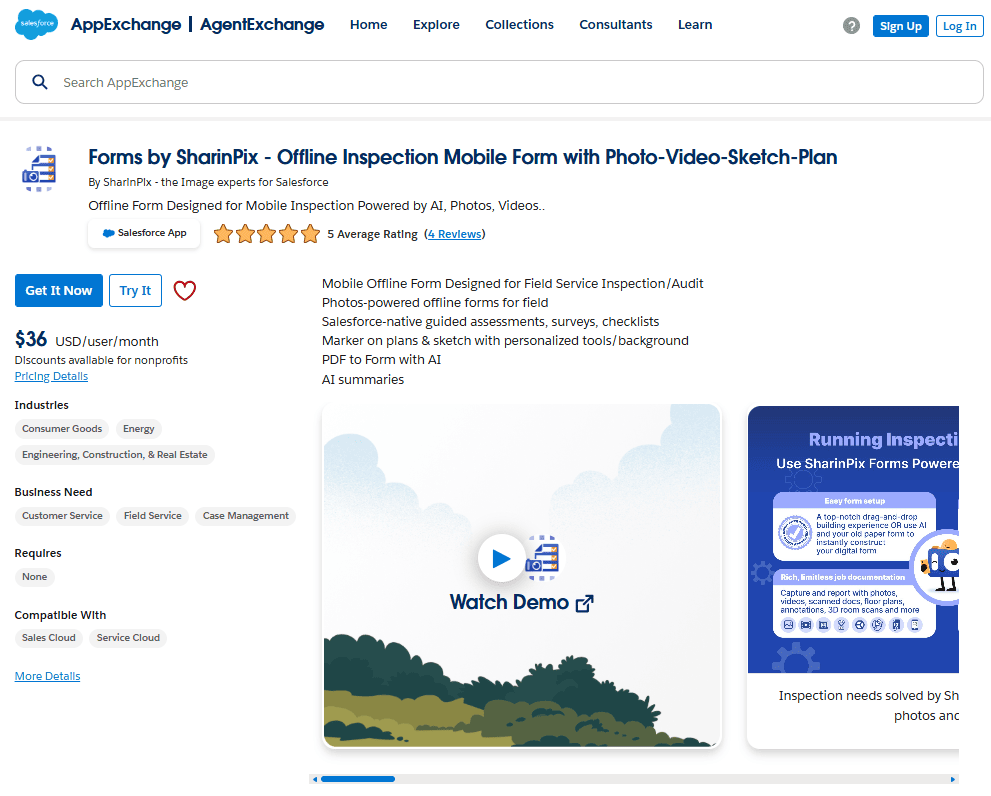
SharinPix is mainly known for image handling inside Salesforce, and that background is easy to see here. The forms are built with the idea that photos, annotations, and visual context are part of the work itself. Instead of asking users to finish the visit first and add images afterward, the app allows them to capture visual information as they go.
What this approach focuses on:
- Capturing data while the work is happening, not after the visit.
- Treating photos and notes as primary inputs, not attachments.
- Allowing field users to continue working without a reliable connection.
Forms by SharinPix is aimed at inspections, audits, and site visits where the structure of the work is not always clear upfront. The number of rooms, issues, or items to document often becomes obvious only once the work is already underway. In those situations, the app allows field users to record information step by step and synchronize everything with Salesforce once they are back online.
Insight:
According to the Salesforce study mentioned above,
82% of service professionals say customer expectations are higher than they used to be, increasing pressure on field and mobile teams to capture accurate data during service visits.
In the next sections, we will look more closely at how this works in practice, starting with installation and initial setup.
Installation and Initial Setup of Salesforce Forms App
The setup process for Forms by SharinPix follows a familiar pattern for Salesforce admins. It focuses on getting the package installed, assigning access correctly, and exposing forms in the right places so they can be used in the field. The steps below reflect a typical initial setup, without going into advanced configuration.
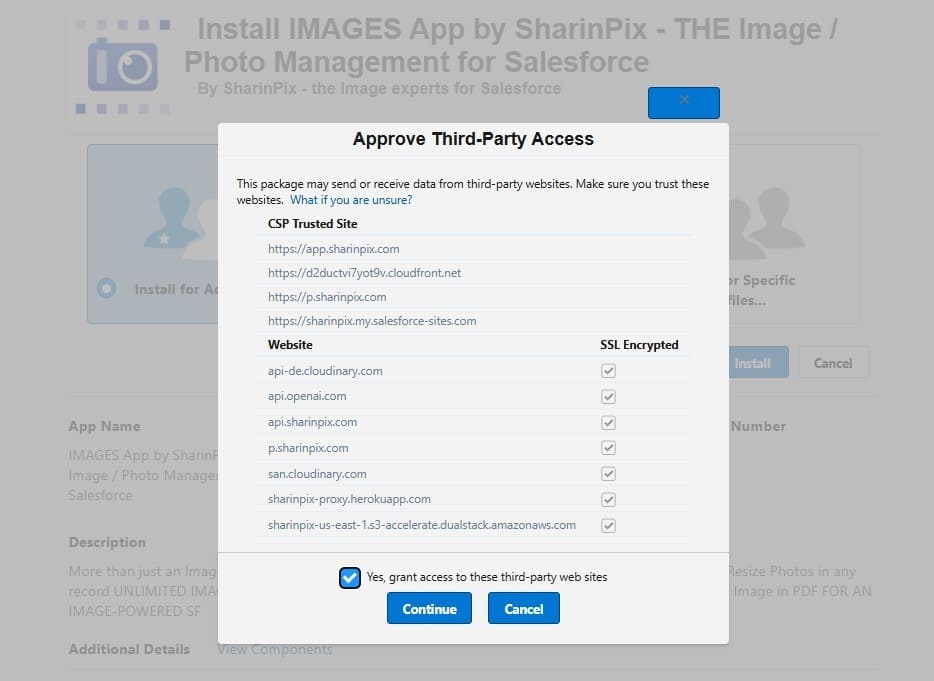
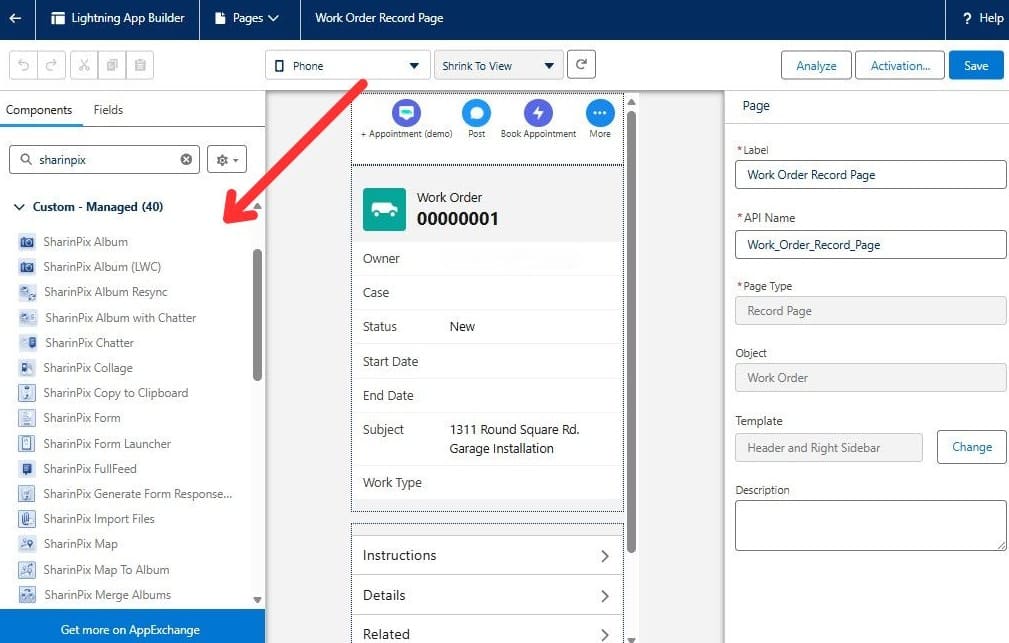
- Install the package from AppExchange. The setup starts with installing the package from AppExchange. After installation, the key Forms components become available in Salesforce and can be added through Lightning App Builder. The SharinPix documentation explains the entire process in detail.
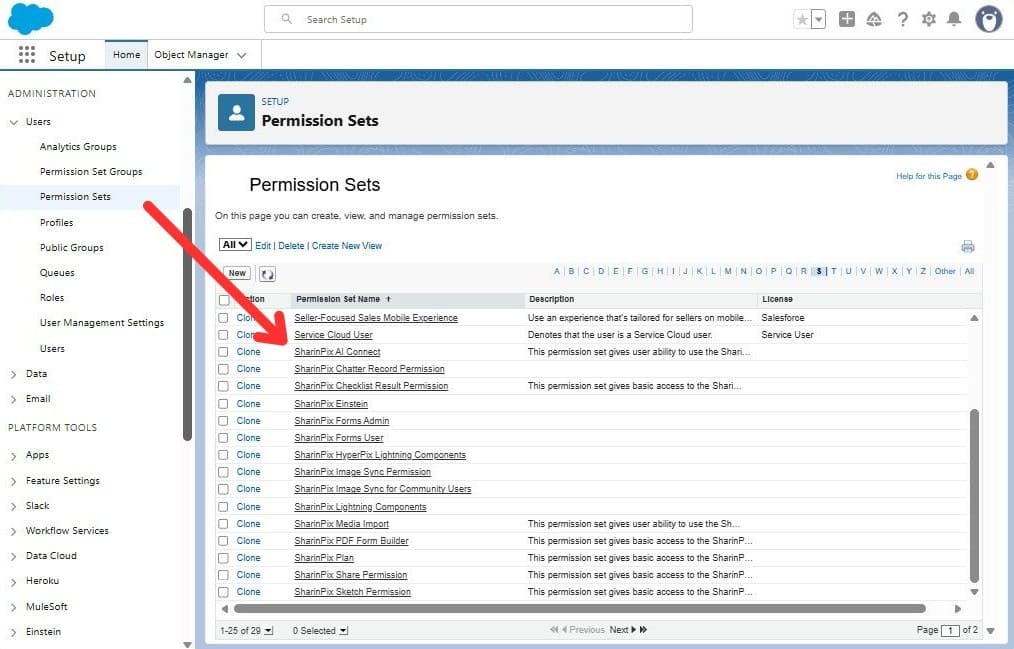
- Assign the required Permission Sets. Access is managed through Permission Sets. SharinPix separates configuration access from form usage, which helps keep responsibilities clear. One permission set is typically assigned to users who create and manage form templates, while a separate permission set is used for field users who only need to complete forms.
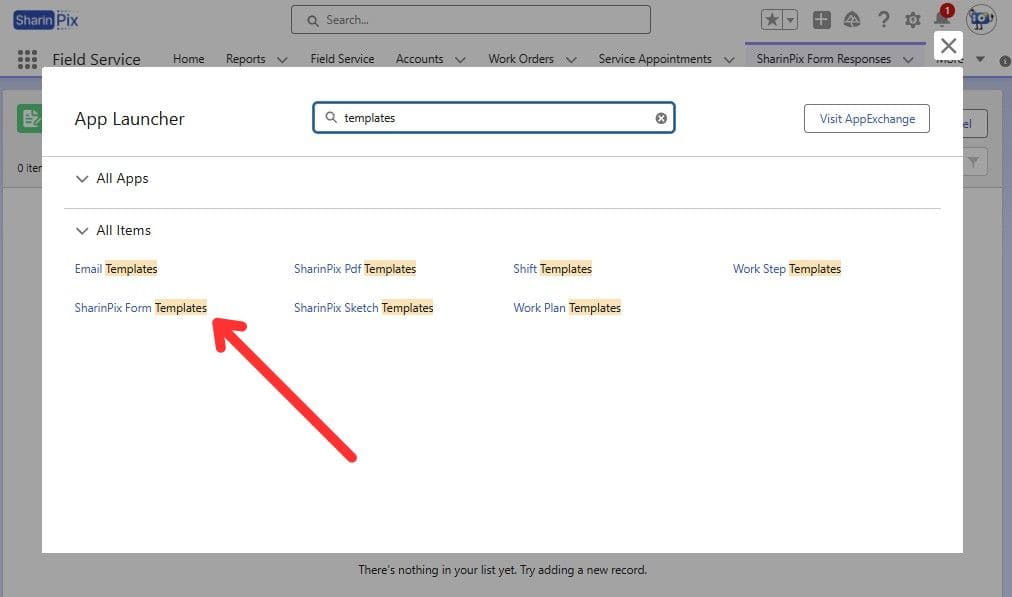
- Create a form template. Form creation begins in the SharinPix Form Templates area. This is where templates are defined and adjusted to match the inspection or audit process. At this stage, the goal is to establish the structure of the form rather than fine-tune every detail.
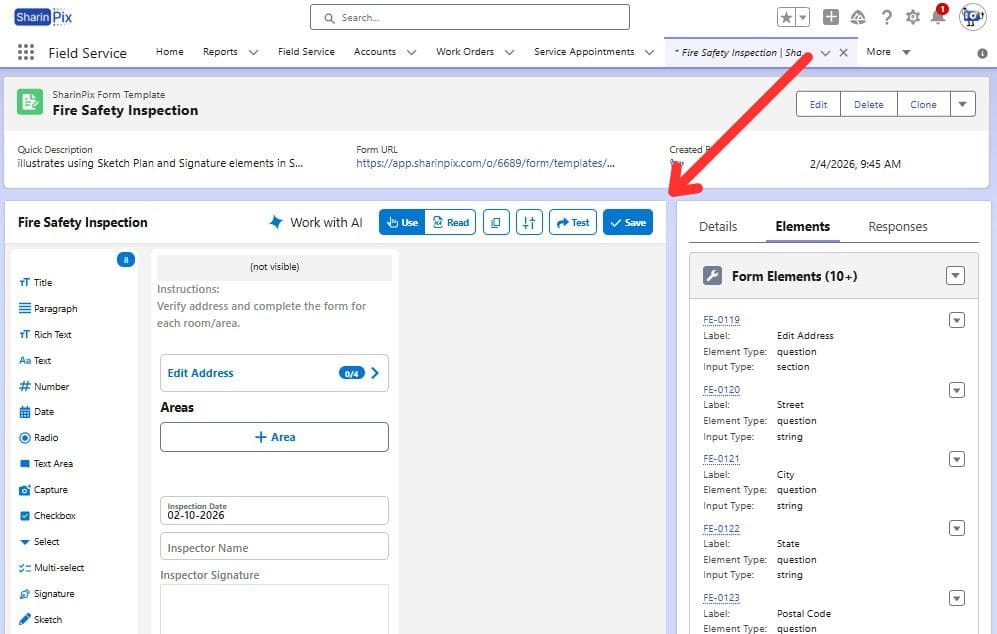
- Add the form launcher to a record page. To make a form accessible from Salesforce records, the SharinPix Form Launcher component is added to the relevant Lightning record page. This allows users to open and complete the form directly from the record they are working with.
- Test the mobile experience. Since forms are often completed outside the office, it is worth opening a form on a smartphone to see how it looks and behaves on a smaller screen. This helps confirm that the layout, questions, and visual inputs make sense in real field conditions. Here is a good example of mobile usage:
Key Features That Distinguish Forms by SharinPix
1. Visual Toolkit as the Foundation
In inspections and site visits, visuals are often the primary source of information. Photos, short videos, sketches, and marked plans are used to show what was found on site and how it looks in reality. The Visual Toolkit in Forms by SharinPix is designed with this type of work in mind and focuses on capturing visual data as part of the inspection process itself.
Below are the main visual capabilities that define how the toolkit is used in practice:
- Photo capture with annotations: Photos can be taken directly from the form and annotated immediately. Markups, arrows, and short notes are added while the issue is still visible, which reduces the risk of losing context later.
- Short video capture: Short videos can be recorded from within the form when a single image is not enough. This is useful for documenting movement, behavior, or sequences that are difficult to describe with text alone.
- Sketches and plans: The toolkit supports sketches and plan-based visuals. Field users can draw on a blank canvas or mark up an existing plan, which works well for rooms, layouts, and location-based observations.
- Visuals embedded in the form flow: Visual elements are captured as part of the form, not as separate attachments. Each photo, video, or sketch remains linked to the specific section or checklist item where it was created, making later review in Salesforce clearer.
- Offline capture with later synchronization: When connectivity is limited, visuals and form data are stored locally on the device. Once the connection is restored, everything is synchronized together, keeping visual evidence and structured responses aligned.

From the Salesforce side, these visuals appear directly on records next to the related form responses. They are available in context, without relying on external folders or messaging tools. The same visual data can later be searched and reused using tools such as Search and Display SharinPix Photos By SharinPix, which focuses on working with images already stored in Salesforce.
2. AI Integrations: Magic Fill and AI-Assisted Form Creation
Not all friction in field work comes from being offline. A lot of it comes from manual input. Serial numbers, labels, and identifiers are often captured as photos and then typed again into Salesforce later, which slows the process down and introduces errors.
Forms by SharinPix includes two AI-driven capabilities that focus on reducing this kind of manual effort: Magic Fill and the AI-assisted form creation.
Magic Fill is designed to extract structured information directly from photos captured in a form. Instead of asking a field user to type values such as serial numbers or codes, the image itself becomes the source of data.
Admins define, in plain language, what information should be extracted and where it should be stored in Salesforce. This guidance gives Magic Fill context about what to look for, while the original photo is kept in Salesforce for reference. Magic Fill can be used within Forms and also in Salesforce Flow scenarios, which allows the extracted data to be reused in automation.

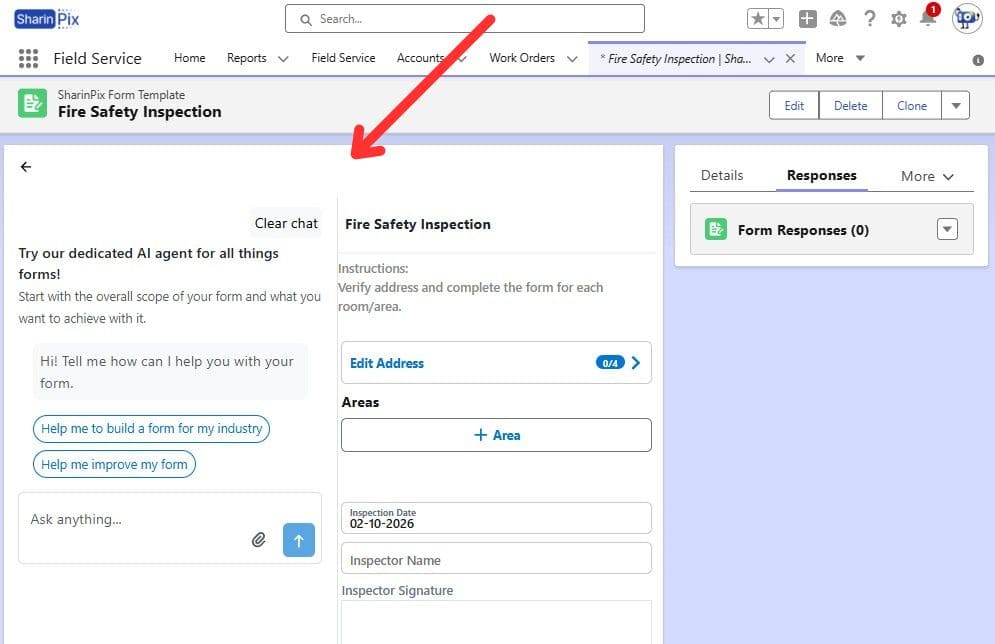
AI-assisted form creation addresses a different part of the process. Many teams already have paper checklists or PDF inspection forms. Instead of recreating them manually, SharinPix describes an option to convert an existing document into a digital form using AI.
The generated form can then be adjusted by an admin before being used in the field. This helps speed up the transition from paper to a Salesforce-based process, without changing the structure that teams are already familiar with.
3. Offline Form Execution
Offline use in Forms by SharinPix involves more than simply opening a form without a connection. In practice, it means that the full inspection flow can continue even when the network becomes unreliable or disappears entirely. A form can be launched from a Salesforce record, filled in on site, and completed without requiring constant connectivity.
While the device is offline, all inputs are stored locally. This includes checklist answers, photos, videos, sketches, and annotations captured during the visit. The user does not need to switch modes or simplify the form just because the connection drops. Once connectivity is restored, the form response is synchronized with Salesforce as a single unit, keeping visuals and structured answers aligned.
This behavior is especially relevant when evaluating solutions on the Salesforce offline AppExchange, where many tools advertise offline access but still depend on partial connectivity. Forms by SharinPix is designed around the assumption that field conditions are unpredictable and that work must continue regardless.
4. Repeated Sections for Unknown Conditions
Inspections rarely follow a fixed structure. The number of rooms, defects, assets, or deficiencies is often unknown until the visit is already in progress. Forms by SharinPix addresses this through repeated sections, which allow the same block of questions to be added multiple times during a single form session.
For example, a user can add another room, log an additional defect, or document a new asset as it is discovered on site. Each repeated section includes its own checklist answers and visual evidence, keeping information grouped and easy to review later. There is no need to predict how many entries will be required before the visit starts.
Here is a good video example:
This approach reduces the need for free-text notes or disconnected photos taken outside the form. The structure adapts to the reality of the site visit, rather than forcing the user to adapt their work to a predefined template.
What You Get Back in Salesforce After a Field Visit
Offline capture is only useful if the results are easy to review in Salesforce. After a form is submitted, SharinPix brings the inspection back into the org as Salesforce data, not just as files.
At the center is the SharinPix Form Response record. The response can be viewed in three ways: as a visual rendering of the form, as a generated PDF, and as answer records that can be used in reporting and automation.
Key Outputs Stored in Salesforce
- SharinPix Form Response. This is the main record created after submission. It can be linked to the parent record the form was launched from, so office users can find the latest response in the same place they work every day.
- SharinPix Form Answer records. The SharinPix Form Answer record is created for each form question and associated with the Form Response. The point is simple: answers are stored as data, which means they can be queried, reported on, and used in custom implementations.
- PDF output for sharing: a configurable PDF report can include the completed questions and answers and a large number of photos, with branding and inspector/client information.
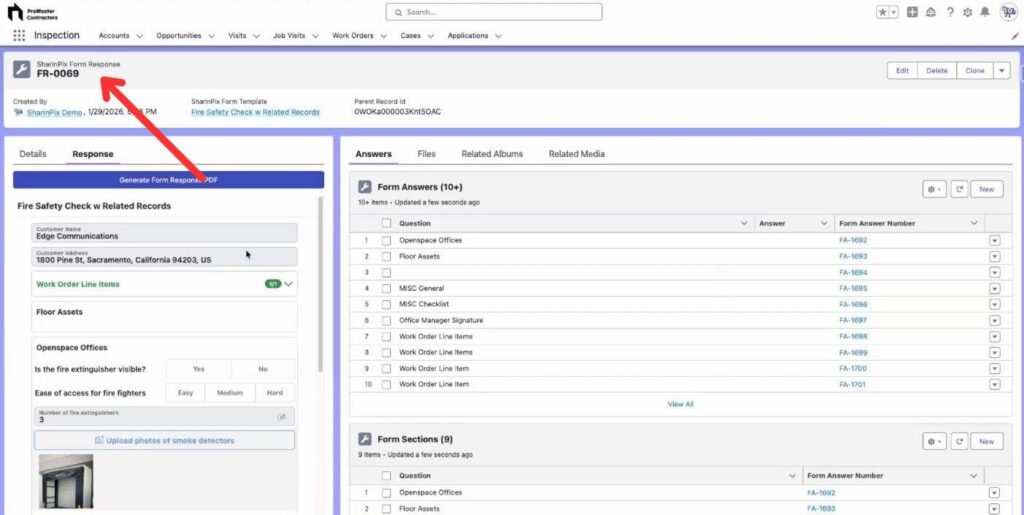
In practice, that is what makes it feel like a Salesforce checklist app rather than a photo repository. The inspection produces records that can be reviewed, filtered, and followed up on without guessing what happened on site.
Typical Use Scenarios Seen in Practice for SharinPix Salesforce Forms
Forms by SharinPix tend to be used in situations where a site visit produces both structured answers and visual evidence, and where the same type of work is repeated across many locations. The scenarios below are not idealized use cases, but patterns that show up regularly in real projects.
| Typical Use Scenarios Seen in Practice for Forms by SharinPix | ||
|---|---|---|
| Scenario | What Happens on Site | Why Forms by SharinPix Fits |
| Site inspections | A technician walks through rooms and documents findings as they appear. Some rooms have no issues, others have several. Photos and notes are captured while standing in front of the issue. | The form can grow during the visit. New sections are added as needed, and visuals stay linked to the exact finding. |
| Asset and equipment checks | The user confirms that equipment is present, records condition, and captures a photo as evidence. Identifiers like labels or serial numbers may also be recorded. | Structured answers and visual proof are captured in one flow, without relying on separate photos or later data entry. |
| Handover or completion visits | A checklist confirms what was delivered or installed. Photos show the state of the site at the time of the visit. | The completed form creates a clear record that can be reviewed later in Salesforce if questions or disputes arise. |
Across all these scenarios, teams need structured data that Salesforce can store and report on, along with visuals that explain that data. When comparing this approach to tools like survey Salesforce apps, it becomes clear that inspections are not just questions. They are observations that need proof.
Hands-On Impressions and SharinPix AppExchange Feedback
What I like about Forms by SharinPix is that it treats field work as the “main event,” not as something that needs to be rewritten later in the office. In many field processes, people first record visual evidence and then add brief notes and responses. This app seems to have been designed specifically with this sequence of actions in mind.
A few details also feel practical from an admin and adoption perspective:
- The form building approach is flexible. Both a drag-and-drop form builder and an option to scan an existing paper checklist and turn it into a digital form with AI.
- Visual capture is not an add-on. Photos, videos, sketches, plans, annotations, and tags are presented as part of the form experience, not as “attachments to upload later.”
- Results arrive in Salesforce with context. The output is structured enough to be reviewed and followed up on, rather than interpreted from scattered images.
If I had to describe it in one line: the value of the SharinPix AppExchange listing is not “another mobile form”, but a workflow that assumes messy, visual, offline field reality.
What Salesforce Users Say
Public feedback is still limited in volume, but it is clearly positive at the surface level: the AppExchange listing shows a 5-star rating based on 4 reviews. Still, a few themes are visible from what is publicly emphasized around the listing:
- Ease of getting started.
- Offline execution for real site conditions.
- A visual-first experience.
- AI-supported capabilities.
In other words, the early public signal aligns with the core promise: less chasing information after the visit, and more complete context arriving in Salesforce the first time.

Pricing, Trial, and Practical Considerations
SharinPix Salesforce solutions are licensed per Salesforce user and offered across several plans, depending on the scope of features needed. The FORM plan is the one that includes offline mobile forms, form templates, form responses stored in Salesforce, and generated PDFs. Pricing is shown per user per month, with a minimum requirement of 10 licenses, which is important to consider for smaller teams.

A free trial for 14 days is available through AppExchange. The trial can be started in different ways, including installation in an existing sandbox or by using a Trialforce org, which comes preconfigured with sample data. This makes it easier to explore the full workflow without affecting an existing Salesforce environment.

FAQs About Forms by SharinPix
Does Forms by SharinPix work when there is no internet connection?
Yes, offline use is supported, but it is important to understand what that means in practice. Forms can be completed in field conditions where connectivity is weak or unavailable, and data captured during the visit is synchronized back to Salesforce once the connection is restored. This includes form responses and visual inputs captured as part of the form.
Do form responses become Salesforce data or just files?
Form submissions are stored as Salesforce records. Each completed form creates a Form Response record, with individual answers stored as related records. This means the data can be reported on, reviewed, and used in Salesforce processes, rather than existing only as a PDF or set of attachments.
Is Forms by SharinPix limited to fixed checklists?
No. Forms can be designed with repeated sections, which allows users to add additional rooms, defects, assets, or other items during a visit. This is useful for inspections where the number of findings is not known in advance and cannot be predicted at form design time.
Is Forms by SharinPix only for inspections?
Inspections are a common use case, but not the only one. The same form structure can be used for audits, handovers, site visits, asset checks, and other field activities where structured answers and visual documentation need to be captured and stored in Salesforce.
Do users need Salesforce admin access to complete forms?
No. Field users who only complete forms do not need admin-level access in Salesforce. Forms by SharinPix uses permission sets to separate configuration from usage. Admins or power users manage form templates and setup, while field users can focus on filling in forms and capturing information during visits. This separation helps keep access simple and reduces the risk of unintended changes to form structure or Salesforce configuration.
Closing Thoughts: How This Fits into Real Salesforce Work
Looking at Forms by SharinPix in the context of everyday Salesforce projects, it feels like a well-thought-out solution that solves the problem of obtaining data in Salesforce from the real world. Many Salesforce implementations struggle not because the platform lacks features, but because real work happens outside stable, connected environments.
What stands out is that the app does not try to simplify field work to fit Salesforce. Instead, it allows Salesforce to accept the reality of inspections, audits, and site visits as they are: visual, uneven, and often offline. Photos, notes, and checklists are captured when and where the work happens, and only then brought back into the system in a structured way.
If this kind of workflow feels relevant, Forms by SharinPix can be explored through an AppExchange trial. One practical option is starting the trial in a Trialforce org, which comes preconfigured and allows the full experience to be tested without impacting an existing Salesforce environment.

Mykhailo is a Salesforce Certified Platform Administrator with development experience in the fintech field. Since 2021, he has gained the Double Star Ranger rank on the Salesforce Trailhead education platform, where he acquired 26 Superbadges in Business Administration, Process Automation, Security, and more. With a decade of expertise in consulting and compliance, he aspires to translate complex technical concepts into accessible content, helping organizations make the most of Salesforce. Mykhailo is passionate about using technology for everyday needs, enjoys reading sci-fi and non-fiction books, and playing video games. He also has an interest in history and outdoor activities such as hiking, camping, and kayaking.
 Previous Post