





Why Salesforce QuickBooks Integrations Often Create Unexpected Problems
Connecting Salesforce and QuickBooks is often seen as a way to reduce manual work and improve visibility. In reality, once the systems are connected, issues often appear. Invoice status may not update correctly in Salesforce, customer records can be duplicated in QuickBooks, or revenue numbers may differ between sales and accounting reports.
These issues happen when the integration is misconfigured, incomplete, or unreliable. Teams notice discrepancies when generating reports, reviewing customer accounts, or reconciling revenue, and leadership struggles to rely on a single source of truth.
Insight:
According to the 2025 Connectivity Benchmark Report by Salesforce, 95% of IT leaders struggle to integrate data across systems.
Even integrations that seem straightforward can create gaps if data synchronization, record matching, or reporting is inconsistent.
While there are multiple options to connect QuickBooks Salesforce available, each comes with its own drawbacks, making the choice of the right integration a critical decision.
With these issues in view, this article walks through seven red flags to watch for in a Salesforce integration with QuickBooks, practical signs that the connection may not be working as intended.
- Top 7 Red Flags in Salesforce QuickBooks Integration
- Addressing the Red Flags: Finding a Better Integration Approach
- Key Features of Breadwinner for QuickBooks
- FAQs About Salesforce QuickBooks Integration Red Flags
- 1. What are the most common warning signs that an integration is not working properly?
- 2. How can I tell if data in Salesforce is usable for automation tools like Agentforce?
- 3. What issues arise when error handling is only available outside Salesforce?
- 4. How do permission problems show up in an integration?
- 5. Why is it important to review how financial records are mapped?
- Conclusion: Ensuring a Reliable Salesforce and QuickBooks Connection
Top 7 Red Flags in Salesforce QuickBooks Integration
Not all integrations work as expected. A poorly implemented Salesforce QuickBooks sync can create more problems than it resolves, introducing delays, duplicate records, or inconsistent reporting. Even when the integration is active, misconfigured settings or incomplete data sync can disrupt operations and make it hard to trust the information in either system.
Recognizing these warning signs and evaluating the QuickBooks Salesforce integration features early can help teams spot issues before they grow into larger operational or financial problems.
1. Slow Syncs and Limited Sync Control
The first red flag to watch for in a Salesforce to QuickBooks integration is slow or inflexible synchronization. If the tool processes data in small batches or runs only on a fixed schedule, teams end up working with outdated information. For busy Sales teams, waiting hours for invoice status or payment confirmation can slow down work and frustrate customers. Research shows that companies with real-time data synchronization achieve 23% more upsell revenue compared with those relying on batch processes.
Another warning sign is the lack of manual sync control. If you cannot trigger a sync on demand when there is an urgent business need, such as confirming a high-value payment, operations remain dependent on system timing rather than business priorities.
Directionality matters too. If the solution only syncs data one way (for example, from QuickBooks to Salesforce), teams lose control over where the source of truth resides.
Usage limits can also create hidden costs. Some tools restrict the number of sync runs or records per day, week, or month and may charge extra once limits are exceeded. As your business grows and transaction volume increases, these restrictions can limit scaling or make it expensive.
2. Incomplete or Rigid Data Mapping
Another major red flag in any integration approach is rigid or incomplete data mapping. Poor mapping can manifest in several ways, each one introducing different problems.
Partial synchronization is a common warning sign. For example, invoices may sync, but related payment transactions are stored as plain text notes instead of structured records. Line items may include only product name and price, without SKU, category, tax breakdown, or discount details. These gaps reduce financial visibility and can cause teams to rely on QuickBooks for verification.
Another critical gap in any Salesforce-QuickBooks integration is the lack of value transformation and conditional data mapping capabilities. Without flexible logic, the integration may transfer data correctly from a technical perspective, but still fail to reflect real business processes.
For example, the integration supports only a default invoice message, without the ability to apply different templates or billing notes based on customer type, country, tax requirements, or contract terms. The communication becomes rigid and less personalized.
Important features to consider:
- Synchronization of essential financial records required by your business inside Salesforce without needing to cross-check QuickBooks
- Support for value transformations and conditional mappings
3. Lack of Error Handling & Monitoring
A reliable Salesforce QuickBooks integration should not only sync data but also make failures visible and traceable. A key warning sign is the lack of detailed audit logs, error reporting, or monitoring. Tools that fail silently or display only generic messages such as “Error alert” leave administrators blind to issues, making troubleshooting difficult or impossible.
Admins should be able to see the log of failed records, the payload sent, the exact validation or error, and whether the issue originated in Salesforce or QuickBooks. For example, if an invoice fails due to a missing tax code in QuickBooks, a vague error could delay billing and revenue recognition. Without clear logs within the Salesforce organization, admins must manually compare systems, wasting time and increasing business risk.
Insight:
According to industry research, 87% of IT leaders classify advanced monitoring, including alerting and event correlation, as “mission‑critical” for operational resilience.
This again indicates that structured error handling and monitoring is widely recognized as a requirement for reliable systems.
Good signs to look for:
- Structured audit logs with timestamps and error codes
- Clear identification of Salesforce vs. QuickBooks errors
- Automatic alerts for sync failures
- Retry mechanisms for safe reprocessing
4. Weak Permission Controls
Access control is a critical factor in any integration project. A secure Salesforce QuickBooks connector must respect each system’s security model and sharing mechanisms. Exposing invoices, payments, or account balances to all users creates serious compliance and governance risks. In fact, over 70% of system breaches stem from compromised identities and access control misconfigurations, proving that even minor gaps in permission management can have major security consequences.
A sales rep may need visibility into invoice status but not tax or bank information. Finance teams require full access for reconciliation, and your clients should have no access to financial data at all. If the integration fails to prioritize security controls, sensitive financial data can be exposed, leading to unauthorized access, audit risks, and reduced trust in the CRM.
A properly designed solution should inherit and respect existing access control structures and allow granular visibility based on business requirements, ensuring financial visibility is controlled and aligned with organizational policies.
5. Security & Compliance Gaps
Beyond permission controls, organizations must ensure their preferred integration option meets modern security and compliance standards. Recent research shows that 57% of organizations experienced at least one API-related data breach in the past two years, emphasizing how vulnerable system integrations can be without proper safeguards.
Financial data is highly sensitive, and weaknesses in encryption or authentication create risks of unauthorized access, data leaks, and exposure of financial or customer information. Data transferred between Salesforce and QuickBooks must be encrypted both in transit and at rest, API authentication should be secured using OAuth 2.0 or token-based methods, and the tool must comply with relevant regulations, such as SOX, GDPR, or CCPA.
Be cautious of vendors who do not clearly document or cannot explain their encryption protocols and safeguards. The absence of these features can lead to serious issues, including audit failures or reputational damage.
6. Inadequate Testing & Sandbox Support
A tool that does not support Salesforce and QuickBooks sandboxes or other test environments should be considered a clear warning sign. Without this capability, any new configurations, workflow changes, or integration updates risk breaking live data.
Without a staging environment, it becomes difficult to validate sync behavior, error handling, and data mapping. Teams cannot safely simulate scenarios, from basic invoice creation to more complex cases like subscription renewals or partial payments, without exposing production data to errors.
Impact:
- Risk of corrupting live Salesforce or QuickBooks data
- Sync failures affecting invoices, payments, or revenue recognition
- Increased manual intervention to correct errors
- Accidental exposure of test transactions/invoices to real customers
Look for a solution that provides full sandbox support, isolated testing environments, and safe rollback options. This allows you to maintain operational integrity while implementing a Salesforce integration to QuickBooks.
7. Limited Data Accessibility for Agentforce and Automations
More companies are implementing Agentforce and other Salesforce-native automation tools every day, but these systems can only operate on data that is fully replicated and structured within Salesforce. Simply seeing QuickBooks records in Salesforce is not enough. If invoices, payments, or customer details exist only as references or external links, automated workflows and Agentforce processes cannot act on them. This creates hidden gaps: tasks may fail, notifications are missed, and important actions cannot be automated.
Warning signs include incomplete records in Salesforce, missing line items, or fields that are visible but not usable for automations. For example, a sales rep might see that an invoice exists, but Agentforce cannot trigger follow-ups or calculate commissions because the data is not structured for automation. Similarly, workflows that rely on payments or tax information cannot function if those details are only stored externally.
Other indicators of a problematic integration are frequent manual interventions to reconcile data, partial syncs that omit key fields, and reliance on external dashboards for actionable insights. Each of these issues signals that the integration may limit Salesforce’s ability to fully automate processes or enable Agentforce to work effectively.
Addressing the Red Flags: Finding a Better Integration Approach
After reviewing the seven red flags, it becomes clear that businesses need an approach that keeps critical financial data inside Salesforce, fully structured and usable for automations like Agentforce, while respecting permissions and providing visibility for administrators.
To find solutions capable of addressing these challenges, we reviewed options on the Salesforce AppExchange, focusing on native apps designed to replicate QuickBooks data directly into Salesforce.
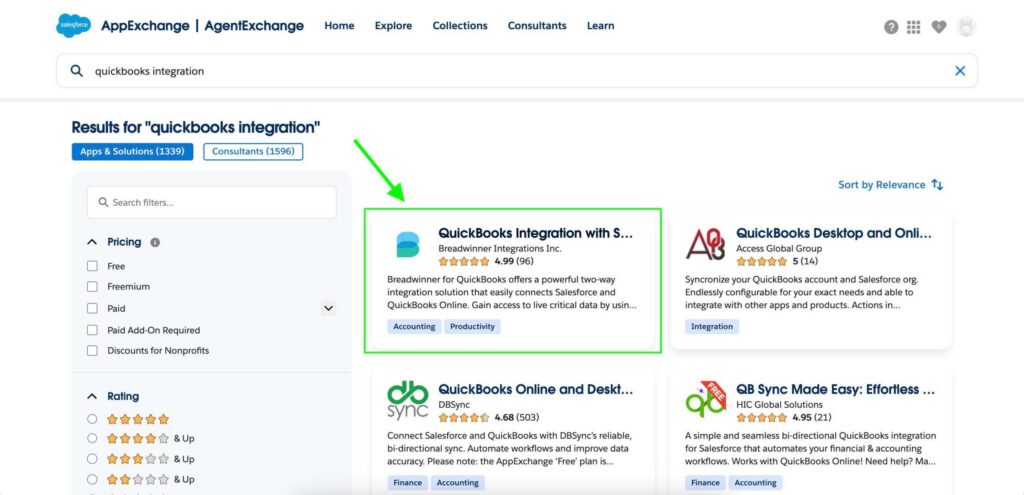
Solutions like Breadwinner for QuickBooks are examples of this approach, keeping records structured, accessible, and usable for reporting, workflows, and automation, without requiring administrators or users to switch between platforms.
By focusing on integrations that operate within Salesforce, companies can:
- Avoid manual entry errors
- Eliminate data staleness
- Speed up financial processes
- Boost employee productivity by saving hours otherwise spent keeping sales and finance systems in sync
Insight:
Sales reps spend most of their week not selling. According to Salesforce’s State of Sales Report, 6th Edition (2025) research, only about 30% of their time is spent on actual selling, while roughly 70% is occupied by non-selling tasks such as data entry, lead prioritization, and generating quotes.
In the next section, we’ll take a closer look at Breadwinner’s solution to understand exactly how it prevents the red flags we’ve discussed.
Key Features of Breadwinner for QuickBooks
To see how these red flags are addressed, let’s take a look at Breadwinner’s key features that prevent common integration issues and keep financial data accurate and usable in Salesforce.
1. Sync Capabilities
The Breadwinner for QuickBooks ensures reliable, near real-time, two-way synchronization between Salesforce and QuickBooks. Regular syncs occur every 15 minutes, while a weekly full sync runs every Friday at 11 PM, based on the user’s time zone, updating all financial data and flagging transactions deleted in QuickBooks.
Sync frequency can be adjusted to match your business needs and data volume, and historical syncs can be restarted manually for specific objects or all data if records are missing from automatic syncs.
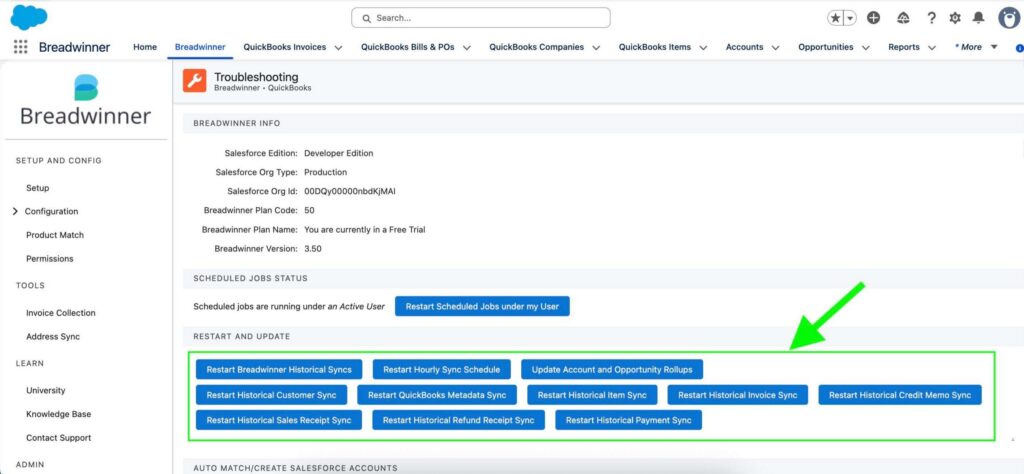
Most importantly, the synchronization is bidirectional, meaning that updates made in Salesforce are also reflected in QuickBooks and vice versa. For example, company details can be updated in Salesforce and synchronized back to QuickBooks within minutes, making data consistent across both systems.
2. Complete and Adaptive Data Mapping
Breadwinner provides flexible, configurable data mapping to ensure financial records between Salesforce and QuickBooks remain accurate and logically structured.
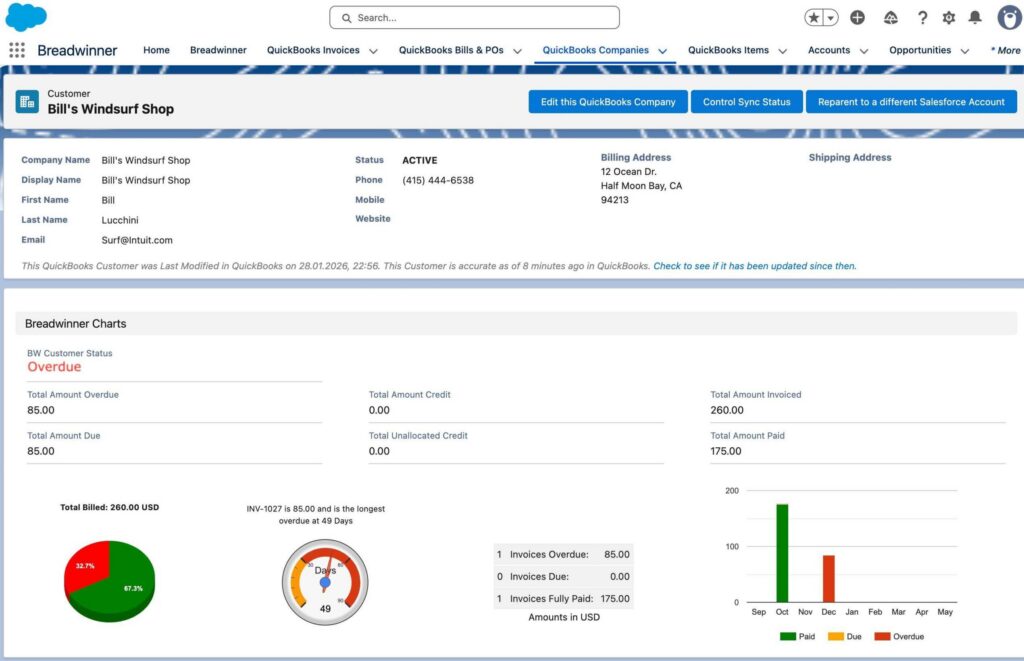
1. Structured financial records inside Salesforce: Customers, invoices, and related financial data are stored as Salesforce records with statuses, dates, amounts, giving users complete financial insight by simply clicking on a record.
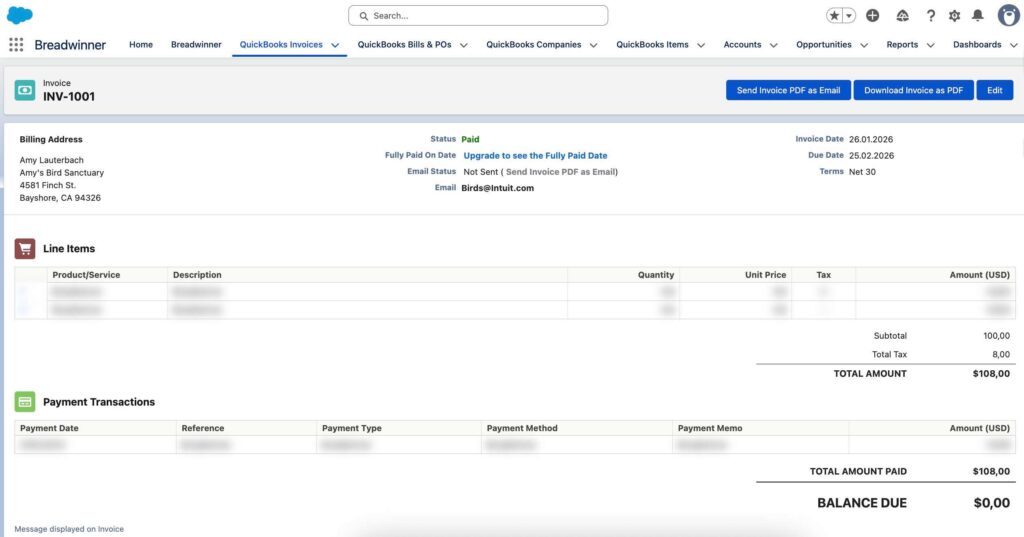
2. Detailed invoice data synchronization: Invoices include not just basic totals, but comprehensive billing details such as products/services, pricing, discounts, and taxes.
3. Configurable invoice mapping: Admins can configure Opportunity field mappings, default due dates, invoice terms, and tax codes for accurate synchronization with QuickBooks.
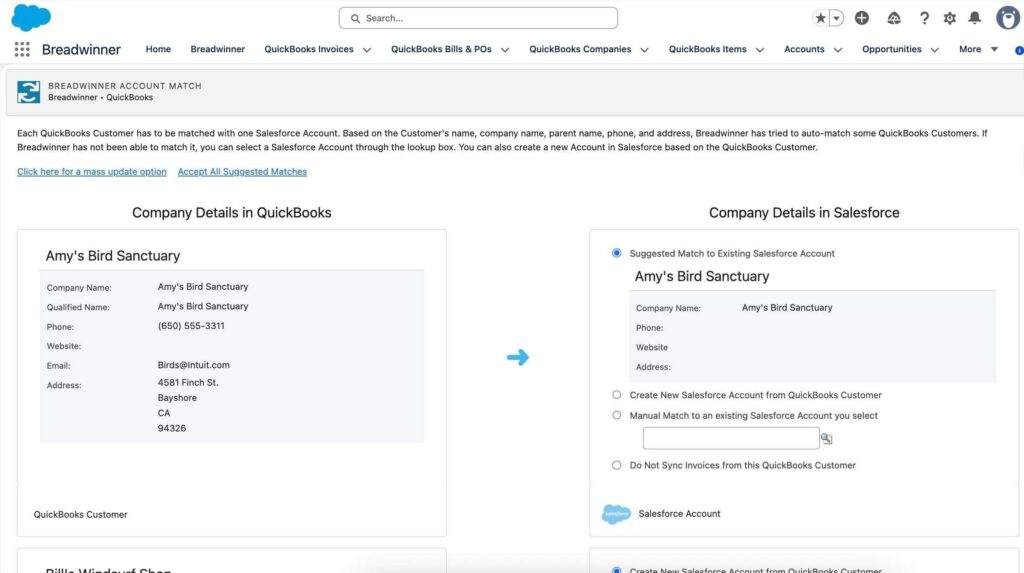
4. Controlled Customer-to-Account matching: QuickBooks customers can be matched to existing Salesforce Accounts, automatically created as new Accounts, or flagged for manual review.
5. Product mapping between systems: QuickBooks products can be associated with specific Salesforce Products through configuration or directly from record pages, which makes product and line-item mapping easy and accurate.
3. Error Handling & Logging
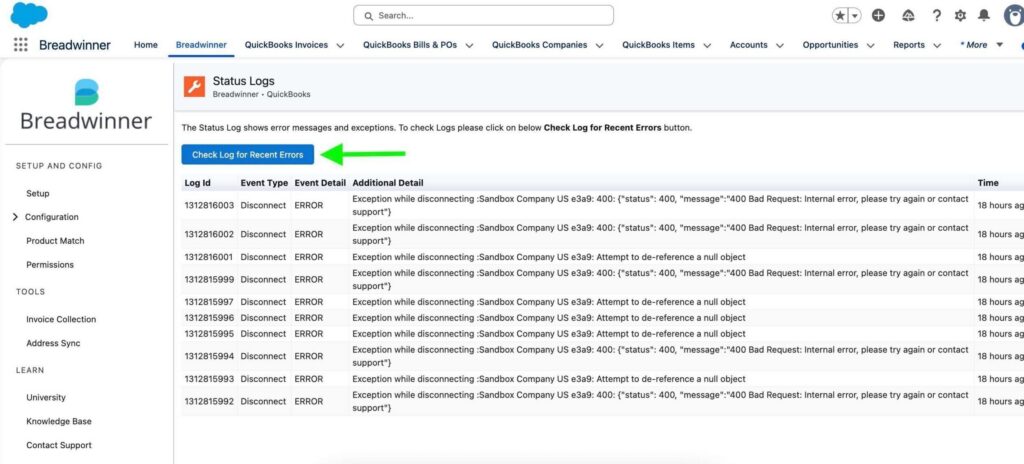
From the setup page, admins can access a comprehensive status log that captures all errors, including details, timestamps, and event types. This is useful for quick identification, troubleshooting, and resolving sync issues before they impact financial records or reporting.
The Business plan (or higher) additionally enables Advanced Logging, allowing administrators to create flows or triggers that automatically send alerts, create tasks, or initiate other actions when sync issues occur, ensuring full visibility and faster resolution.
4. Security & Compliance
Permission sets control data visibility for different user roles, ensuring sensitive financial information is only accessible to authorized teams.
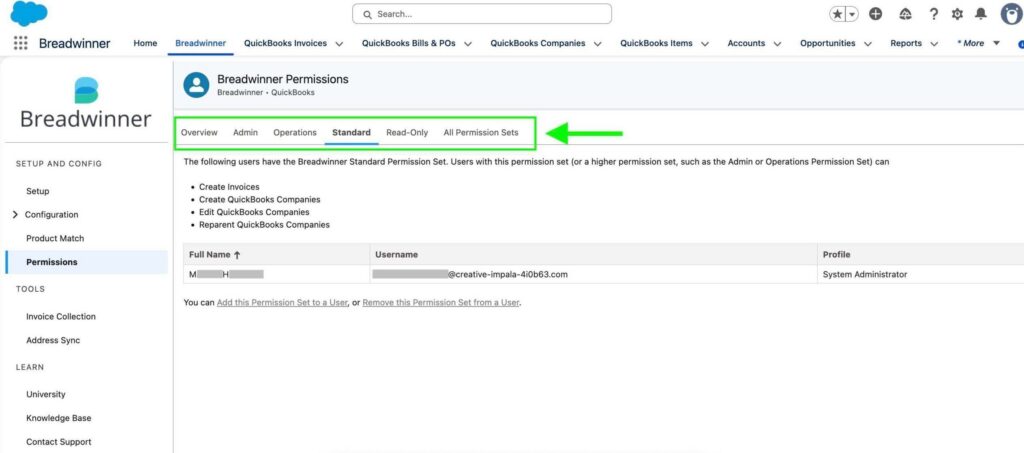
Besides, the solution is SOC 2 Type II compliant, providing strong security controls for data storage, access, and processing, and helping organizations meet industry-standard compliance requirements.
5. Safe Testing & Validation
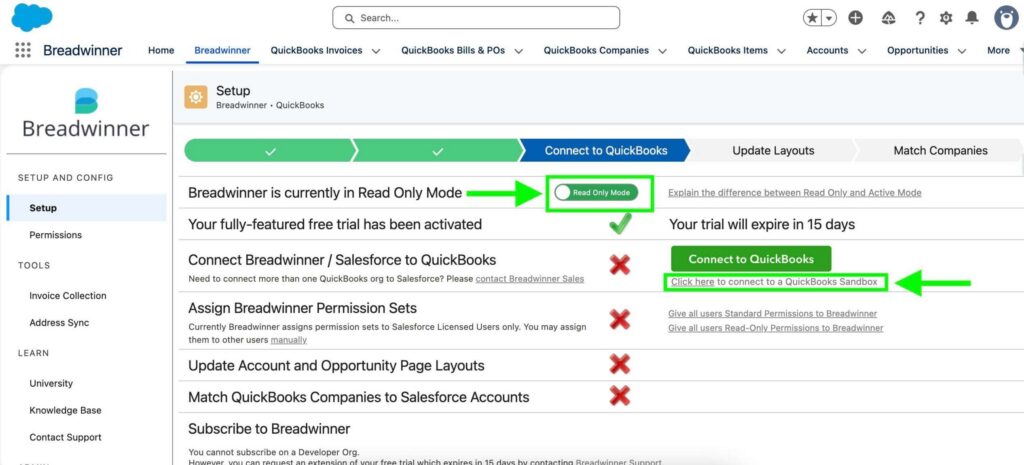
The app starts in Read-Only Mode, syncing data one-way from QuickBooks to Salesforce, allowing teams to safely review and validate data without affecting live records. Once testing is complete, Active Mode can be enabled for full two-way sync.
The app also supports installation in a Salesforce sandbox and connection to a QuickBooks sandbox, letting you safely test billing scenarios, workflows, and data mapping before going live.
6. AI-Driven Financial Analytics
The solution also enables incorporation of modern AI capabilities through Agentforce, an AI agent platform developed by Salesforce, where users can create conversational assistants capable of retrieving data, performing actions and answering questions.
Breadwinner for Agentforce allows users to interact with financial data through natural language rather than manually searching through records. For example, sales representatives can ask questions about clients, invoices, or customer financial history, remind clients about outstanding invoices, and forecast customer behavior more accurately using financial data.
According to the Salesforce Digital Labour Trends Survey (2025), organizations reported saving between 3 and 10 hours per week by using AI agents for routine, low-impact tasks. So, by combining integrated financial data with Agentforce, businesses can begin adopting modern agentic AI approaches, while automating repetitive tasks and improving team efficiency.
| Evaluation of Breadwinner for QuickBooks | |
|---|---|
| Red Flag | How Breadwinner Addresses It |
| Slow Syncs & Limited Sync Control | – Near real-time two-way sync (every ~15 minutes) – Weekly full sync – Adjustable frequency and manual historical sync restart – Controlled activation of two-way sync |
| Incomplete or Rigid Data Mapping | – Structured financial objects (Customers, Invoices, Payments, Line Items) – Configurable mappings and matching – Detailed invoice setup and sync |
| Lack of Error Handling & Monitoring | – Built-in status logs with timestamps and event details – Advanced Logging (Business or higher plan) for alert automation and corrective actions |
| Weak Permission Controls | – Uses Salesforce permission sets – Respects sharing rules – Financial visibility controlled by role and profile |
| Security & Compliance Gaps | – Secure OAuth authentication – Encrypted data transfer – SOC 2 Type II compliant with documented security controls |
| Inadequate Testing & Sandbox Support | – Supports Salesforce and QuickBooks sandbox installation – Read-Only Mode for safe testing |
| Missing AI Capabilities | – AI-powered conversational access to financial data via Agentforce – Ability to query invoices, customers, and related information in real time |
FAQs About Salesforce QuickBooks Integration Red Flags
Even after implementing an integration, problems can quietly slow workflows, create errors, or block automation. The questions below focus on the most common warning signs highlighted in the seven red flags and help teams identify issues before they impact operations.
1. What are the most common warning signs that an integration is not working properly?
Common signs include slow or partial data syncs, incomplete or rigid mapping of records, missing error logs within Salesforce, weak permission controls, and financial data that cannot be used for workflows or automation.
2. How can I tell if data in Salesforce is usable for automation tools like Agentforce?
If records are visible but not structured for workflows, for example, missing line items, payments, or custom fields, they may not trigger automations or support Agentforce processes. Full replication and structured data are essential for automation.
3. What issues arise when error handling is only available outside Salesforce?
When logs and alerts exist in an external system, administrators must switch between platforms to troubleshoot failures. This increases the chance of missed errors, delays in updates, and additional manual work.
4. How do permission problems show up in an integration?
Warning signs include users seeing data they should not access, read-only fields where edits are needed, or an inability to enforce role-based visibility. Weak permission controls can create compliance risks and operational friction.
5. Why is it important to review how financial records are mapped?
Incomplete mapping, such as missing line items, payments, or tax information, forces teams to cross-check the data manually and limits reporting and automation in Salesforce. Proper mapping ensures data is accurate, actionable, and usable by native tools.
Conclusion: Ensuring a Reliable Salesforce and QuickBooks Connection
A Salesforce QuickBooks connection only works if it handles your data properly. Slow syncs, incomplete records, missing error visibility, weak permissions, and unusable data for automations create gaps, extra work, and reporting errors.
Before selecting a connector, map your actual business processes. Identify which financial objects need to sync, how invoices should be generated, how payments should flow back to the CRM, and which customizations or approval workflows must be preserved.
A reliable Salesforce integration with QuickBooks keeps your financial data accurate and up to date, adapts to your business processes, provides visibility into errors, and uses intelligent automations to make work more fast and efficient. With tools like Breadwinner, which replicate QuickBooks data directly into Salesforce, keep records structured and actionable for workflows and tools like Agentforce, teams can connect both systems seamlessly, having financial data synchronized in real time.
A careful selection today ensures a reliable, scalable data flow between Salesforce and QuickBooks, preventing costly rework in the future, and supporting long-term growth.

Antonina is a Salesforce Admin with six certifications: Salesforce Certified Platform Foundations, Platform Administrator, Platform Administrator II, CPQ Administrator, AI Associate, and Agentforce Specialist. She started working with Salesforce in 2021 as Intern Salesforce Developer. Now, a 2-Star Ranger on Trailhead, she continues to expand her skills and knowledge. She helps manage Salesforce systems, automate tasks, and improve processes. Antonina loves learning new things and exploring better ways to use technology. In her free time, she enjoys reading, playing sports, and exploring new tech ideas.
 Previous Post