




Introduction: When Salesforce Document Handling Starts Feeling Limited
As Salesforce becomes the central execution layer for sales and service teams, it also becomes the default repository for a growing volume of business-critical documents. Contracts, proposals, quotes, onboarding materials, and case attachments naturally accumulate within the CRM as part of day-to-day operations.
At a smaller scale, this model works effectively. Files remain linked to records, accessible across teams, and directly connected to customer activity. However, as usage expands, document management often becomes more difficult to maintain. Storage consumption increases steadily, file organization becomes inconsistent, and document workflows gradually shift outside Salesforce into email threads or external storage platforms.
At this stage, a key architectural question typically emerges: how should documents be managed within Salesforce to support scalable, controlled, and efficient business processes?
This is exactly where a Salesforce productivity app mindset becomes relevant, especially when evaluating whether native capabilities are enough or when a dedicated document layer is needed.
This article will help you identify where native Salesforce document capabilities begin to create operational constraints and compare two widely used solutions, CloudFiles and XfilesPro, to help you choose the right one for your team.
- Why Salesforce Is Not Enough for Document Management
- From Challenges to Salesforce SharePoint Integration: Selecting a Solution
- CloudFiles Quick Overview: A Complete Salesforce SharePoint Integration and Document Platform for Salesforce
- XfilesPro Quick Overview: Storage and Document Lifecycle Management
- Feature Comparison: Which Salesforce Document Management Tool Covers Daily Work Better?
- Security and Architecture: What Salesforce Teams Should Check
- Usability Comparison: Which Solution Works Better for Daily Salesforce Operations?
- Pricing Comparison: How Do CloudFiles and XfilesPro Compare?
- User Feedback: What Salesforce Customers Say
- The Verdict: Choosing the Right Salesforce Document Management App
- FAQs about CloudFiles and XfilesPro
Why Salesforce Is Not Enough for Document Management
There is native Salesforce file management available through Salesforce Files, which enables users to store, access, and share documents directly from CRM records. However, it is not designed as a full document management system, and it does not provide the deeper structure required for document-heavy business processes.
As teams scale, several limitations become clear.
1. Salesforce Document Storage Grows Faster than Expected
Every uploaded file consumes Salesforce storage. Over time, this leads to unexpected pressure on limits and increasing costs for additional storage.
Teams often realize too late that documents, especially large or repetitive files like proposals and contracts, become one of the biggest drivers of storage consumption.
Insight:
Salesforce provides a baseline of around 10 GB of file storage per org, with additional capacity typically scaling at approximately 2 GB per user in higher editions.
While this model appears sufficient at first, actual consumption is driven by daily CRM activity rather than user count. Sometimes files can reach up to 2 GB in size, meaning individual documents such as contracts, proposals, or case attachments can consume significant portions of total storage.
Since there is no limit on the number of files, only on total capacity, storage pressure typically emerges gradually and is only noticed once operational usage begins to approach allocated limits.
2. Lack of Structured Document Organization
Salesforce organizes files through record-level associations rather than a centralized document hierarchy. Files are linked to objects via the Salesforce Files data model, which prioritizes relationships over folder-based structure.
This creates several operational challenges:
- Lack of a unified, record-driven folder structure across objects,
- Limited ability to standardize document grouping at scale,
- Constraints in defining consistent document organization rules across teams,
- Residual presence of legacy attachment data in some environments due to historical usage and integrations.
As a result, document organization is largely driven by user conventions and process discipline rather than a strictly defined system-level structure.
3. Document Search Becomes Unreliable at Scale
Finding the right document is simple in small orgs, but becomes harder as volume increases.
Common issues include:
- Multiple versions of the same file across records,
- Inconsistent naming conventions,
- Limited metadata usage for filtering,
- Search results that mix irrelevant or outdated files.
This slows down daily operations, especially in sales and legal processes.
4. Collaboration Is Fragmented Across Tools
Documents rarely stay within one team. They move between sales, legal, finance, and external stakeholders.
Salesforce alone does not fully support this lifecycle, which leads to:
- External sharing through email or cloud drives,
- Version control managed outside CRM,
- Feedback loops happening in disconnected systems,
- No single controlled document flow inside Salesforce.
This creates duplication and reduces visibility.
5. Compliance and Governance Limitations
For regulated industries, documents need controlled access, retention rules, and audit-ready history.
While Salesforce provides security at record level, document-level governance often requires additional structure, especially for:
- Version tracking,
- Retention policies,
- Audit trails,
- Controlled distribution.
Without this, compliance becomes harder to enforce consistently.
From Challenges to Salesforce SharePoint Integration: Selecting a Solution
Once these challenges are understood, the next step is to look at solutions that address them directly inside Salesforce.
Instead of custom-built integrations, most teams choose ready-to-use AppExchange applications that extend Salesforce document capabilities without changing existing CRM processes or introducing additional systems.
To identify suitable options, we reviewed Salesforce AppExchange (now AgentExchange) to find a Salesforce SharePoint connector and focused on two widely adopted document management solutions: CloudFiles and XfilesPro.
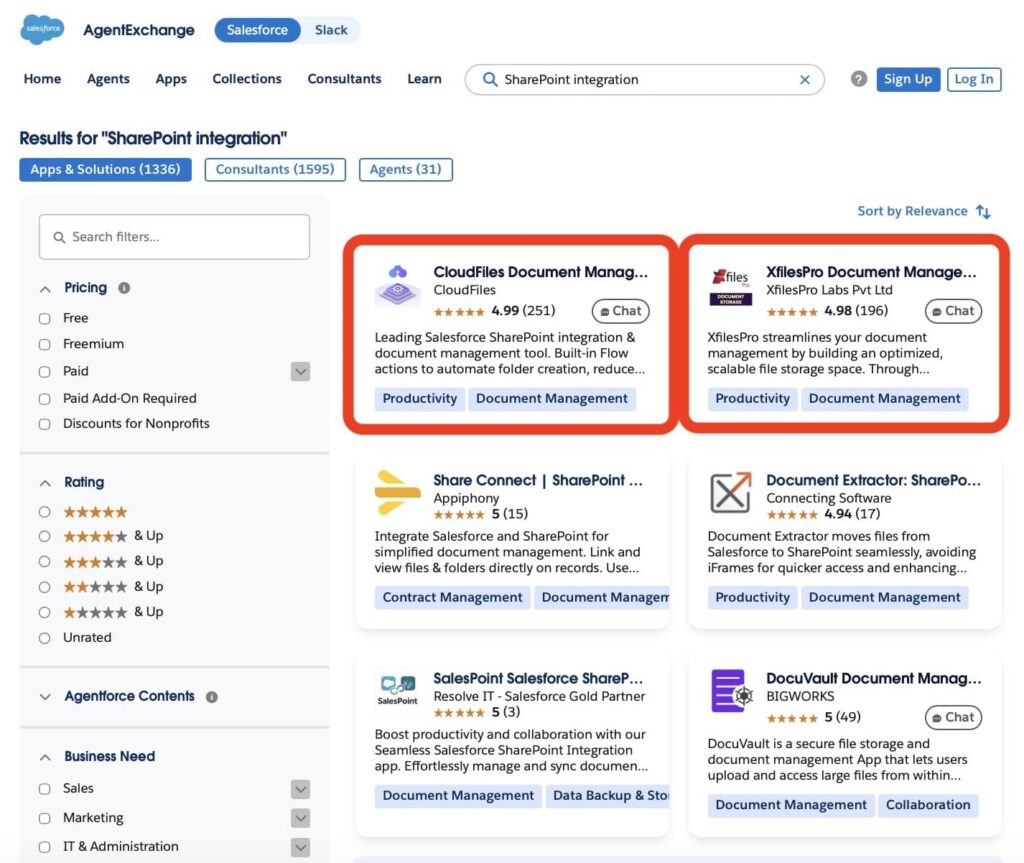
Both tools aim to resolve the same core limitations around storage, structure, search, collaboration, and governance. However, they take different technical approaches to how documents are stored, organized, and accessed within Salesforce.
In the next sections, we will compare CloudFiles and Xfiles Pro side by side. Each category will include a simple star rating to show how each solution performs in real Salesforce environments and which approach is better suited for different team requirements.
CloudFiles Quick Overview: A Complete Salesforce SharePoint Integration and Document Platform for Salesforce
CloudFiles is a Salesforce-native, enterprise-grade document management platform that connects Salesforce to SharePoint (and to Google Drive, OneDrive, MS Teams, Dropbox, AWS S3, Azure Blob and Azure Files, and Box) and then runs the full document lifecycle inside the CRM. It does everything a storage connector does, offloading files, automating folders, and reducing Salesforce storage, and adds the workflow layer most teams handle outside Salesforce today: in-record editing, secure external sharing, datarooms, file requests, engagement analytics, document generation, and document AI.
In short, storage offloading is where CloudFiles starts, not where it stops.
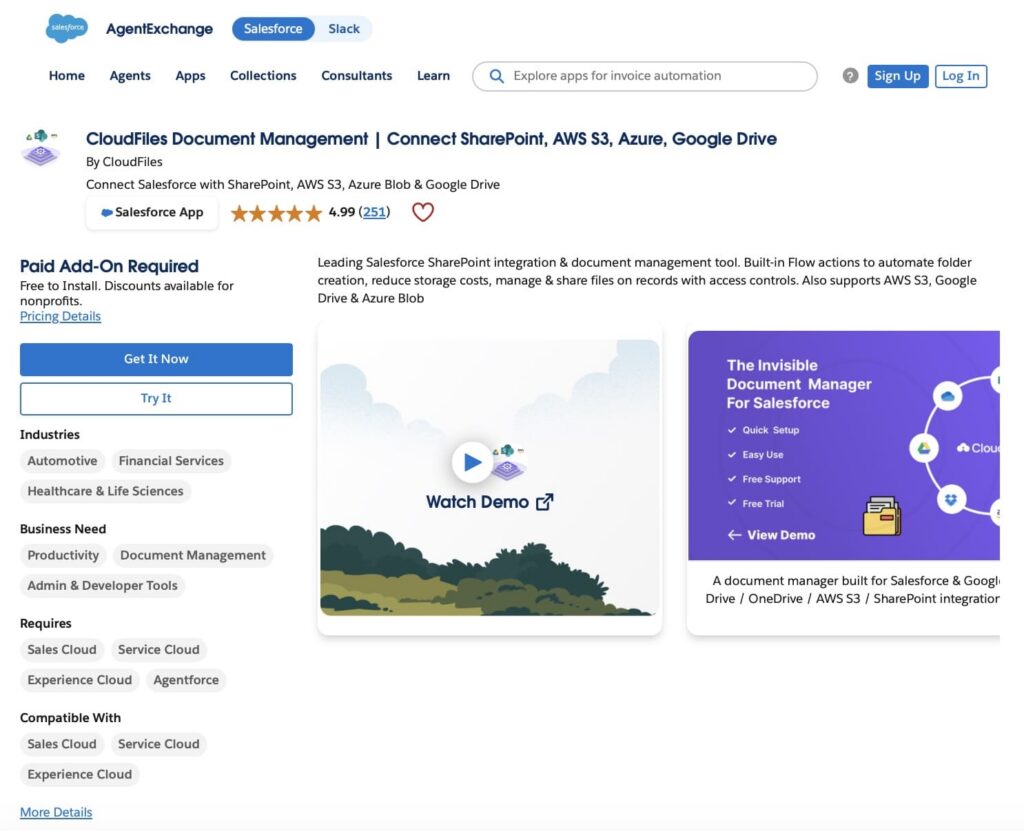
Where does CloudFiles fit for Salesforce SharePoint integration? It turns Salesforce into the control layer for SharePoint documents. Files stay in SharePoint (or your chosen storage), while access, organization, sharing, tracking, and governance are driven from Salesforce records and Flows.
The central idea behind CloudFiles is simple: documents should stay connected to Salesforce business processes. Instead of treating storage as a separate system, CloudFiles connects documents directly to Salesforce records and workflows.
1. Setup and initial configuration in Salesforce.
CloudFiles is installed from AppExchange and configured directly within Salesforce using standard admin permissions. The initial setup typically focuses on connecting external storage systems such as SharePoint, Google Drive, OneDrive, or AWS S3, and defining how documents are linked to Salesforce objects.
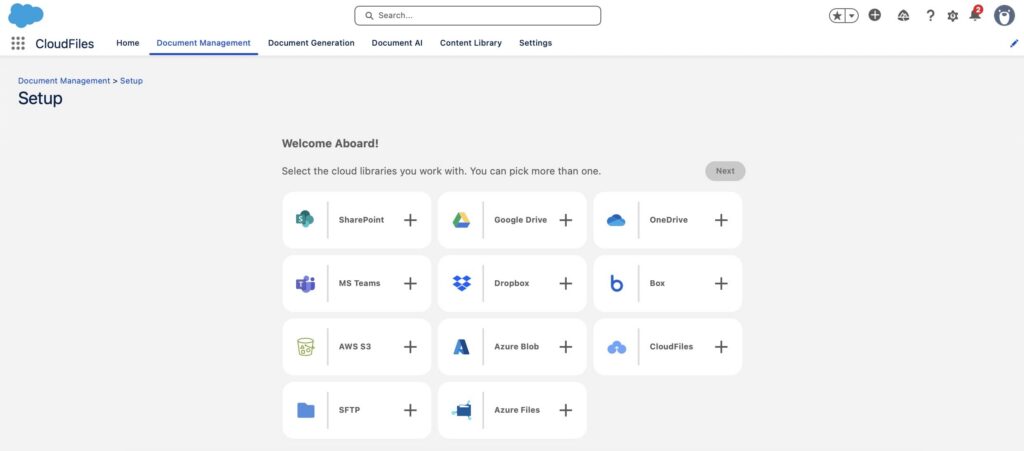
Once connected, administrators can configure how documents are organized and accessed across core CRM objects such as Accounts, Opportunities, and Cases. This enables documents to follow Salesforce record structure while remaining stored in external repositories rather than Salesforce file storage.
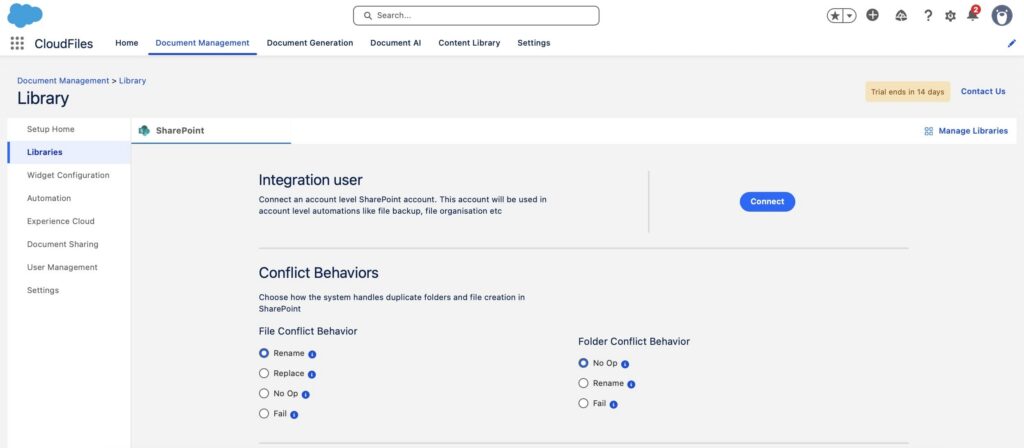
The setup process is primarily admin-driven, with configuration handled through Salesforce setup screens and standard configuration tools, requiring minimal or no custom development in most implementations.
2. External storage connectivity.
CloudFiles connects Salesforce to multiple external storage systems, allowing organizations to manage documents outside Salesforce while keeping them accessible within CRM workflows.
Supported storage systems include:
- SharePoint
- Google Drive
- OneDrive
- MS Teams
- Dropbox
- AWS S3
- Azure Blob and Azure Files
- Box
This model allows Salesforce to act as a document access and control layer rather than the primary storage system, and it means CloudFiles supports more storage destinations than storage-first alternatives that focus on SharePoint, Google Drive, OneDrive, and AWS S3 alone.
3. Operational model.
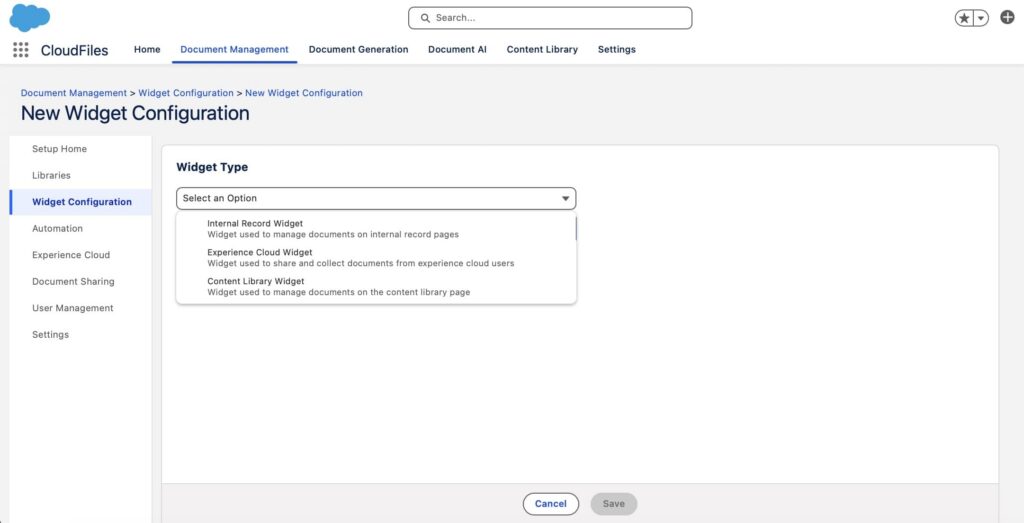
In practice, CloudFiles operates as a Salesforce-native interface for external document systems. Documents are stored externally, and CloudFiles allows users to access them within Salesforce while retaining full CRM functionality. Rather than uploading documents into Salesforce’s own storage, users get centralized access to documents directly from the records they’re working on. This keeps file organization aligned with the Salesforce data model, so nothing feels out of place. When it comes to automating document workflows in the background, users can use Flow and custom widgets to trigger document actions based on record changes, business rules, or user input.
4. Widget-based document experience.
CloudFiles uses widgets, which are Lightning Web Components (LWCs), to let users manage and share documents from external storage platforms directly within Salesforce records. There are dedicated widgets for different tasks. An internal record widget handles files linked to a specific Salesforce object, while a Content Library widget lets you browse connected external storage like SharePoint without leaving the record. Upload components send files straight to external repositories, and sharing widgets support controlled external collaboration when documents need to go beyond your org. For automation, flow-based widgets bring these same document actions into Salesforce Flow, so the whole thing fits naturally into the page layouts and processes you’re already using.
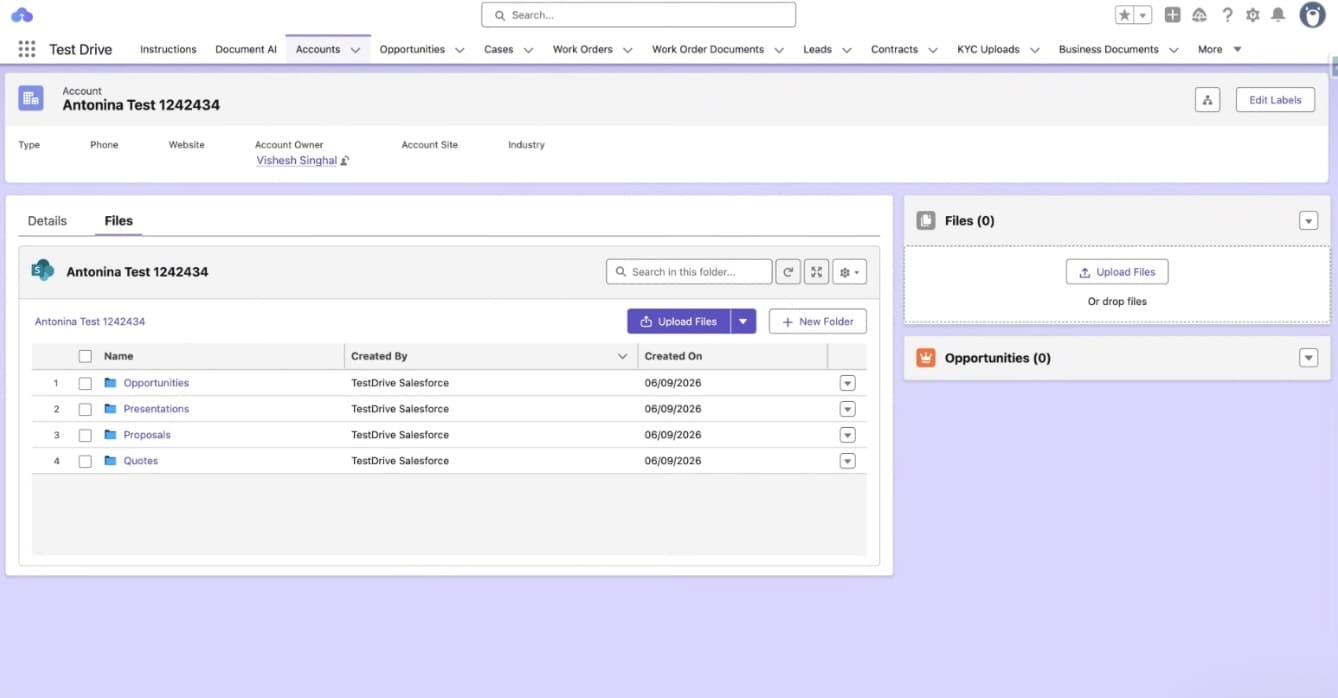
5. Content library and external storage access.
The Content Library acts as a central access point for connected external storage systems inside Salesforce. It allows users to seamlessly navigate and browse files or folders from external providers without ever leaving the platform. It retrieves metadata such as file IDs, folder IDs, and storage references that can be used in Flows and Apex to automate business processes. It also streamlines collaboration by letting teams share these external documents directly with Salesforce Public Groups. By operating this way, Salesforce functions as an intelligent operational layer on top of external storage, rather than just acting as another place to dump files.
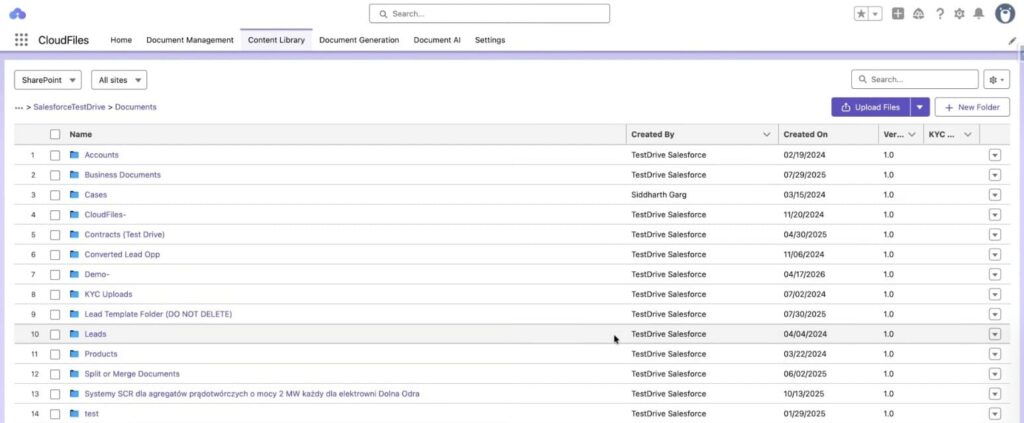
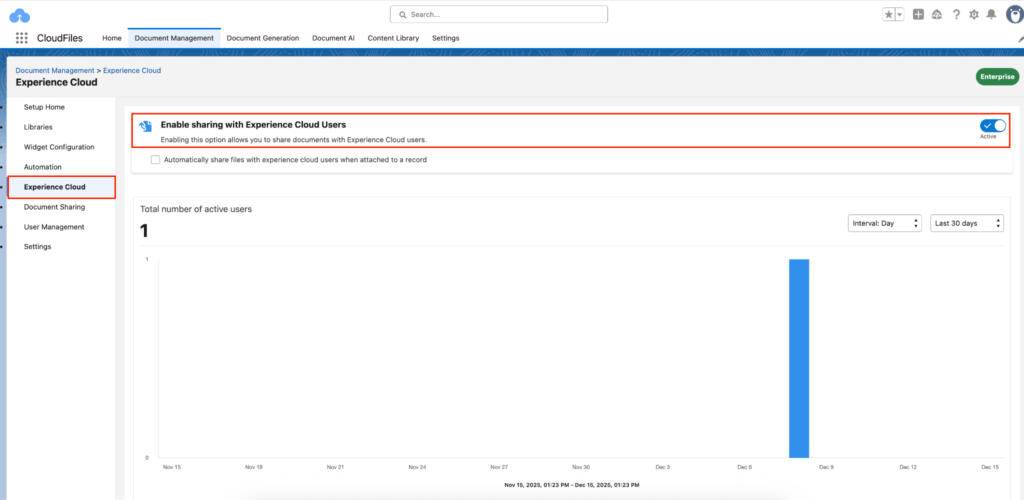
6. Experience Cloud and portal document workflows.
CloudFiles supports these portals, so external users can view, upload, and download files and folders stored in SharePoint or other connected systems without a separate SharePoint login. Setup is handled in the Experience Cloud section under Document Management, after which the CloudFiles widget can be added to Experience Cloud pages, including record pages, home pages, and custom community pages. The widget surfaces documents from Salesforce records or content libraries, and users see only the content their permissions allow. Files remain in their record-linked folder in external storage.
Access is governed by a CloudFiles External Users permission set, which determines which Experience Cloud users can use CloudFiles and which operations (view, upload, download) are available to them. Documents can be shared with portal users in three ways: automatically through a default configuration, manually through the record widget or Content Library, or through Salesforce Flow using the Share With Community User and Remove from Community actions. The Flow option allows access to be granted or revoked based on record logic, for example, when a case is opened or closed. Documents uploaded by portal users are saved to the record-linked SharePoint folder, where internal teams can access them.
7. Automating SharePoint document workflows from Salesforce.
CloudFiles provides a broad library of out-of-the-box Salesforce Flow actions that cover most document operations, so automations can be built in Flow Builder without code. On the management side, actions handle creating, copying, moving, and deleting files and folders, connecting external files or folders to records as attachments, retrieving metadata, updating permissions, and syncing between external storage and Salesforce. On the sharing side, actions create shareable links for files, folders, or datarooms, build and populate datarooms, create file request blocks to collect documents from external users, share resources with Experience Cloud users, and unshare them. These run in record-triggered, scheduled, and screen Flows, and because each action returns values such as a folder ID or link URL, they can be chained together. A single automation can, for example, create a folder structure when a record is created, attach it to the record, generate a link, and store it in a field or send it by email. The result is that both storage tasks and sharing or collection tasks can be automated across a full workflow rather than just basic file offloading.
Beyond the standard set, the CloudFiles widget supports custom actions that admins build as native Flows and place alongside the default rename, move, share, and download options. These can act on a single file or on a multi-select set for bulk operations, with documented examples such as bulk move, one-click archiving, and sending selected files as an email attachment, so the widget can be tailored to a team’s own processes. For more advanced needs, CloudFiles also exposes Apex actions and platform events that fire when actions complete or fail, allowing developers to trigger or coordinate larger processes. Taken together, the automation spans three levels: point-and-click actions users run from the record, no-code Flow automations admins configure, and code-level control for engineering teams.
Typical automation use cases include:
- Auto-creating a standard folder set (such as Contracts, Quotes, and Proposals) in SharePoint whenever a new Account or Opportunity is created, and linking it to the record.
- Generating a secure, expiring share link when a document is attached to a record and writing it to a field for the owner to send.
- Building and populating a dataroom at a defined Opportunity stage so a full set of files can be shared through a single link.
- Creating a file request on a Case or onboarding record so external users upload required documents straight into the correct record-linked folder.
- Bulk archiving or moving closed-deal files to a designated folder in one action from the record widget.
- Granting or revoking Experience Cloud portal access to specific files based on record status.
8. Migration, file transfer, and storage optimization.
CloudFiles addresses Salesforce storage in two ways: a one-time migration of existing files and ongoing offloading of new ones. For existing data, a bulk migration automation moves current Salesforce files, attachments, and ContentDocuments into SharePoint or another connected store in a single operation, organizing them into folders that mirror the Salesforce record hierarchy. Files remain accessible from their records after migration, so users see no change in how they reach documents. For new files, Flows can intercept uploads and route them to the correct record folder in SharePoint as they are added, with conditional routing to different folders based on record type, stage, or field values. The transfer also works in reverse, so specific external files can be brought back into Salesforce Files or Notes and Attachments when a document needs to be stored natively, for example archiving a final signed contract.
The storage effect comes from where the files ultimately live. Because documents are held in external storage and only metadata (file references and activity logs) is kept in Salesforce custom objects, Salesforce file storage consumption drops while the documents stay linked to and accessible from their records. This lets teams reduce storage overage costs without giving up in-CRM access or organization.
For organizations leaving native Salesforce Files behind, this is a large-scale migration path: the bulk automation moves existing files, attachments, and ContentDocuments into external storage in a single operation, organized to mirror the Salesforce record hierarchy, while Flows keep routing new uploads to the right folders from day one.
9. Secure sharing, datarooms, file requests, and engagement analytics.
CloudFiles adds a sharing layer on top of connected storage, configured from the Salesforce record through Flow actions and widget actions. Any SharePoint file or folder can be turned into a CloudFiles link with password protection, an email allowlist, an expiry date, and download controls, and recipients do not need a Microsoft account to open it. Link settings such as status, expiry, download policy, and security remain editable from Salesforce after a link has been sent. Multiple files and folders can be grouped into a dataroom, a single branded link used for cases such as proposals, deal rooms, onboarding kits, and compliance checklists, and datarooms can be cloned from templates and populated automatically. File request blocks work in the other direction, letting external users upload documents into the correct record-linked SharePoint folder as a structured intake step.
Activity on shared documents is recorded and written back to Salesforce as custom objects, including opens, views, downloads, and time spent per page on formats such as PDFs and slide decks. Because this data sits on the record, it can be used in standard Salesforce reports and dashboards and can trigger Flows, for example notifying an owner when a proposal is opened or when a document is viewed repeatedly without a response. Since engagement tracking is tied to the same links, sending a document and monitoring what happens to it take place in one system.
10. Security, compliance, and audit.
CloudFiles is independently audited and certified against leading standards, with platform-level SOC 2 Type II and ISO 27001 certification and support for HIPAA and GDPR requirements. It logs every action (uploads, views, edits, and sharing) for audit-ready governance, supports role-based access aligned to the Salesforce sharing model, and offers data residency in the US, EU, UK, and AU. Files remain in your external storage and are not copied into CloudFiles or used to train its AI models.
XfilesPro Quick Overview: Storage and Document Lifecycle Management
XfilesPro is a Salesforce file management solution designed to optimize storage by connecting Salesforce with external cloud storage systems. It is external-storage-first by design: the platform is commonly used by teams whose primary goal is to eliminate Salesforce storage constraints and centralize file handling in systems such as SharePoint, Google Drive, OneDrive, and AWS S3.
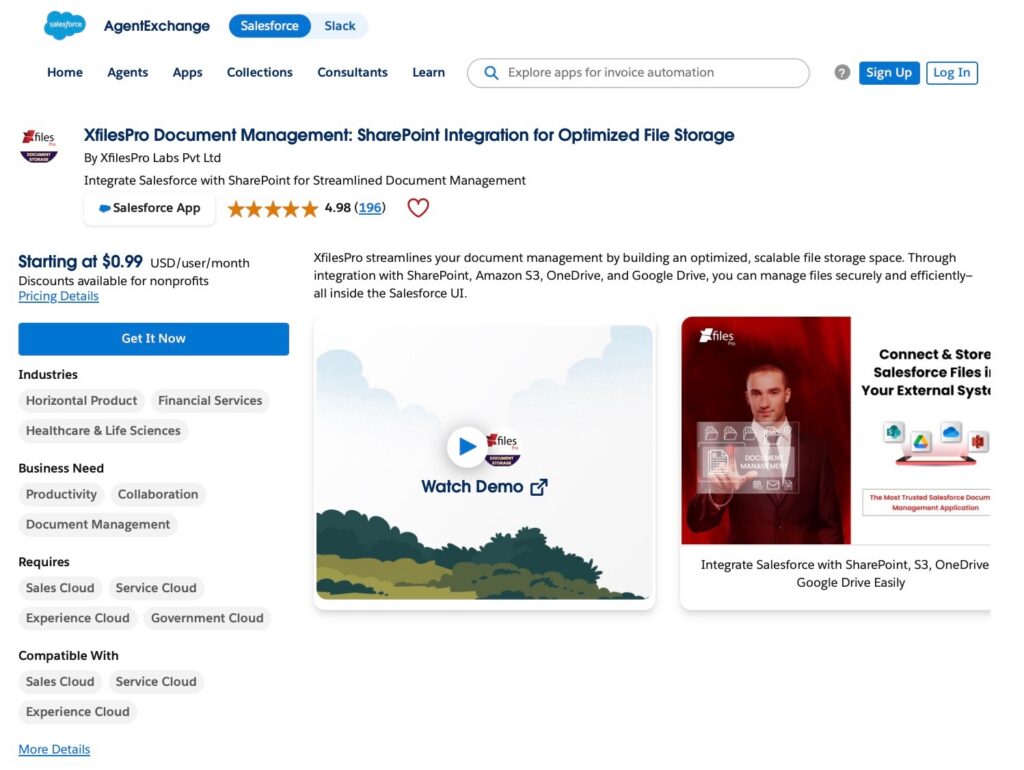
XfilesPro AppExchange
1. Setup and external storage integration.
XfilesPro is not installed via AppExchange. Access is requested through a form, after which the vendor team initiates the setup process. However, the exact configuration flow for external storage systems is not fully transparent from a self-service perspective.
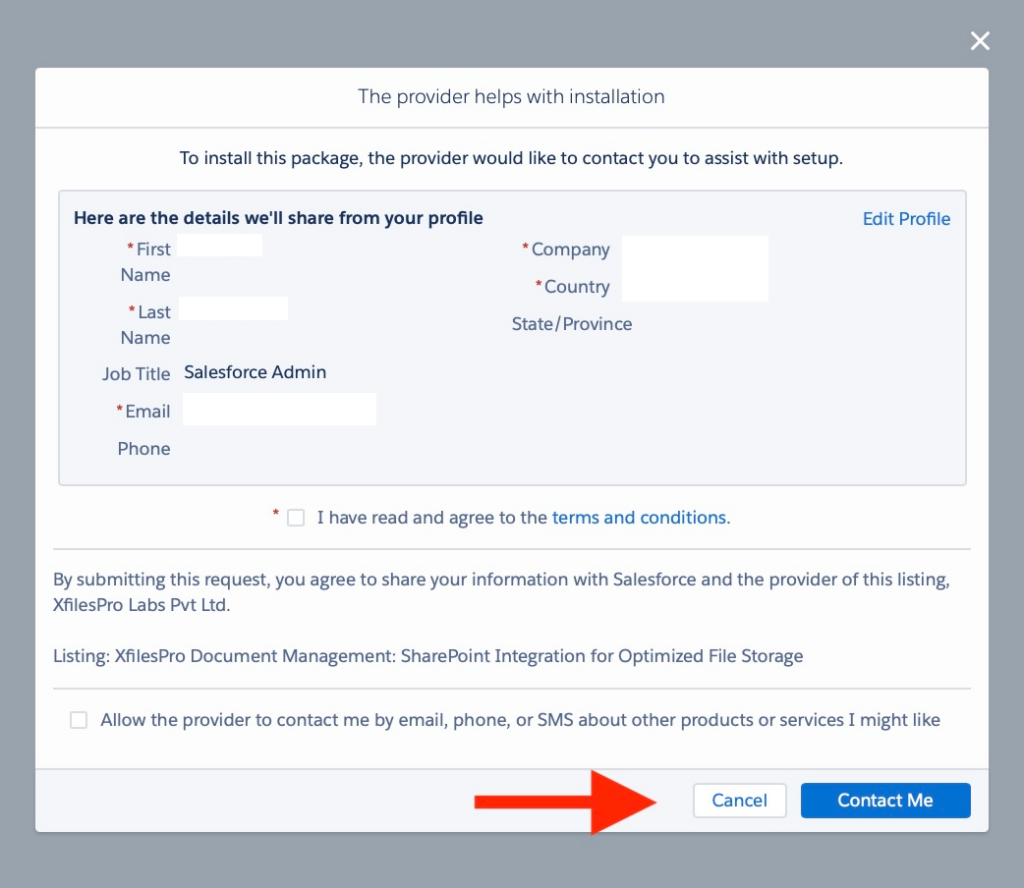
Install the package
2. Document management and advanced features.
XfilesPro extends Salesforce document handling with a broader enterprise document management layer that connects Salesforce with external storage systems such as SharePoint, Google Drive, OneDrive, and AWS S3.
These capabilities typically include:
- Version control for tracking document changes and updates,
- Metadata tagging to support classification, search, and compliance,
- Bi-directional synchronization between Salesforce and external storage systems,
- In-Salesforce file preview, allowing users to view documents without leaving Salesforce,
- Document lifecycle management, including structured handling of creation, storage, organization, and access control.
This positions XfilesPro Salesforce SharePoint sync as a unified document management layer across Salesforce and external storage platforms, rather than just a file storage connector.
3. Automation and workflow integration.
XfilesPro supports integration with Salesforce automation capabilities, allowing document-related actions to be embedded into existing CRM processes.
Typical implementation patterns include:
- Salesforce Flow-based automation, used to trigger document operations within business processes,
- Apex-based operations, for custom or advanced use cases requiring programmatic control,
- API-based interactions, enabling external systems to manage or synchronize documents,
- Process-driven file handling, where document actions are tied to standard CRM events such as record updates or stage changes.
This allows organizations to connect document management with Salesforce workflows across areas such as sales processes, service operations, and onboarding journeys.
4. Operational and value layer.
XfilesPro is designed to maximize existing enterprise cloud storage investments by fully integrating them with Salesforce workflows.
In practice, it enables:
- Centralized document access across cloud platforms,
- Reduced Salesforce storage consumption,
- Automated document lifecycle management,
- Consistent file governance across systems.
It also provides a live demo and sandbox environment, allowing teams to validate functionality before deployment.
Feature Comparison: Which Salesforce Document Management Tool Covers Daily Work Better?
After understanding each application individually, it is time to compare them directly based on how they perform across key document management capabilities in Salesforce.
The first comparison focuses on features: how each solution handles the core document-related requirements that teams deal with in daily Salesforce operations.
Both tools cover the essential ground: external storage integration, folder automation, secure sharing, and collaboration. However, they differ in depth and emphasis. CloudFiles extends Salesforce into a complete document platform spanning management, generation, and AI, while XfilesPro concentrates on storage offloading, synchronization, and file lifecycle control.
The table below breaks down how each platform performs across the most important functional areas.
| Feature Comparison: CloudFiles vs XfilesPro | ||
|---|---|---|
| Area | CloudFiles | XfilesPro |
| Main focus | Enterprise document management platform, Salesforce-native: management, generation, and AI-assisted capabilities in one suite | External-storage-first file management focused on storage offloading, synchronization, and lifecycle control |
| SharePoint integration | Deep record-level integration inside Salesforce with automated structure and access | Connector-based integration with external storage systems |
| External storage support | SharePoint, Google Drive, OneDrive, MS Teams, Dropbox, AWS S3, Azure Blob and Azure Files, Box | SharePoint, Google Drive, OneDrive, AWS S3 |
| Folder automation | Salesforce-object-driven automatic folder structure and mapping | Rule-based folder structure aligned with sync and storage configuration |
| Document generation | Native document generation with templates and automation | Available via dedicated document generation module (DocPrime) |
| eSignature | Supported through integration with DocuSign | Supported via configuration and integration |
| AI document processing | Available as part of document intelligence capabilities | Available via document intelligence module (Xtract), not core storage layer |
| OCR extraction | CloudFiles Document AI combines AI-powered OCR and NLP to extract key information from printed, scanned, handwritten, and multilingual documents. | Available via document intelligence capabilities, module-based |
| Metadata automation | Advanced Salesforce-native metadata handling | Moderate metadata handling based on sync and external structure |
| Storage optimization | Strong reduction of Salesforce storage through external linking, bulk migration, and automation | Strong focus on external storage offloading and migration |
| File migration | Bulk migration of Salesforce files, attachments, and ContentDocuments into external storage, organized to mirror the record hierarchy, plus ongoing Flow-based offloading of new uploads | Strong migration and synchronization capabilities |
| Audit logs | Every document action logged (uploads, views, edits, sharing) with activity written back to Salesforce objects for reporting | Sync tracking and governance logs |
| Secure sharing | Salesforce-controlled secure sharing with per-link security, datarooms, and file requests | External storage permissions combined with Salesforce access control |
| External uploads | File request blocks route external uploads into the correct record-linked folder | Supported via external storage workflows and connectors |
| Collaboration features | Salesforce-centric collaboration experience, including Experience Cloud portals | Cross-system collaboration via connected storage platforms |
| Total stars | ⭐⭐⭐⭐⭐ | ⭐⭐⭐⭐ |
Key Takeaways
- CloudFiles is the more complete enterprise document management platform for Salesforce, covering document management, generation, automation, secure sharing, eSignature, and AI-powered processing within Salesforce workflows.
- XfilesPro is a focused external-storage and file-lifecycle tool, strongest where the requirement is storage offloading, migration, and synchronization across connected systems.
Security and Architecture: What Salesforce Teams Should Check
Security in document management is not limited to file protection. In Salesforce environments, it is defined by how documents are stored, how permissions are enforced across systems, and how governance behaves at scale.
For most teams, the key evaluation areas include:
- how Salesforce permissions map to external storage,
- how access is controlled across internal and external users,
- how secure sharing is implemented,
- how audit and compliance requirements are supported,
- how the architecture behaves with large document volumes.
Both CloudFiles and XfilesPro integrate with external storage systems, but they differ in architectural design and compliance ownership.
CloudFiles, the SharePoint Salesforce connector, operates as a Salesforce-native document platform with integrated external storage support, combining CRM-level workflows with certified security controls. XfilesPro is designed as an external-first document management layer that synchronizes Salesforce with enterprise storage systems such as SharePoint, Google Drive, OneDrive, and AWS S3.
| Security and Architecture Comparison: CloudFiles vs XfilesPro | ||
|---|---|---|
| Area | CloudFiles | XfilesPro |
| Salesforce-native experience | Deep integration with Salesforce record context and document workflows | Salesforce integration layer over external storage systems |
| External storage architecture | Hybrid model: Salesforce-native document layer plus external storage integration | External-first architecture built around connected storage systems |
| Permission mapping | Direct mapping of Salesforce permissions to document access rules | Role- and policy-based mapping across Salesforce and external storage |
| Role-based access control | Salesforce-based users, roles, and sharing model | RBAC aligned with connected storage systems |
| Secure external sharing | Salesforce-controlled sharing with per-link security rules (email verification, allowlists, domain restriction, passwords, expiry, download control) | External storage sharing plus Salesforce permission controls |
| Audit and tracking | Salesforce-context audit trails and document activity tracking, report- and Flow-ready | Sync-level audit logs |
| Storage governance | Managed through Salesforce workflows and external storage policies | Governance centered on external storage systems and synchronization rules |
| Large-scale migration | Bulk migration mirroring the Salesforce record hierarchy, with conditional Flow routing for ongoing offload | Strong bulk migration and transfer capabilities |
| Compliance alignment | Platform-level SOC 2 Type II and ISO 27001 certification, HIPAA and GDPR support, data residency in US, EU, UK, and AU | Inherits compliance from connected storage systems and the Salesforce security model |
| Total stars | ⭐⭐⭐⭐⭐ | ⭐⭐⭐⭐ |
Key Takeaways
- For enterprise compliance requirements, CloudFiles owns its certifications at the platform level (SOC 2 Type II, ISO 27001, HIPAA, GDPR, regional data residency) rather than inheriting them from connected storage, and every document action is logged for audit-ready governance.
- XfilesPro relies on the security and compliance posture of the storage systems it connects, which can be sufficient where those systems are already tightly governed.
Usability Comparison: Which Solution Works Better for Daily Salesforce Operations?
After security and architecture, usability is the most practical factor for Salesforce teams. Even a powerful document solution fails if users cannot quickly create, find, and manage files without breaking their CRM workflow.
This section focuses on how CloudFiles and XfilesPro behave in real daily usage inside Salesforce.
| Usability Comparison: CloudFiles vs XfilesPro | ||
|---|---|---|
| Area | CloudFiles | XfilesPro |
| Setup complexity | Configuration inside Salesforce with native components and guided setup | Configuration depends on vendor |
| Folder automation | Salesforce record-driven folder structure, auto-created in external storage | Rule-based folder structures mapped to external storage systems |
| Salesforce user experience | Strong Lightning integration on record pages, actions embedded in workflows | Embedded components available, but experience often reflects external storage structure |
| Search and retrieval | Contextual file access from Salesforce records with external sync | Search depends heavily on external storage indexing and structure |
| Document generation workflows | Built-in document generation linked to Salesforce records and storage | Available through separate DocGen module with workflow support |
| AI / data extraction | Includes OCR / document intelligence capabilities (where enabled) | AI/OCR exists as a newer module, not central to core UX |
| Storage administration | SharePoint handling inside Salesforce layer | More storage-centric configuration across multiple systems |
| Learning curve | Moderate for Salesforce-native teams | Moderate, but increases when multiple storage systems are involved |
| Total stars | ⭐⭐⭐⭐⭐ | ⭐⭐⭐⭐ |
Key Takeaways
- CloudFiles delivers a more Salesforce-centric user experience. It keeps document-related actions, such as uploading, organizing, and generating files, closely integrated with Salesforce records and workflows. This reduces context switching for sales and service users who operate primarily inside CRM.
- XfilesPro is more aligned with external storage-driven operations. Its usability becomes stronger in environments where document management is already structured around systems like SharePoint or Google Drive, and where governance and storage organization are primary concerns.
Pricing Comparison: How Do CloudFiles and XfilesPro Compare?
Pricing for document management solutions can be difficult to evaluate on advertised numbers alone, because the models are structured differently.
CloudFiles keeps licensing simple: a single plan, priced per user, with everything included. The plan is called Enterprise, but don’t let the name fool you; it’s the same plan whether you’re a small team or a global organization, so there is no feature matrix to decode and no edition to outgrow. Capabilities such as document sharing and datarooms are add-ons managed under the Document Management license. Pricing is available on request, and the quickest route is booking a demo with the CloudFiles team.
XfilesPro publishes a low starting price on AppExchange, but the listing indicates this applies to volume enterprise customers, and most organizations will need to engage the vendor to understand the final licensing model and implementation scope.
| Pricing Comparison: CloudFiles vs XfilesPro | ||
|---|---|---|
| Area | CloudFiles | XfilesPro |
| Pricing model | One plan, per user, everything included | Published starting price applies to volume customers; final model via vendor |
| Free trial | 14 days (extensions available) | 7 days |
| Editions to compare | None: a single plan for every team size | Contact vendor |
| Volume discounts | Available | Available for enterprise customers |
| Nonprofit discounts | Available | Available |
| Total stars | ⭐⭐⭐⭐⭐ | ⭐⭐⭐⭐ |
Key Takeaways
- CloudFiles trades a public price list for radical simplicity: one plan, everything included, no editions to compare or outgrow. Cost scales with users, and a 14-day trial lets teams validate fit before any commitment.
- XfilesPro’s advertised starting price looks low, but it applies to volume enterprise customers; budget owners should expect a vendor conversation to learn their actual cost.
User Feedback: What Salesforce Customers Say
Salesforce AppExchange document management ratings provide a useful indication of customer satisfaction, but review content often reveals more than the score itself. Both CloudFiles and XfilesPro maintain exceptionally high ratings, with fewer than a handful of reviews below five stars.
| User Feedback: CloudFiles vs XfilesPro | ||
|---|---|---|
| Area | CloudFiles | XfilesPro |
| AppExchange Rating | 4.99/5 | 4.98/5 |
| Total Reviews | 251 | 196 |
| 5-Star Reviews | 249 | 193 |
| Reviews Below 5 Stars | 2 | 3 |
| Common Praise | Ease of implementation, document workflows, SharePoint integration, support | Storage management, SharePoint integration, migration capabilities, support |
| Total stars | ⭐⭐⭐⭐⭐ | ⭐⭐⭐⭐⭐ |
Key Takeaways
- For CloudFiles, customer feedback frequently highlights ease of implementation, SharePoint integration, document automation, file and folder management and responsive support. Several reviews also reference newer capabilities such as AI-powered document processing and the ability to centralize documents across multiple storage systems while reducing Salesforce storage consumption.
- For XfilesPro, reviews commonly focus on external storage management, SharePoint integration, file migration capabilities, implementation assistance, and customer support. Customers often mention successful large-scale deployments and the ability to move files from Salesforce into external storage while maintaining access from Salesforce.
The review data suggests that both vendors have strong support teams and mature implementations. The decision is therefore less about customer satisfaction and more about which document management approach aligns better with the organization’s requirements.
The Verdict: Choosing the Right Salesforce Document Management App
CloudFiles and XfilesPro both address many of the limitations typically seen in Salesforce and SharePoint integration scenarios, including external storage connectivity, document organization, and governance.
However, the comparison also showed that the two solutions prioritize different areas. While some categories were closely matched, others revealed clear differences in functionality, usability, and overall platform scope.
To make the comparison easier, we have summarized the results from each evaluation category in the final scorecard below. The ratings reflect the findings from our analysis and highlight where each solution performed particularly well.
| The Verdict: CloudFiles vs XfilesPro | ||
|---|---|---|
| Section | CloudFiles | XfilesPro |
| Features | ⭐⭐⭐⭐⭐ | ⭐⭐⭐⭐ |
| Security & Architecture | ⭐⭐⭐⭐⭐ | ⭐⭐⭐⭐ |
| Usability | ⭐⭐⭐⭐⭐ | ⭐⭐⭐⭐ |
| Pricing | ⭐⭐⭐⭐⭐ | ⭐⭐⭐⭐ |
| User Feedback | ⭐⭐⭐⭐⭐ | ⭐⭐⭐⭐⭐ |
| Total | 25 ⭐ | 21 ⭐ |
After reviewing features, architecture, usability, pricing, and customer feedback, a clearer picture becomes visible.
Bringing the Results Together
Both CloudFiles and XfilesPro address the core limitations of native Salesforce document handling, but they are different classes of tool. XfilesPro is a strong choice when the requirement is narrowly storage offloading and synchronization into an existing external storage setup. CloudFiles is the more complete enterprise document management platform for Salesforce: it offloads storage just as effectively, then keeps going, with record-driven folder automation, secure sharing, datarooms, file collection, engagement analytics, document generation, and document AI, all governed by platform-level SOC 2 Type II and ISO 27001 certification.
CloudFiles leads with a total of 25 ⭐ compared to 21 ⭐ for XfilesPro, with the separation coming from feature completeness, security ownership, usability, and licensing simplicity.
A free CloudFiles trial is available, so you can test it directly in your Salesforce environment and evaluate how it fits your processes in practice.
FAQs about CloudFiles and XfilesPro
1. Is CloudFiles or XfilesPro better for Salesforce document management?
CloudFiles is the more complete enterprise document management platform for Salesforce, spanning document management, generation, AI, secure sharing, and file collection, while XfilesPro focuses on storage offloading and synchronization. Teams that only need to move files out of Salesforce can use either; teams that want document workflows inside Salesforce will get further with CloudFiles.
2. Which app supports more storage platforms?
CloudFiles connects Salesforce to SharePoint, Google Drive, OneDrive, MS Teams, Dropbox, AWS S3, Azure Blob and Azure Files, and Box. XfilesPro supports SharePoint, Google Drive, OneDrive, and AWS S3.
3. Can CloudFiles handle large-scale migration out of Salesforce?
Yes. CloudFiles bulk-migrates existing Salesforce files, attachments, and ContentDocuments into external storage in a single operation, organized to mirror the record hierarchy, and Flow automations route new uploads to the correct folders on an ongoing basis.
4. Which app is better for enterprise compliance?
CloudFiles holds platform-level SOC 2 Type II and ISO 27001 certification, supports HIPAA and GDPR requirements, offers data residency in the US, EU, UK, and AU, and logs every document action for audit-ready governance. XfilesPro inherits its compliance posture from the storage systems it connects to.
5. How is CloudFiles priced
CloudFiles offers a single plan, priced per user, with everything included, for teams of any size. Pricing is available on request, and a 14-day free trial is available.

Antonina is a Salesforce Admin with six certifications: Salesforce Certified Platform Foundations, Platform Administrator, Platform Administrator II, CPQ Administrator, AI Associate, and Agentforce Specialist. She started working with Salesforce in 2021 as Intern Salesforce Developer. Now, a 2-Star Ranger on Trailhead, she continues to expand her skills and knowledge. She helps manage Salesforce systems, automate tasks, and improve processes. Antonina loves learning new things and exploring better ways to use technology. In her free time, she enjoys reading, playing sports, and exploring new tech ideas.
 Previous Post
 Next Post