




When Salesforce File Storage Starts Becoming a Business Problem
Salesforce Files work well until documents become part of business processes. Contracts may require version history and controlled access, while invoices need to stay associated with the right record. Onboarding documents may also need to be sent to people outside the Salesforce org. As these requirements grow, the question is no longer just where documents are stored. It becomes how they are organised, who can access them, and how they remain connected to the business records and processes they support.
This becomes more important as more teams start using Salesforce to manage documents:
- Sales teams may attach proposals and contracts to opportunities.
- Service teams may add screenshots, manuals, and troubleshooting files to cases.
- Customer success teams may keep onboarding documents with account records.
- Finance teams may need invoices and other financial documents associated with the right customer or transaction.
As the volume and variety of documents grow, keeping everything inside Salesforce can make document management harder to control. Files may need different access rules, clearer folder structures, version management, or sharing options that extend beyond Salesforce users.
At the same time, many companies already have established storage platforms such as Amazon S3, OneDrive, Google Drive, or SharePoint integration with Salesforce. These systems may already be part of the company’s IT strategy, security model, and document management processes.
The growing use of cloud storage also reflects a broader shift in how organizations manage business data. According to Fortune Business Insights, the global cloud storage market is projected to grow from USD 197.8 billion in 2026 to USD 809.99 billion by 2034. As companies expand their use of cloud-based storage, Salesforce does not necessarily need to become the primary location for every business document.
Insight:
Did you know? Amazon S3 is one of the most widely adopted cloud storage platforms in the world, with a reported 85.92% market share in the object storage category and more than 1.2 million customers. This makes Amazon S3 one of the leading choices for organizations looking to store and manage large volumes of data outside their core business applications. Its popularity is one of the reasons Salesforce teams often consider Amazon S3 when looking for alternatives to native Salesforce file storage.
This creates a challenge: how to keep documents accessible from Salesforce while maintaining the organization, access controls, and document management practices they already use.
To solve this problem, many organizations start exploring file storage Salesforce options available on AppExchange (now AgentExchange). These solutions help connect Salesforce with external storage platforms and provide different approaches to managing documents outside the Salesforce database.
For this comparison, we selected two AppExchange solutions: CloudFiles and S3-Link, because both address the challenge of storing Salesforce files externally while keeping them accessible within Salesforce.
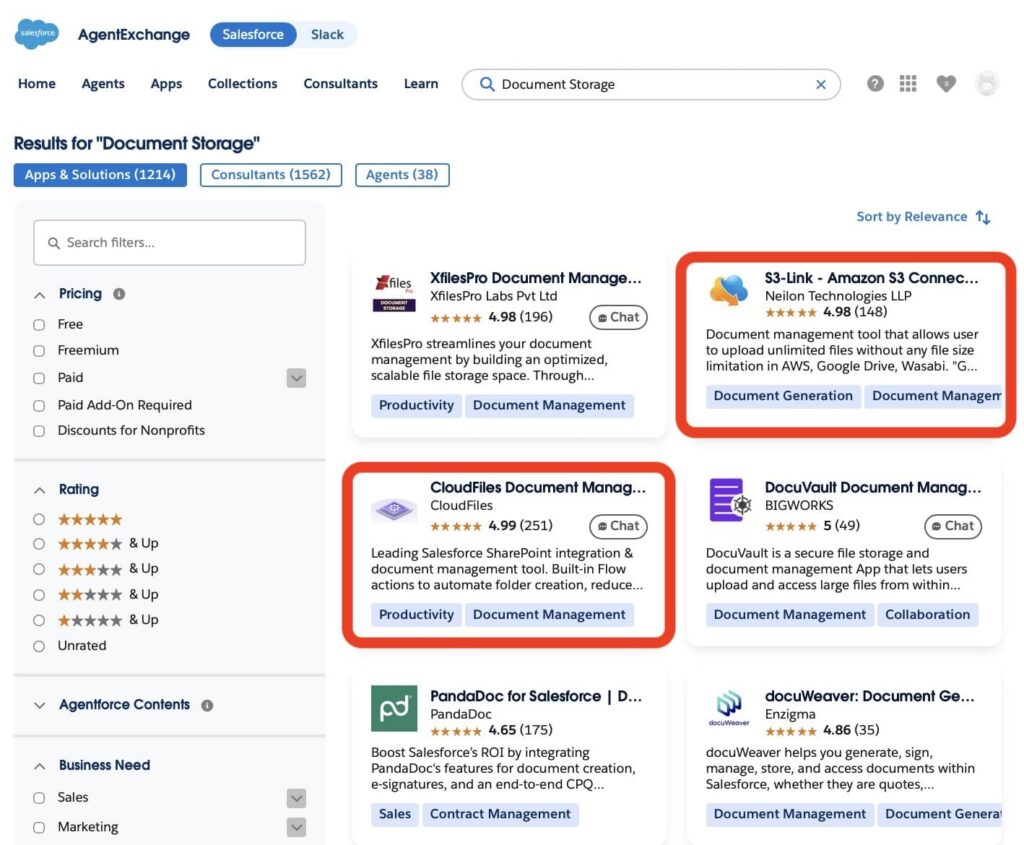
In this article, we will compare CloudFiles and S3-Link across key areas such as functionality, usability, storage capabilities, security, and overall fit for Salesforce organizations.
The goal is to understand how these solutions work, what challenges they solve, and which option provides the best approach for different business needs.
To make the Salesforce file storage options comparison as objective as possible, each evaluation category will include a scorecard and star rating based on the capabilities of both solutions. At the end of the article, we will combine the results from all categories to calculate the final score and determine the overall winner.
- CloudFiles Quick Overview: Salesforce File Management Beyond Storage
- S3-Link Quick Overview: Focused Salesforce S3 Connector
- CloudFiles vs S3 Link Salesforce: Document Management Capabilities
- Usability and Administration Comparison: CloudFiles vs S3 Link
- Security and Governance: Which App Has You Covered?
- CloudFiles vs S3-Link: Licensing and Scalability Comparison
- Wrapping Up: Finding the Right File Storage in Salesforce
CloudFiles Quick Overview: Salesforce File Management Beyond Storage
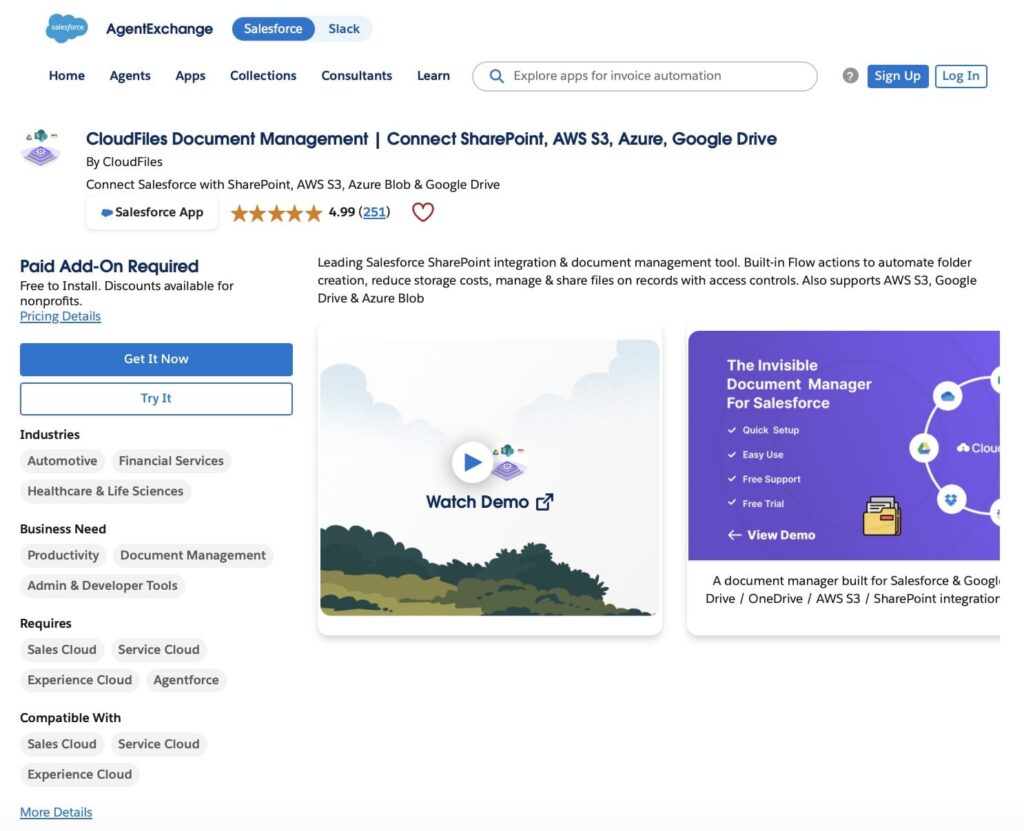
Overview:
CloudFiles Document Management is developed by CloudFiles and is designed to help Salesforce organizations manage documents without relying solely on Salesforce file storage.
At its core, the app connects Salesforce with external storage platforms such as Amazon S3, SharePoint, Azure Blob, Google Drive and more, allowing users to access and manage files directly from Salesforce while keeping the documents stored externally.
As a Salesforce document management solution, CloudFiles covers multiple stages of the document lifecycle. Teams can organize files, automate folder creation, connect documents to Salesforce records, and manage files stored across different storage providers without leaving Salesforce.
Setup and configuration:
The process of installing and configuring CloudFiles can be broadly divided into the following steps:
- Install the managed package and access CloudFiles. After installing the package from AppExchange, the administrator can open the CloudFiles application from the Salesforce App Launcher and start the initial setup.
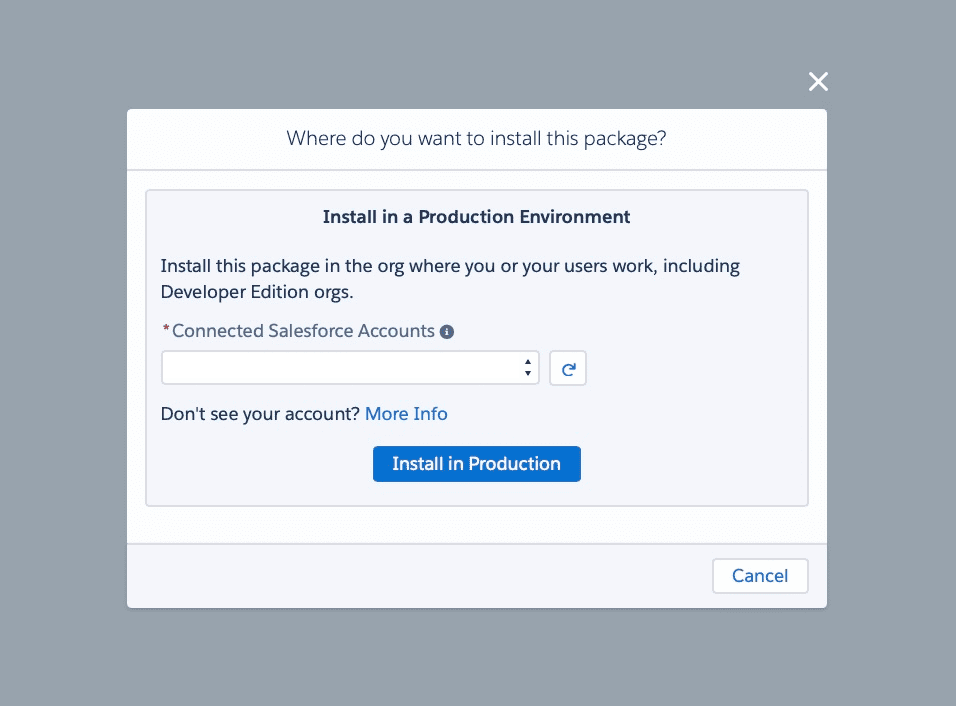
- Connect the external storage platform. CloudFiles supports Amazon S3, SharePoint, OneDrive, Google Drive, Azure Blob Storage, Azure Files, SFTP, Box, and Dropbox. During setup, administrators connect the storage provider that will be used for document storage and configure the required authentication.
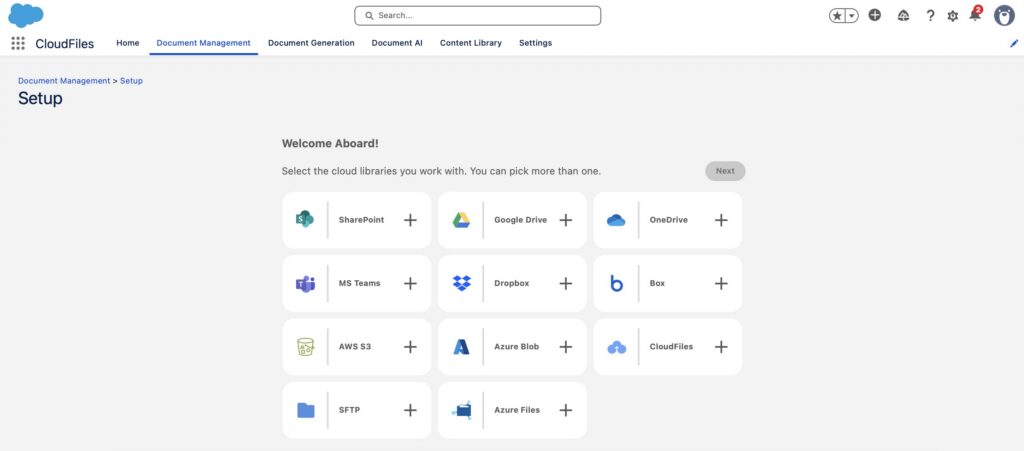
- Configure document organization and user access. Administrators can define folder structures, record-linking rules, document libraries, and permission settings to control how users access and manage files.
- Add CloudFiles to Salesforce pages and enable optional features. The final step is adding CloudFiles components to Lightning record pages, configuring optional capabilities such as Flow automation and metadata synchronization.
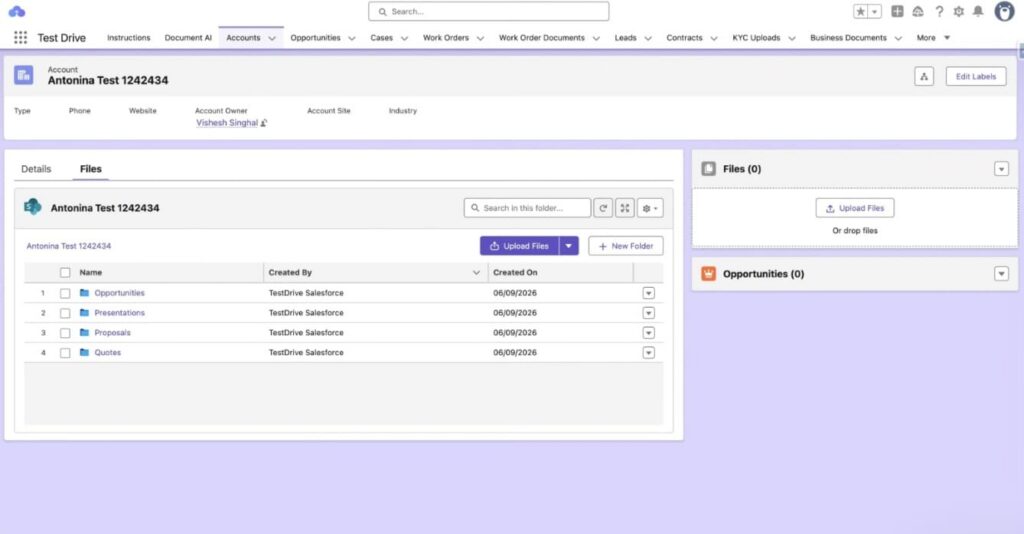
Key features:
CloudFiles supports a wide range of document management capabilities:
- External file storage.
- Connects to your own Amazon S3 bucket through an IAM role, so none of your AWS access keys are stored.
- Automatic folder creation.
- Record-linked document management.
- File previews inside Salesforce.
- File version control.
- Real-time sync with S3: new files written into a record’s folder by any system appear on that record within seconds, and deletions in the bucket are reflected.
- Folders created by Salesforce Flow when a record is created, named from record fields and nested under parent records.
- More than 20 Flow actions for S3, and file events (uploaded, received, viewed, moved and more) that trigger Flows.
- Document sharing and collaboration.
- Custom Lightning widgets.
- Experience Cloud support.
- Field Service support.
- Salesforce Flow integration.
Best fit:
For me, CloudFiles fits best when an organization wants more than simply moving files out of Salesforce storage.
The platform is particularly relevant for teams on Amazon S3 whose documents drive processes: files that other systems drop into the bucket need to show up on the right record, folders should follow the record structure automatically, and documents are shared with or collected from people outside Salesforce.
Companies primarily looking for a complete document management strategy (including storage management, document generation, workflow automation, and AI-powered document processing), are likely to find CloudFiles more aligned with their long-term Salesforce roadmap than a solution focused exclusively on storage integration.
S3-Link Quick Overview: Focused Salesforce S3 Connector
Overview:
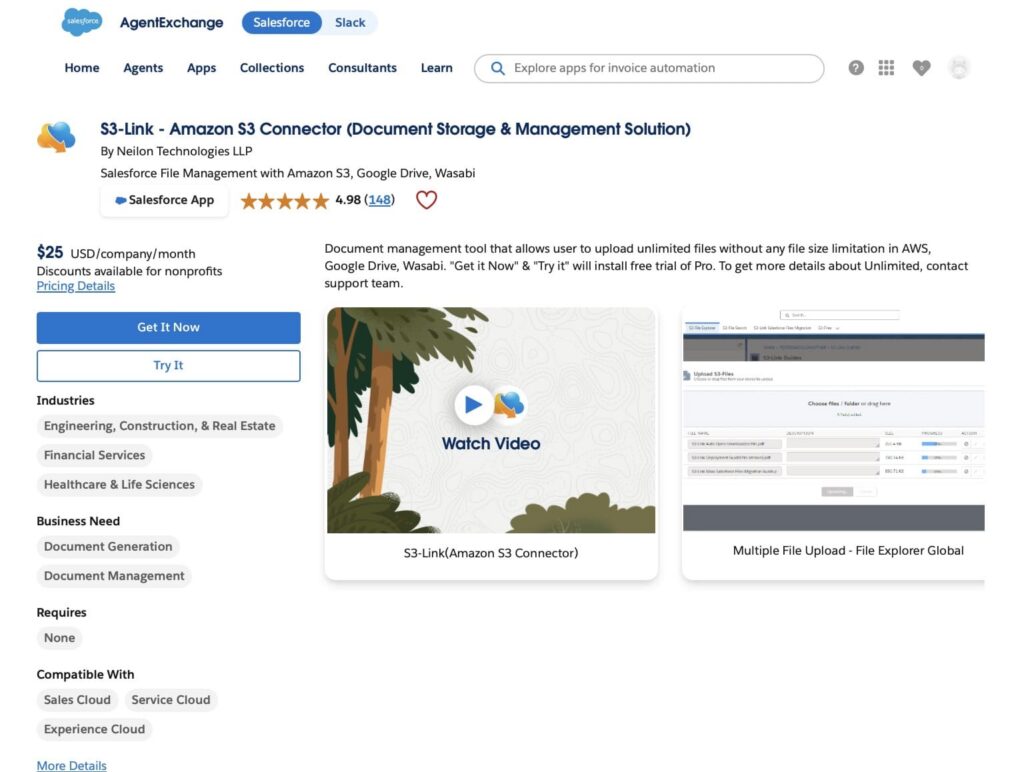
S3-Link by Neilon Technologies is designed for organizations that want to connect Salesforce with external cloud storage platforms, such as Salesforce to S3 Amazon, and manage files outside Salesforce storage limits.
The main purpose of S3-Link is to move Salesforce files outside the Salesforce platform while keeping them connected to Salesforce records. Instead of storing documents directly in Salesforce File Storage, organizations can use connected external storage repositories and manage files through Salesforce.
The solution is primarily focused on Salesforce Amazon S3 integration. Vendor materials also reference additional storage connections, including Wasabi, while other storage integrations require separate verification.
Setup and configuration:
Getting S3-Link ready requires connecting Salesforce with an existing Amazon S3 environment and configuring how files will be managed:
- After installing the managed package from AppExchange, you can open S3-Link from the Salesforce App Launcher, go to the Administration tab, and initialize the application configuration.
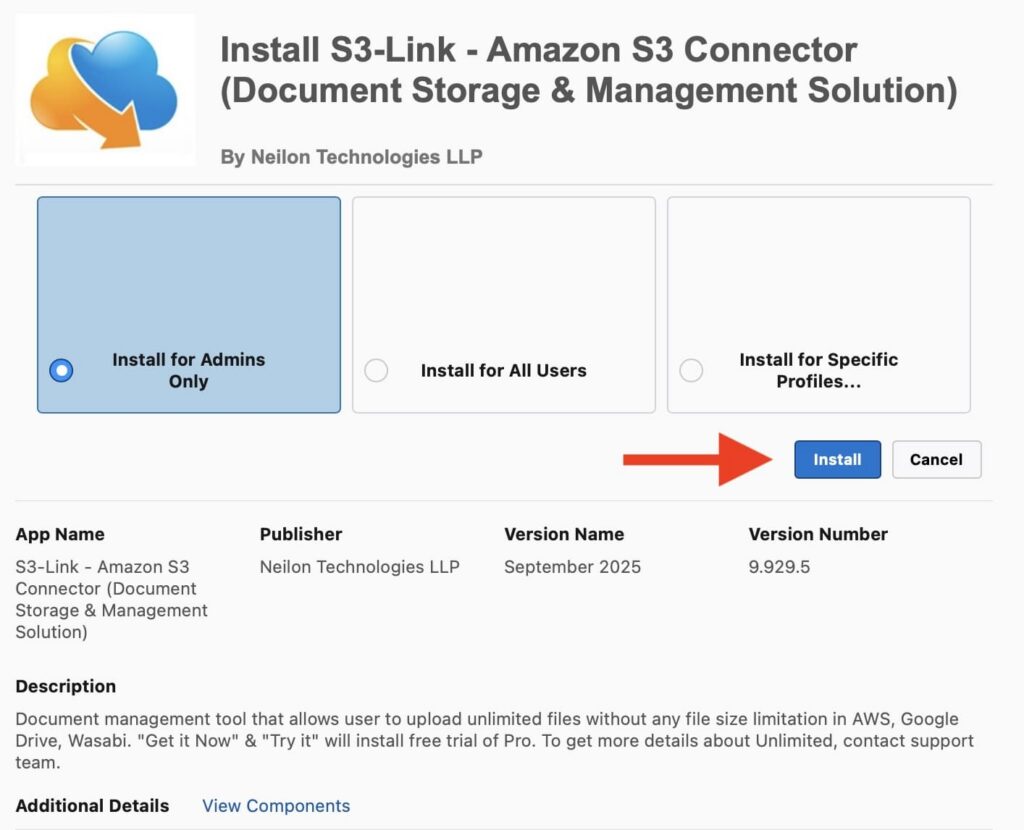
- Provide the required Amazon S3 credentials, including the AWS Access Key ID and AWS Secret Key, to allow Salesforce to connect with the AWS environment.
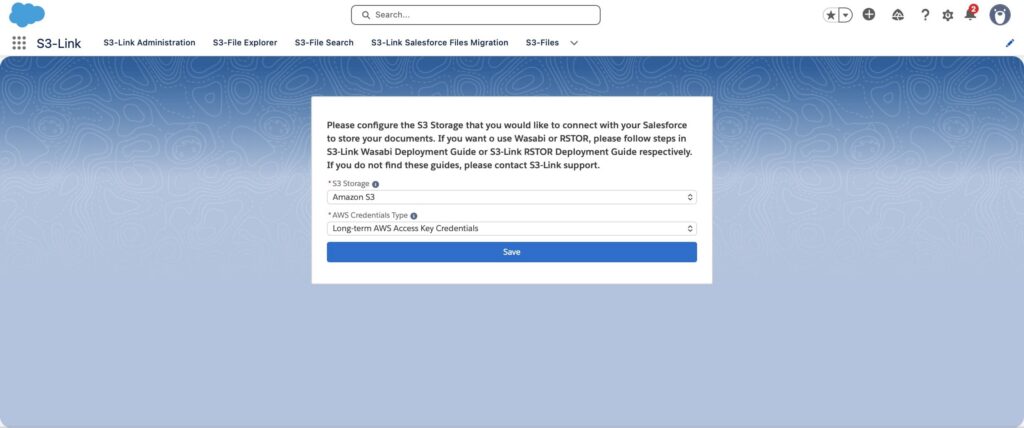
- Link existing Amazon S3 buckets or create new buckets directly from S3-Link. A default bucket can be selected where files attached to Salesforce records will be stored.
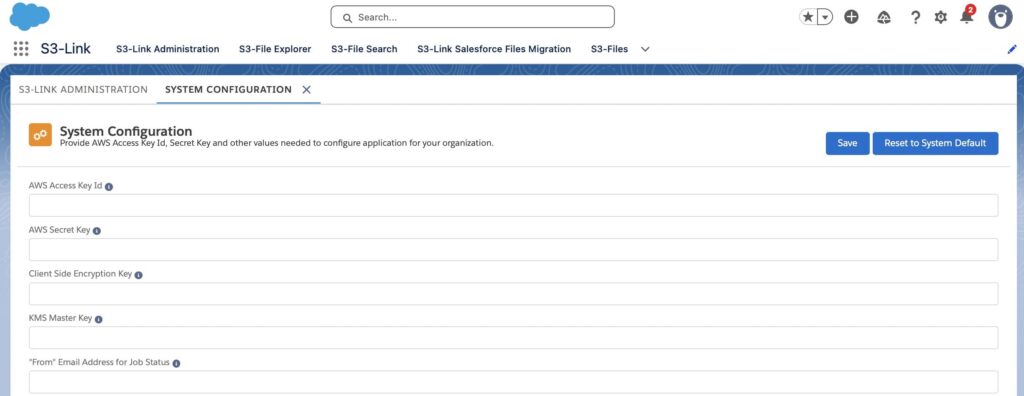
- The final step is assigning the required permission sets and granting access to Salesforce users who need to manage files through the application.
Key features:
S3-Link focuses on Salesforce and Amazon S3 file management capabilities:
- Connect Salesforce with external storage platforms, including Amazon S3 and vendor-documented additional storage options.
- Move large volumes of Salesforce Files to external storage and reduce Salesforce storage consumption.
- Automate file movement based on schedules or defined conditions.
- Share download links and allow external uploads without Salesforce login.
- Support file editing, annotations, PDF merging, and integrations with document generation solutions.
Best fit:
S3-Link is particularly suitable for teams that want an S3 file manager inside Salesforce at a published per-company price, and whose main need is storing, managing and archiving Salesforce files in S3.
CloudFiles vs S3 Link Salesforce: Document Management Capabilities
Both Salesforce file storage solutions help organizations manage documents outside native Salesforce storage, but they address different business requirements and follow different approaches to external file management.
In this section, we compare the key capabilities of both solutions, including storage flexibility, document management, Salesforce integration, automation, file migration, and external sharing.
| Capability Comparison: CloudFiles vs S3-Link | ||
|---|---|---|
| Capability | CloudFiles | S3-Link |
| Primary Use Case | External document management solution that connects Salesforce with multiple storage platforms and keeps documents accessible from Salesforce records. | Salesforce file management and storage optimization solution that connects Salesforce with external storage platforms. |
| How it connects to Amazon S3 | A cross-account IAM role created from a CloudFormation template, with S3 access limited to one bucket. None of your AWS access keys are stored. | An AWS access key and secret stored in Salesforce. Temporary keys through IAM roles on the Unlimited plan. |
| Sync from S3 into Salesforce | Real time. S3 event notifications put new files written into a record’s folder on that record within seconds, and deletions are reflected. | A scheduled import job (daily by default, adjustable) on Pro and Unlimited, on-demand sync, and a REST API or a customer-built AWS Lambda function to link files that other systems write. |
| Moving Salesforce Files into S3 | Salesforce Files of any size move into the record’s folder in S3 server-side, triggered by events and run through Flow actions. | Automatic export of Salesforce Files and attachments on Pro and Unlimited. On Pro, files above 11 MB wait for a user to move them through a browser upload page; automatic transfer of larger files needs the Unlimited plan and the S3-Link Heroku app. |
| Document Management Approach | Provides a Salesforce-native document workspace with file browsing, previews, uploads, organization, metadata synchronization, and lifecycle management. | Provides Salesforce-based management of files stored in connected external repositories, including upload, download, folder management, search, and file operations. |
| File Archiving & Retention | Supports automated file movement and document lifecycle processes through Salesforce automation tools. | Provides automated file archiving capabilities, including moving files to external storage based on defined conditions or schedules. |
| Automation Support | Supports Salesforce Flow, Apex, APIs, and automated folder creation based on Salesforce records. | Supports Flow, Apex, APIs, and automated file movement into the storage. |
| Large File Handling | Focused on unlimited file storage, no file size limits, large-volume uploads, and bulk file migration. | Uploads up to 5 GB per file on Basic and Pro. Automatic transfer of Salesforce Files is capped at 11 MB on Pro; beyond that it needs the Unlimited plan and the S3-Link Heroku app, which runs on Heroku rather than inside Salesforce. |
| External File Sharing | Supports secure external sharing, customer/vendor access, branded portals, and Experience Cloud scenarios. | AWS presigned download links valid for up to 7 days, and on Pro and Unlimited, passcode-protected upload and download links with a set expiry and download tracking. |
| Document Collaboration | A built-in editor in the Salesforce previewer: annotate, add text and images, fill forms, and insert, delete or rotate pages, saved back to the same S3 file, with no third-party viewer or licence. | Editing and annotation run on PDFTron (now Apryse) WebViewer, a third-party commercial viewer. Editing and PDF merging are on the Unlimited plan only. |
| Total Stars Achieved | ⭐⭐⭐⭐⭐ | ⭐⭐⭐⭐ |
Both apps keep documents in your own S3 bucket. CloudFiles Document Management goes further on automation: real-time sync from the bucket, folders built by Flow, file events that trigger Flows, and large Salesforce Files moved outside Salesforce limits on every paid plan. S3-Link is the simpler, lower-priced option when the main need is storing, managing and archiving Salesforce files in S3.
Usability and Administration Comparison: CloudFiles vs S3 Link
Choosing a Salesforce document management solution is not only about technical capabilities. The long-term success of the solution also depends on how easy it is for administrators to configure, maintain, and adapt the system as business requirements change.
In this section, we will compare CloudFiles and S3-Link from an administration and usability perspective, including setup complexity, storage flexibility, user adoption, Salesforce record experience, and long-term scalability.
| Usability and Administration: CloudFiles vs S3-Link | ||
|---|---|---|
| Area | CloudFiles | S3-Link |
| Initial Setup | ✅ Moderate. Requires installing the package, connecting the selected external storage library, and configuring document management settings. | ✅ Moderate. Requires installing the package, initializing the application, configuring Amazon S3 settings, and assigning user access. |
| Multiple Storage Options | ✅ Strong. Supports multiple external storage providers, including SharePoint, Google Drive, OneDrive, Amazon S3, Azure Blob Storage, Box, and Dropbox. | ❌ Moderate. Supports Amazon S3, Google Drive, and Wasabi. |
| User Adoption | ✅ High. Users can manage, organize, and access documents directly from Salesforce through a document management interface. | ✅ High. Users can upload and access files from Salesforce records while files are stored externally. |
| Record-Level Experience | ✅ Strong. Supports record-linked document access, folder organization, and document management from Salesforce. | ✅ Strong. Provides Salesforce access to files stored in connected external repositories. |
| Connecting the bucket | Enter the bucket name, deploy one CloudFormation stack and paste its role ARN. No bucket CORS rule is needed. | Create an IAM user and policy and paste its keys. Uploads above 5 GB also need a bucket CORS rule and a CSP trusted site. |
| Total Stars Achieved | ⭐⭐⭐⭐⭐ | ⭐⭐⭐ |
Based on usability and administration, CloudFiles receives a higher score because connecting a bucket needs no stored keys or CORS changes, and files written into the bucket reach the right record without an import job.
Security and Governance: Which App Has You Covered?
Security is a critical consideration when moving Salesforce files outside the platform. Organizations need to understand not only where documents are stored, but also how access is controlled, how storage policies are managed, and whether the solution can support future business requirements.
In this section, we will compare CloudFiles and S3-Link based on Salesforce security integration, external storage security, governance flexibility, and the ability to support different enterprise storage strategies.
| Security and Governance: CloudFiles vs S3-Link | ||
|---|---|---|
| Area | CloudFiles | S3-Link |
| Salesforce Security Model | ✅ Yes. Uses Salesforce permission sets and granular document permissions. | ✅ Yes. S3-Link is a Salesforce native app and provides access control through Salesforce permissions and S3-Link configuration settings. |
| External Storage Security | ✅ Connects through an IAM role whose S3 access is limited to one bucket, with none of your AWS keys stored. The bucket can keep Block Public Access on and needs no CORS rule. CloudFiles reaches the bucket only from a published set of IP addresses per region, so a bucket policy can limit access to those addresses and your own systems. TLS 1.2 or higher in transit. | ✅ Yes. Uses HTTPS/SSL for data transmission, AWS Signature Version 4 for request signing, client-side encryption (AES-128/AES-256), and server-side encryption (AES-256/KMS) for Amazon S3 storage. |
| File and Folder Permissions | ✅ Strong. Granular permissions for document actions and folder management. | ✅ Strong. Access control uses Salesforce permissions together with AWS access configuration, including AWS credentials and bucket policies. |
| Multi-Provider Governance | ✅ Yes. Supports multiple storage providers through a single Salesforce solution. | ⚠️ Governance documentation is primarily available for Amazon S3. Vendor documentation also confirms Wasabi support; other storage connections require separate verification. |
| Enterprise Compliance | Independently audited for SOC 2 Type II. Certified to ISO 27001, ISO 27017 and ISO 27018. Compliant with HIPAA and GDPR. | S3-Link stores documents directly in the customer’s Amazon S3 environment. |
| Total Stars Achieved | ⭐⭐⭐⭐⭐ | ⭐⭐⭐ |
CloudFiles keeps the AWS side locked down: none of your AWS keys are stored, its S3 access is limited to one bucket, and the bucket can stay private, with no CORS rule and a policy that admits only CloudFiles’ published IP addresses and your own systems. It is also independently audited for SOC 2 Type II and certified to ISO 27001, 27017 and 27018.
S3-Link provides documented security controls for Salesforce access and Amazon S3 storage, including authentication and encryption capabilities. Amazon S3 is the primary documented storage integration, while additional storage connections referenced by the vendor require separate verification.
CloudFiles vs S3-Link: Licensing and Scalability Comparison
When evaluating document management solutions, subscription costs are only part of the equation. Organizations should also consider storage flexibility, vendor dependency, and how easily the solution can scale as business requirements evolve.
In this section, we compare CloudFiles and S3-Link based on licensing approach, storage strategy flexibility, and long-term scalability considerations.
| Licensing and Scalability Comparison: CloudFiles vs S3-Link | ||
|---|---|---|
| Area | CloudFiles | S3-Link |
| Pricing Model | Pricing is tailored to each organisation’s requirements. Contact CloudFiles for a quote. | Per-company pricing starting at $25/month, with Pro and Unlimited plans available. Per-user pricing is also available on request. |
| Free Trial | 14-day free trial. | 30-day free trial. |
| Long-Term Scalability | High. Suitable for organizations that may expand across different storage platforms and business requirements. | Moderate to High. Scales well within AWS environments. |
| Total Stars Achieved | ⭐⭐⭐⭐ | ⭐⭐⭐⭐ |
Both solutions offer pricing models that can work for different types of organizations, making direct cost comparisons difficult without considering company size, user count, and storage requirements.
The more significant difference is what each price includes. S3-Link’s published plans cover a full S3 file manager inside Salesforce, but some capabilities sit outside the plan price: product support costs an extra $20 per company per month, automatic transfer of Salesforce Files above 11 MB needs a separate Heroku extension with no published price, and in-app editing runs on PDFTron (now Apryse) WebViewer, a commercial viewer that Neilon does not say is included. CloudFiles Document Management is self-contained: real-time sync, Flow automation, large-file handling and its PDF editor are built in, with support included and no other tool to license, host or maintain.
Wrapping Up: Finding the Right File Storage in Salesforce
Choosing the right Salesforce document management solution depends on more than reducing storage usage. Organizations need to evaluate their document strategy, security requirements, administration needs, and how the solution can support future business growth.
CloudFiles and S3-Link both help Salesforce teams manage files outside native Salesforce storage, but they address different business requirements. CloudFiles provides a broader document management experience, combining Salesforce-native access with external storage capabilities, document organization, automation options, metadata management, and secure file sharing. For teams on Amazon S3, it adds event-driven sync, so new files that other systems write into a record’s folder appear on that record within seconds; folders built by Flow from record fields when a record is created; server-side moves of large Salesforce Files on every paid plan; and a bucket connection with no stored AWS keys on every plan.
S3-Link focuses on Salesforce file storage optimization by connecting Salesforce with external storage platforms, with Salesforce AWS S3 integration as the primary documented integration. It is designed for organizations that need to move Salesforce Files and other Salesforce-managed content outside Salesforce storage while maintaining access through Salesforce and using external storage capabilities.
| Final Comparison: CloudFiles vs S3-Link | ||
|---|---|---|
| Section | CloudFiles | S3-Link |
| Document Management Capabilities | ⭐⭐⭐⭐⭐ | ⭐⭐⭐⭐ |
| Usability and Administration | ⭐⭐⭐⭐⭐ | ⭐⭐⭐ |
| Security and Governance | ⭐⭐⭐⭐⭐ | ⭐⭐⭐ |
| Licensing and Scalability | ⭐⭐⭐⭐ | ⭐⭐⭐⭐ |
| Total Stars Achieved | 19 ⭐ | 14 ⭐ |
The Winner: CloudFiles!
CloudFiles Document Management is the stronger choice for Salesforce teams on Amazon S3 whose documents drive processes and need automation around them.
S3-Link, primarily Salesforce Amazon S3 connector, suits teams whose main need is storing, managing and archiving files with Salesforce S3 integration at a published per-company price.

Antonina is a Salesforce Admin with six certifications: Salesforce Certified Platform Foundations, Platform Administrator, Platform Administrator II, CPQ Administrator, AI Associate, and Agentforce Specialist. She started working with Salesforce in 2021 as Intern Salesforce Developer. Now, a 2-Star Ranger on Trailhead, she continues to expand her skills and knowledge. She helps manage Salesforce systems, automate tasks, and improve processes. Antonina loves learning new things and exploring better ways to use technology. In her free time, she enjoys reading, playing sports, and exploring new tech ideas.
 Previous Post