


When a Campaign Needs the Best Email Marketing Software for Salesforce
Have you ever prepared a Campaign, checked the audience twice, and then stopped at the email step because the message did not look good enough?
I had this feeling while thinking about simple campaign work in Salesforce. A team may need to send a donor update, an event invitation, a product announcement, or a monthly newsletter. The audience is already in CRM. The Campaign is already there. The data is already connected to Leads and Contacts. But the email itself still needs to look professional, be easy to personalize, and give clear results after sending.
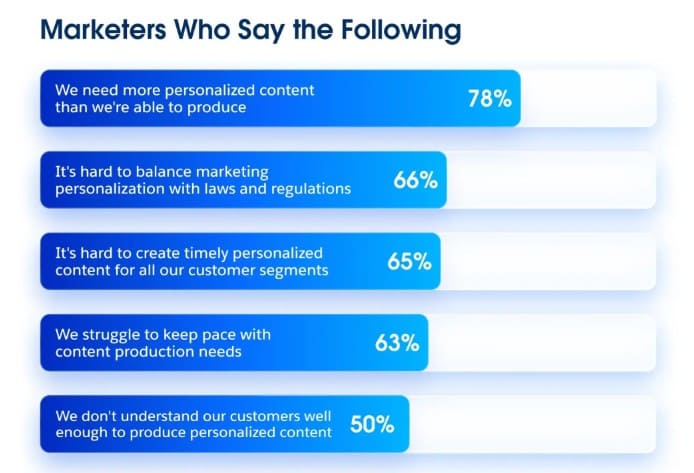
Personalization is not only a nice extra anymore. In a recent Salesforce marketing survey, 78% of marketers said they need more personalized content than they are able to produce, while 65% said it is hard to create timely personalized content for all customer segments. For Salesforce teams, this explains why a simple campaign email can quickly become a real workflow problem: the data may be in CRM, but the team still needs a practical way to turn it into relevant emails.
For admins, this becomes a practical problem:
- Marketing users often want a builder that feels simple,
- Sales or service teams may want to see email activity on the record,
- Nonprofit teams may need to send regular updates without paying for a large marketing platform.
At the same time, nobody wants to export contacts, fix sync issues, or explain why unsubscribe data lives somewhere else.
Insight:
The data is often available, but the workflow is not always connected.
Salesforce reports that 86% of marketers use CRM systems and 84% use first-party data, yet only 31% are fully satisfied with their ability to unify data.
For teams already working in Salesforce, this makes native email creation and tracking a natural extension of the unified workflow.
That is why in this article, we will look at an app from the AppExchange (now AgentExchange) which promises a Salesforce-native way to build, send, and measure emails from the same place where customer data already lives. For teams that want email work closer to CRM, it may be the best email marketing tool for Salesforce.
- What Creative Mail Adds as a Salesforce Email Marketing App
- Installation Steps: From AppExchange to the First Creative Mail Template
- Key Features: From a Salesforce Email Builder to Campaign Results
- 1. Salesforce Email Template Builder
- 2. Personalizing Emails With Salesforce Merge Fields
- 3. Creating Campaign Sends with the Send Wizard
- 4. Sending to Larger Salesforce Audiences
- Insight:
- 5. Tracking Results Inside Salesforce
- 6. Managing Unsubscribes, Bounces, and Suppressions
- 7. Syncing Templates with Account Engagement
- Typical Use Cases for Creative Mail as a Salesforce Mass Email App
- Why I Loved Creative Mail During Testing
- What Other Users Say About Creative Mail
- Pricing and Trial: What Creative Mail Costs
- FAQs About Creative Mail
- Final Recommendation: A Native Email Tool That Keeps Work Close to Salesforce
What Creative Mail Adds as a Salesforce Email Marketing App
Salesforce’s official app marketplace, AppExchange, contains many apps designed to extend platform functionality and provide users with tools that allow them to work with specific business needs without leaving the Salesforce environment.
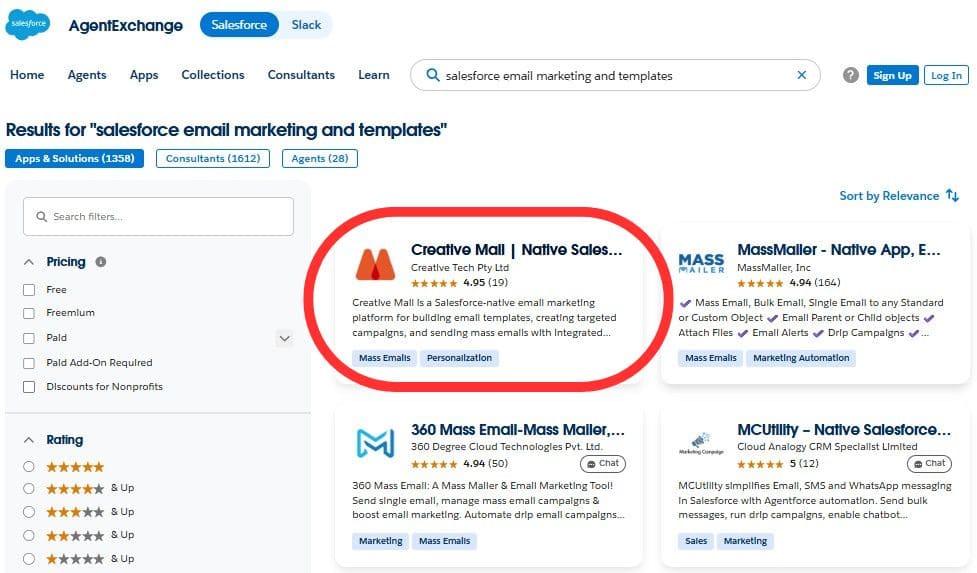
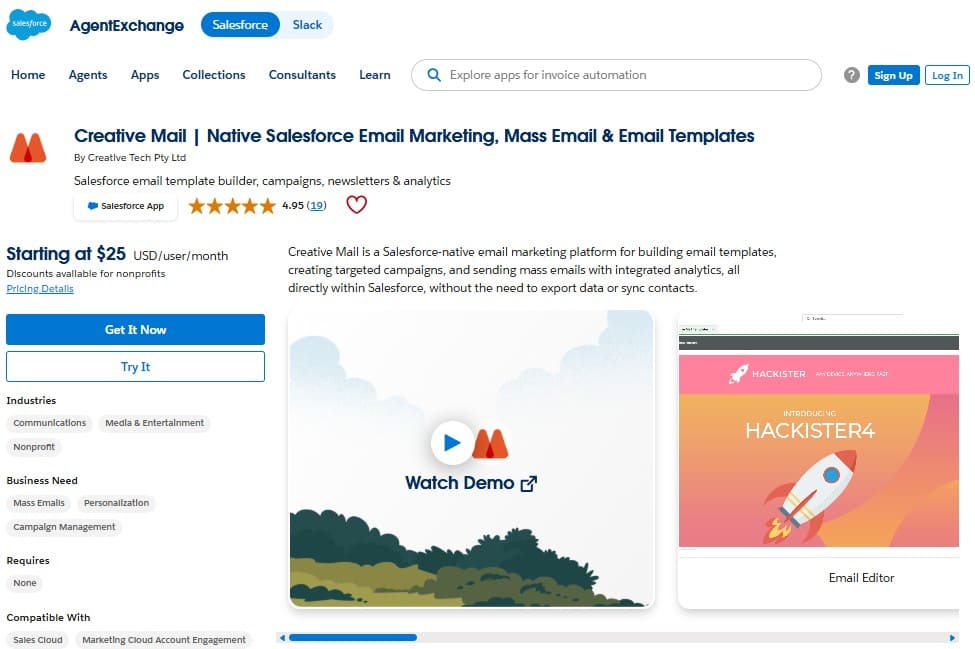
Among the apps offered on AppExchange, we found Creative Mail, a Salesforce-native app for building templates, sending emails, and tracking results in CRM.
That native setup matters. Many teams already keep their Leads, Contacts, Campaigns, and activity history in Salesforce. So why move that data to another tool if the email can be created and measured from the CRM?
Insight:
Salesforce’s Tenth State of Marketing report shows why a simple campaign email is no longer so simple.
According to the report, 83% of marketers recognize the shift toward personalized, two-way messaging,
but only one in four are satisfied with how they use data to support those moments.
This creates a very practical question:
if the audience and customer data are already in Salesforce, why should the email workflow sit somewhere else?
Creative Mail covers several parts of the email workflow. Users can create responsive templates, use Salesforce merge fields, send high-volume emails to their audience in Salesforce beyond native Salesforce email limits, and review opens, clicks, bounces, and unsubscribes inside CRM. The app also publishes designs to Lightning Email Templates, which means templates can stay useful across Salesforce workflows after they are created.
Another point I noticed is the connection with Marketing Cloud Account Engagement (formerly Pardot). For teams that already use Account Engagement, Creative Mail can sync templates there instead of forcing users to rebuild the same email again. Before going deeper into setup and features, here is a quick view of what Creative Mail adds to the Salesforce email workflow:
| Creative Mail at a Glance | ||
|---|---|---|
| Salesforce email need | How Creative Mail helps | Why it matters |
| Build better-looking emails | Provides a visual drag-and-drop builder | Users can create professional emails without writing HTML |
| Personalize content | Uses merge fields | Emails can include data from Leads, Contacts, Users, and related records |
| Send to Salesforce audiences | Sends high-volume emails to an audience managed in Salesforce | Teams can send to the right audience without exporting data or relying on native Salesforce email limits, while keeping campaign work connected to CRM records |
| Track results | Shows opens, clicks, bounces, unsubscribes, and recipient-level activity | Sales, service, and marketing users can see what happened after the send |
| Automatic list health management | Tracks opt-outs, bounces, blocks, and suppressions, and prevents future sends to those recipients | Teams can protect sender reputation and avoid repeatedly sending to invalid or unsubscribed addresses |
| Reuse templates | Publishes designs to Lightning Email Templates | Templates can stay useful across Salesforce workflows |
| Support Account Engagement users | Syncs templates with Marketing Cloud Account Engagement | Teams can prepare templates in Creative Mail and use them in Account Engagement |
So I would not describe Creative Mail only as a template designer. It sits somewhere between a builder, a campaign sender, and a reporting tool. In that sense, it belongs in the group of Salesforce email marketing automation tools, but with a clear focus on keeping the email process close to CRM data.
Installation Steps: From AppExchange to the First Creative Mail Template
After finding Creative Mail on AppExchange, I wanted to check how much setup an admin needs before the first email template is ready. The process felt familiar for a AppExchange managed package, but there are a few details worth noting.
Step 1. Open the Creative Mail listing on AppExchange.
Start from the Creative Mail AppExchange listing and choose the installation option.
Step 2. Choose where to install the app.
For testing, I would install it in a Sandbox or Developer org first. This gives you a safe place to review the tabs, permissions, template records, and sending flow before using real campaign data.
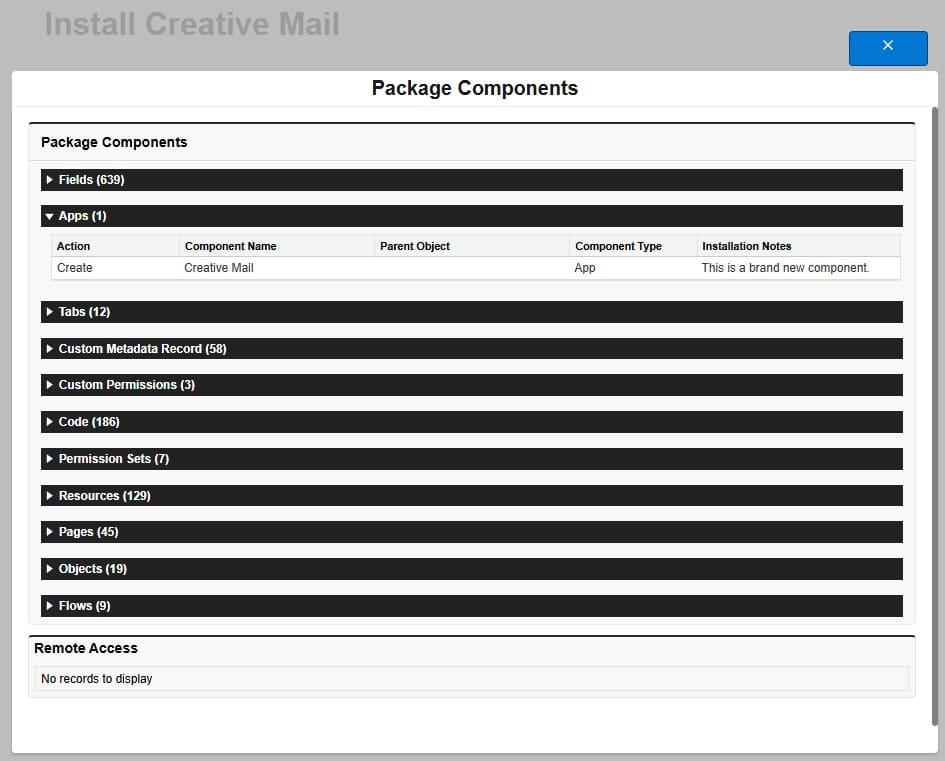
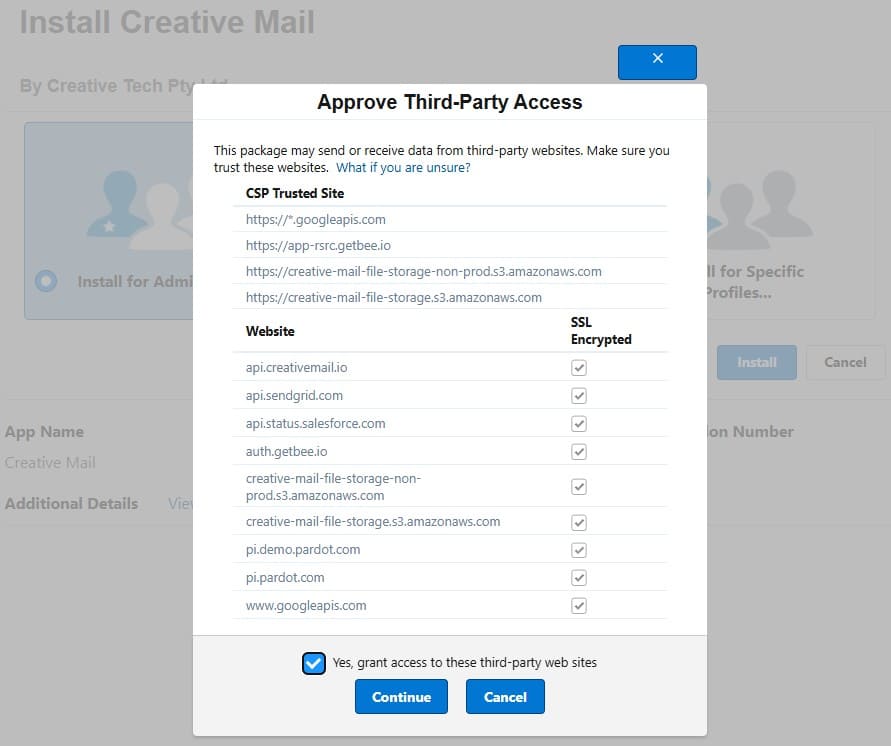
Step 3. Complete the managed package installation.
Follow the standard Salesforce installation screen and wait until the package finishes installing. After installation, Salesforce usually shows a confirmation, and you may also receive an installation email.
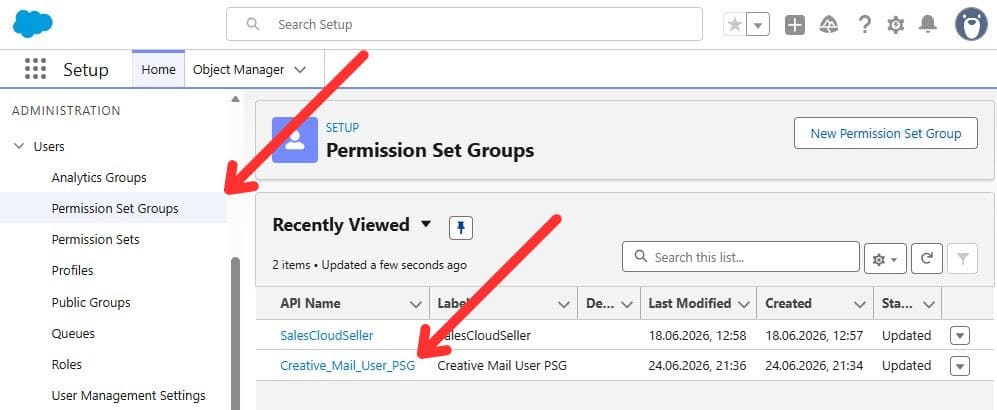
Step 4. Assign access to users.
After installation, assign the Creative Mail User permission set group to users who will create templates, manage sends, or work with Creative Mail records.
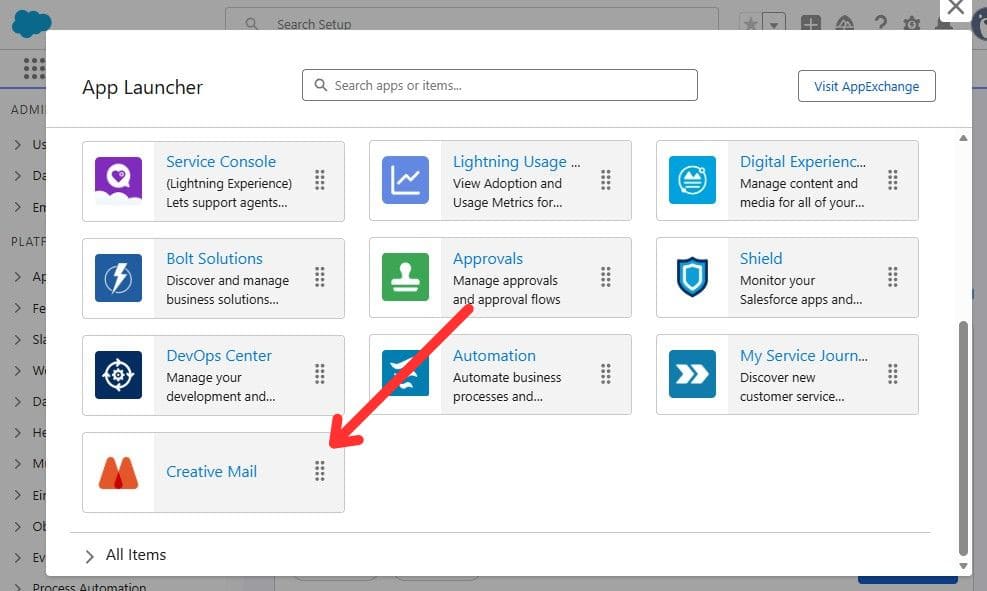
Step 5. Open Creative Mail from the App Launcher.
Search for Creative Mail and open the app. The main starting point is the Creative Mail Templates tab.
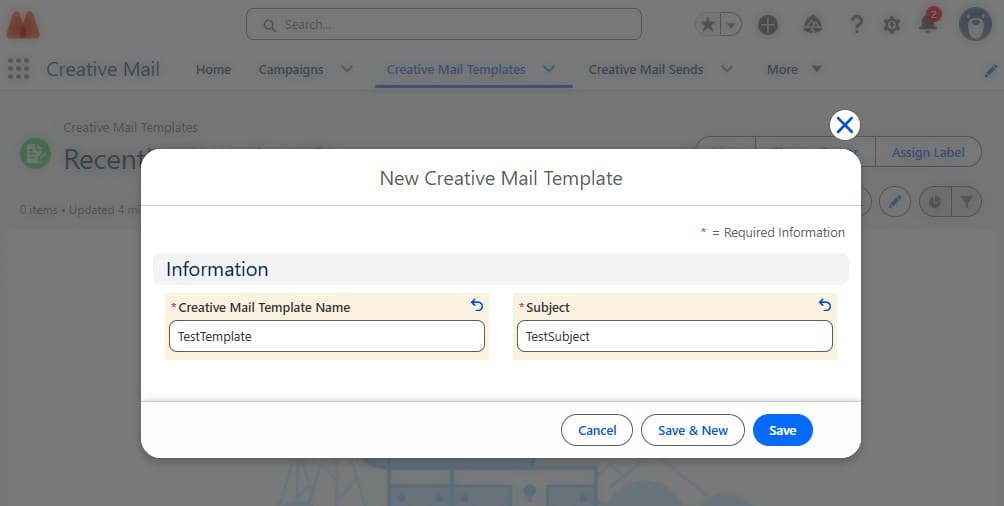
Step 6. Create your first Creative Mail Template.
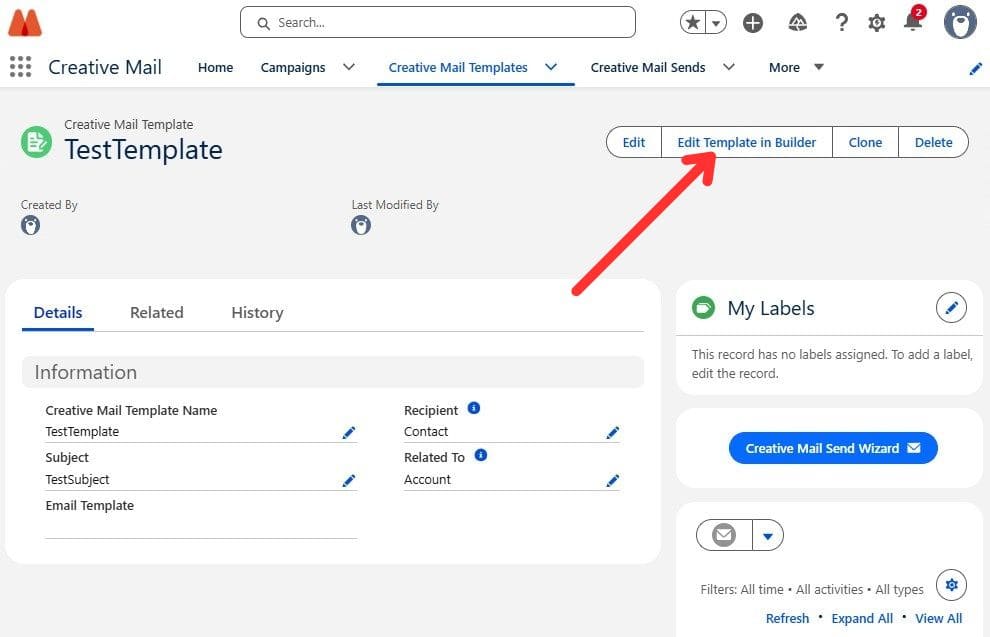
Click New, enter a template name, add a subject, save the record. This creates the base template record. Then choose the recipient type if needed.
Step 7. Open the builder.
Click Edit Template in Builder. This opens the visual editor and starts the email template builder Salesforce experience, where users can design the email before sending it or publishing it as a Lightning Email Template.
Key Features: From a Salesforce Email Builder to Campaign Results
After the first template record is created, the real review starts. This is the moment when you can see whether Creative Mail feels like a small add-on or a useful email workspace inside Salesforce. I went through the flow in the same order a user would probably follow it: build the template, add Salesforce data, send to a Campaign, and then check what happened.
1. Salesforce Email Template Builder
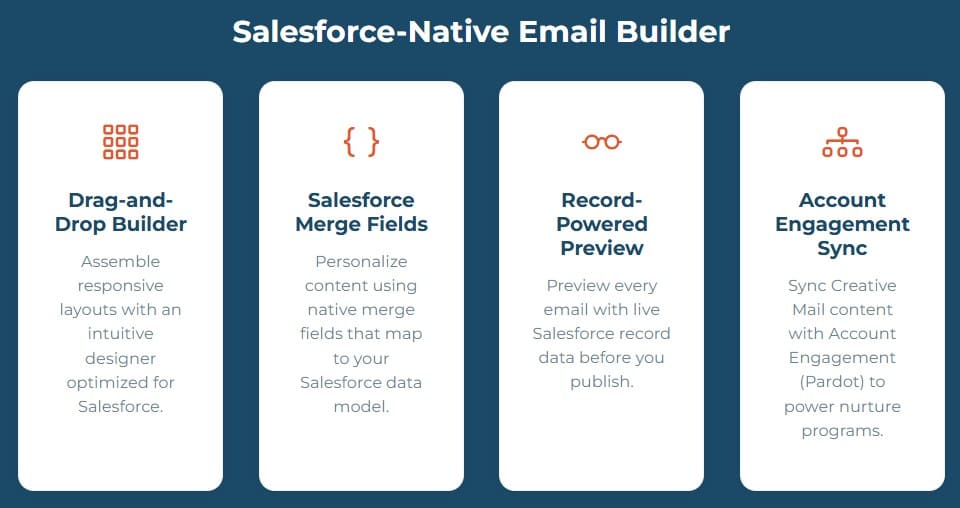
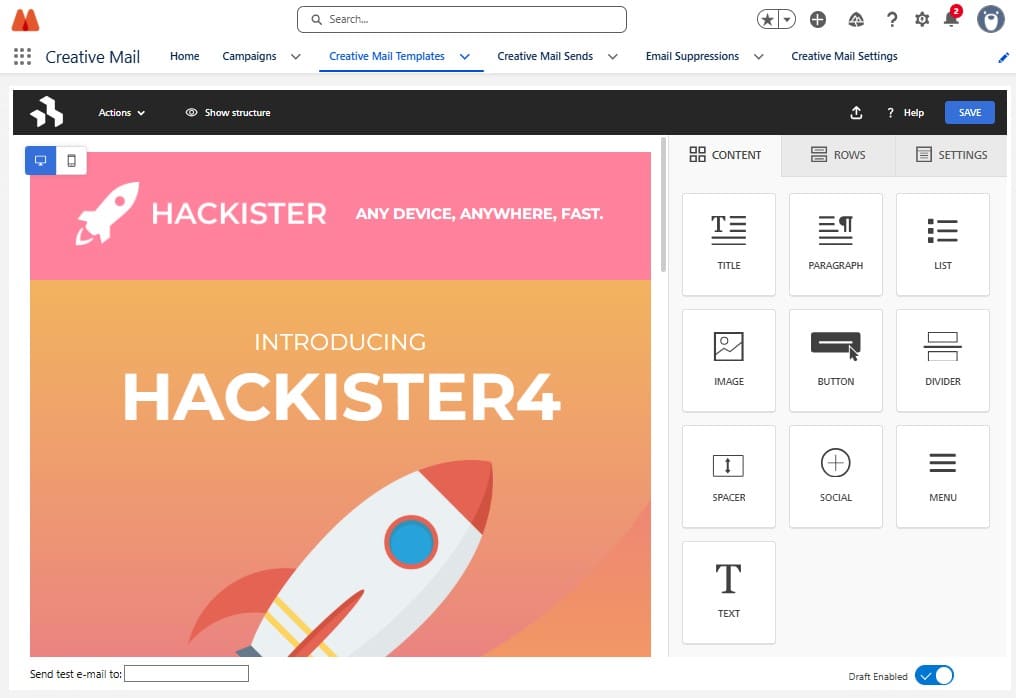
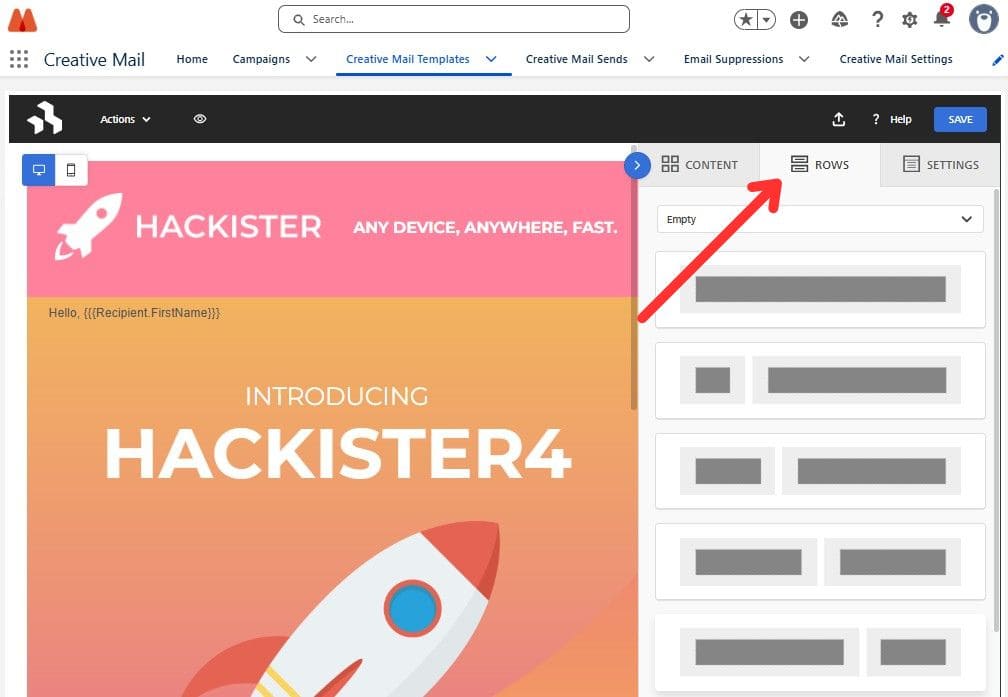
The first thing you see is the visual drag-and-drop builder. This is the main email template builder part of the app. Users can add content blocks such as text, images, buttons, dividers, spacers, social links, and menus. Rows and columns help structure the layout, while the settings panel controls width, alignment, colors, fonts, and spacing.
What I liked here is that the user does not need to write HTML. The builder is still detailed enough to adjust the layout, but it does not feel like a developer-only tool. There are preview options for desktop, tablet, mobile, and dark mode, which is useful before sending a real campaign.
2. Personalizing Emails With Salesforce Merge Fields
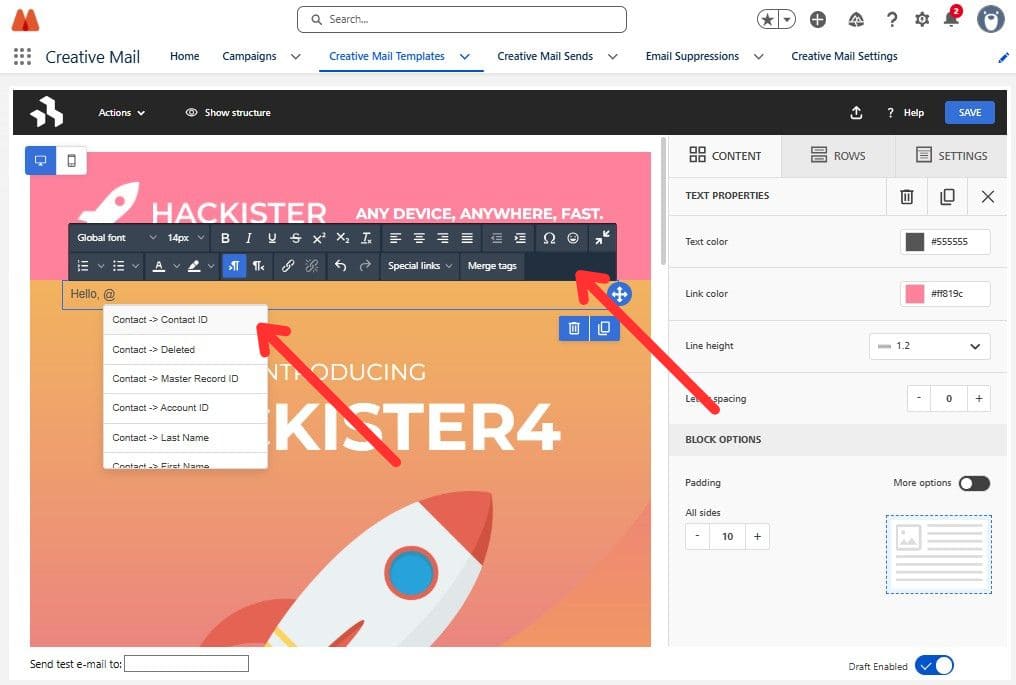
A good email builder is useful, but Salesforce data is what makes the message relevant. Creative Mail supports merge fields, so users can insert values from CRM records into the email content.
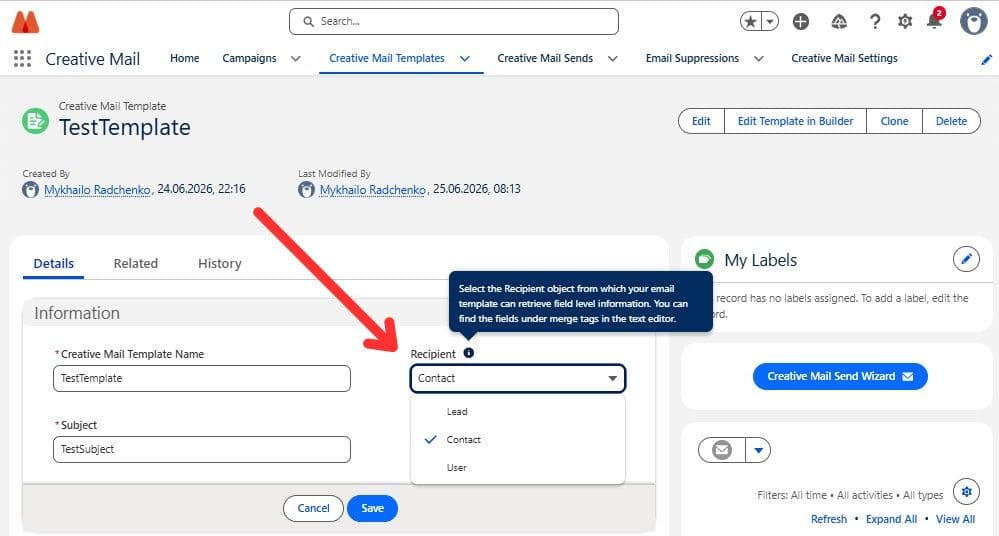
When creating a template, the user selects a recipient type. Creative Mail supports Lead, Contact, and User as recipient options. There is also a Related To field, which can point to a standard or custom object. This allows the template to use data from the recipient and from the related record.
For example, a message can greet a Contact by first name or include details connected to an Account. Before sending, the preview helps check how the merge fields will appear for a selected recipient.
3. Creating Campaign Sends with the Send Wizard
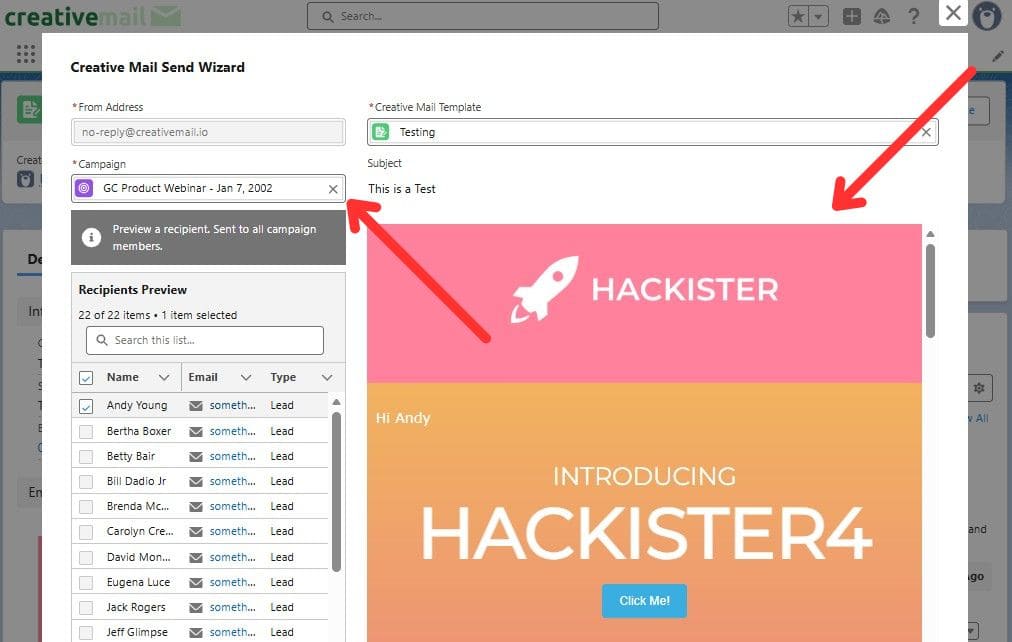
The Creative Mail Send Wizard works as the Salesforce email campaign builder part of the app. The process is direct: choose the template, select a Campaign, confirm the sender address, preview the email, and decide what to do next.
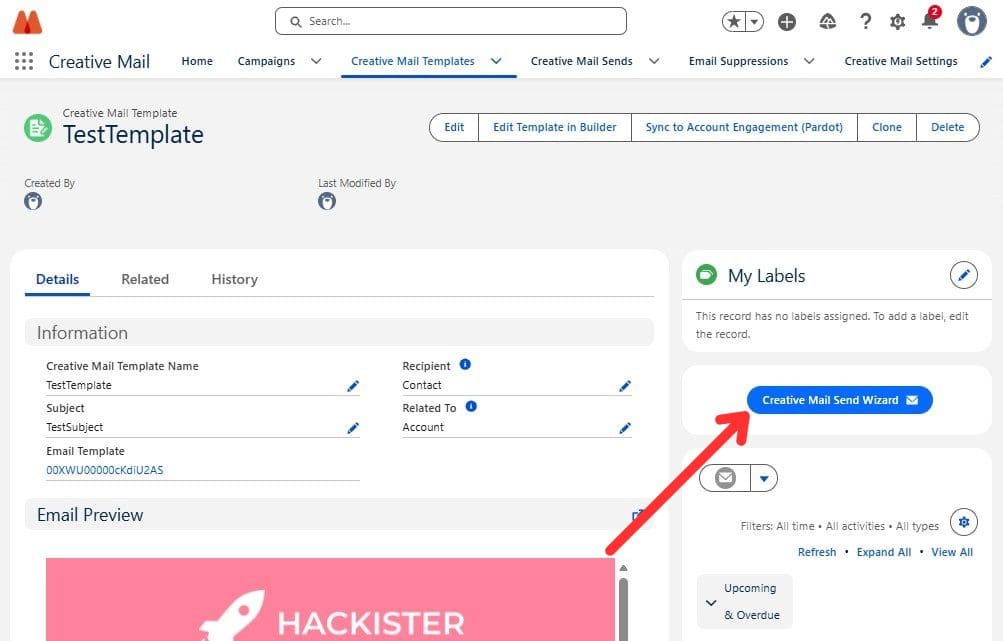
Before using the Send Wizard, the campaign should already be set up with the audience you want to reach. This helps keep the send focused on the right recipients.
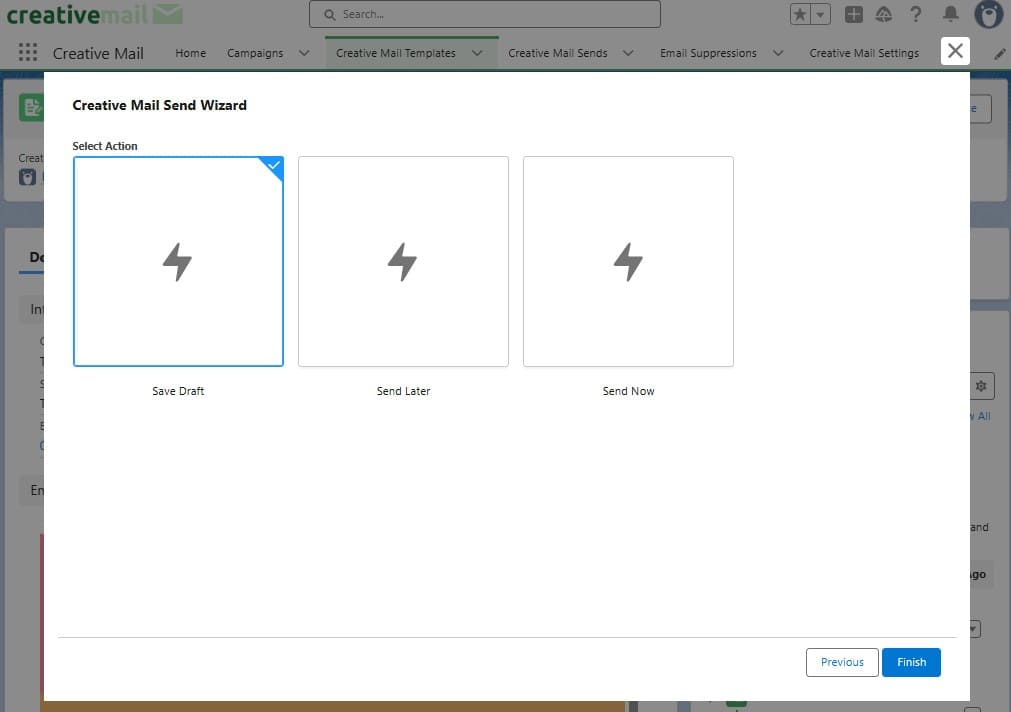
The sending options are practical. A user can send now, schedule the send for later, or save it as a draft. I like this because it follows a normal marketing workflow. Sometimes the email is ready today, but the send should happen tomorrow morning. Sometimes the user wants to prepare everything and return later for one last check.
4. Sending to Larger Salesforce Audiences
Creative Mail also works as a Salesforce mass email app for teams that need to send Campaign emails to larger groups. Instead of sending one message manually from a record, users can send to a larger audience in Salesforce in one flow.
The app supports domain authentication, so emails can be sent from the organization’s domain after the required DNS setup is completed. It also supports org-wide verified addresses, which helps teams choose the correct sender address. Higher-volume plans can include dedicated IP options.
This matters for teams that send newsletters, event invitations, donor communications, or customer updates from Salesforce. The email list stays connected to Campaign data, and the sending process stays inside the CRM.
Insight:
Email is still one of the channels where marketers expect personalization to happen.
In Salesforce’s 2024 State of Marketing coverage, 54% of marketers said they can fully personalize email marketing. That also means many teams still have room to improve how email content uses CRM data before a campaign is sent.
5. Tracking Results Inside Salesforce
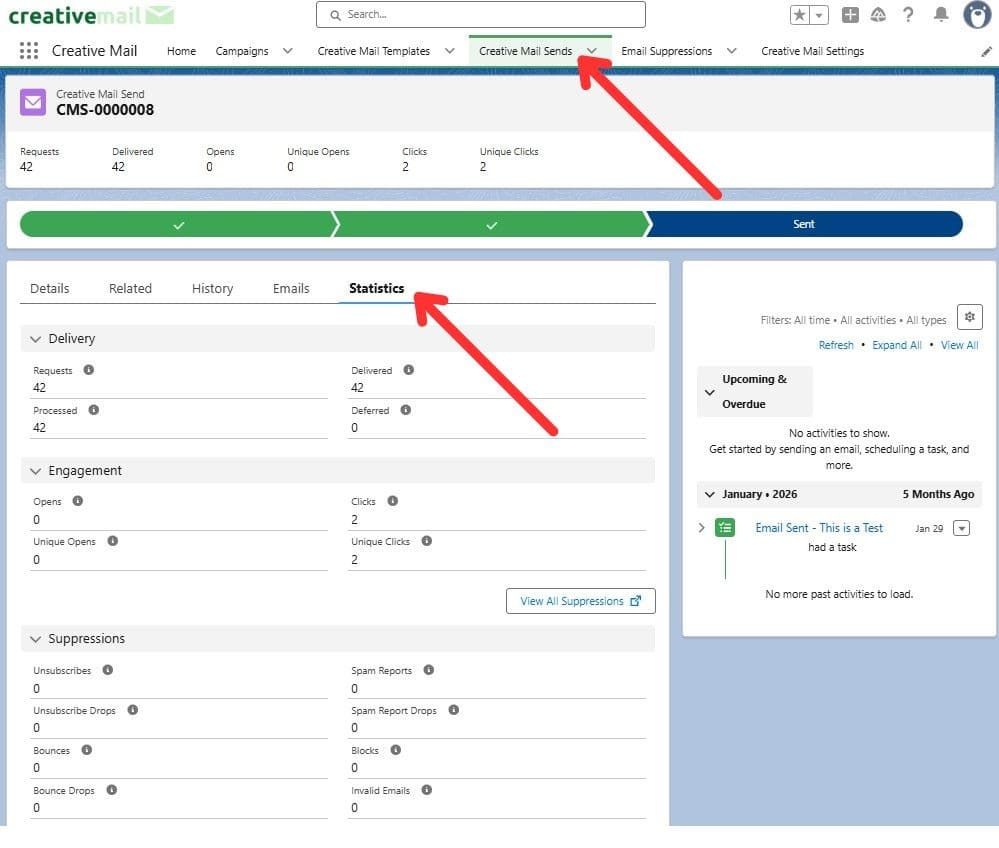
After sending, Creative Mail creates a send record with performance data. Users can review delivered requests, opens, unique opens, clicks, and unique clicks. The Statistics tab gives a wider view of delivery and engagement metrics.
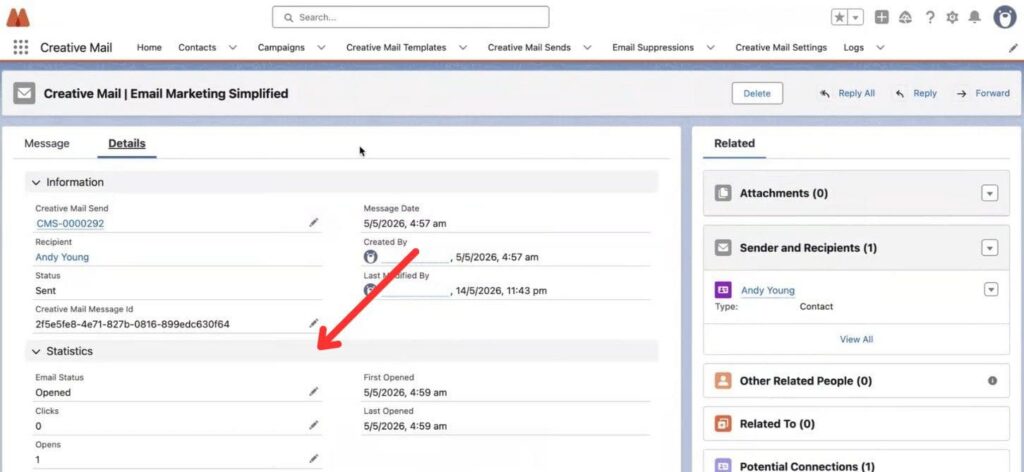
The part I found especially useful is recipient-level visibility. Creative Mail creates email message records for sends, and those records can show status, opens, clicks, first open date, and last open date. On the Lead or Contact activity timeline, users can see that the email was sent and when it was opened.
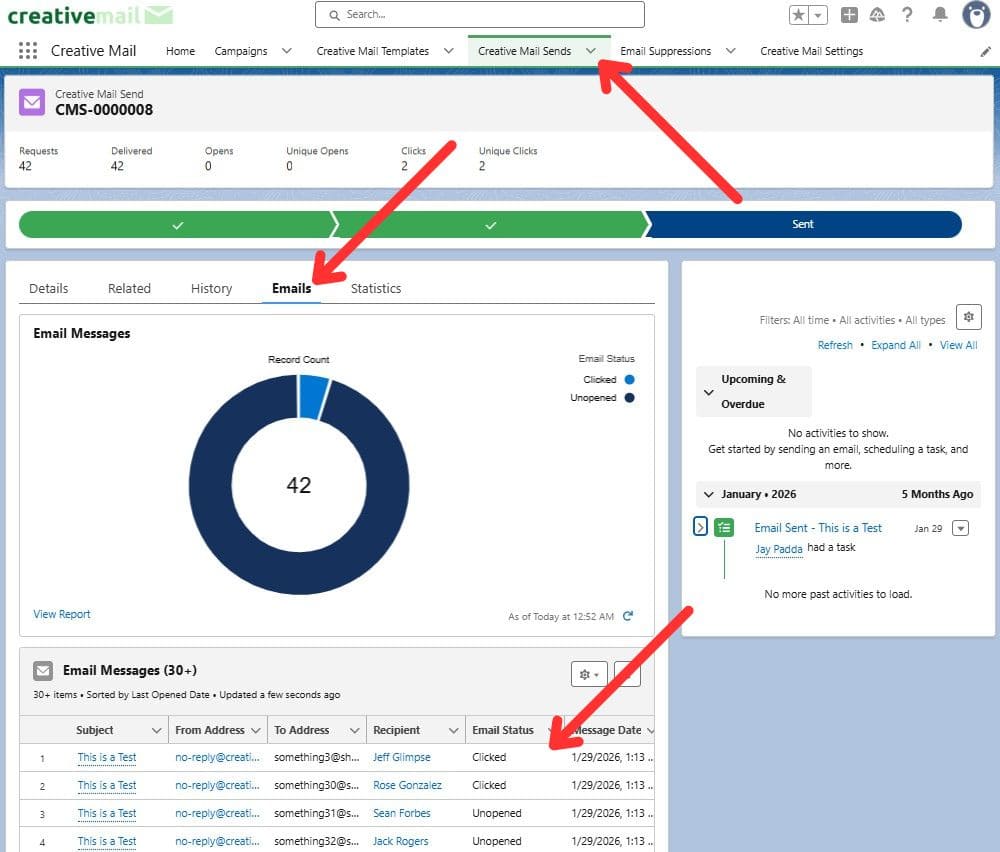
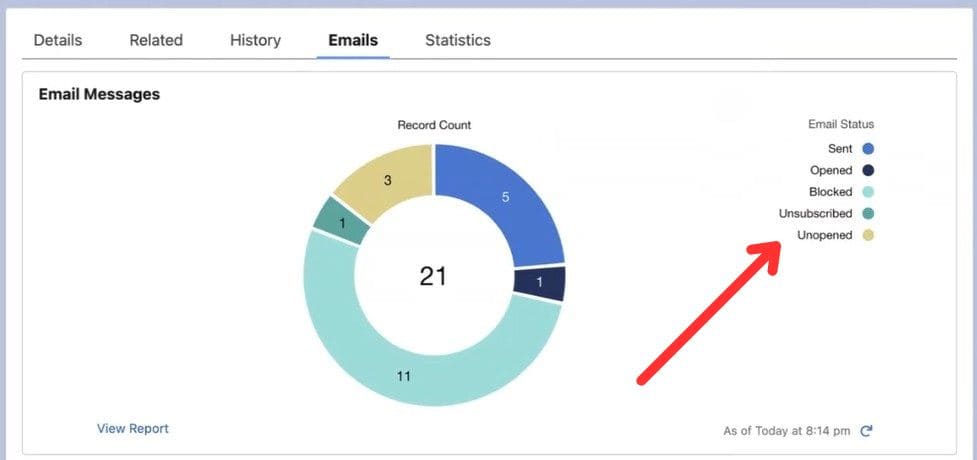
This is where Salesforce marketing performance becomes easier to discuss with sales or service users. The results are not hidden in a separate marketing tool. It appears close to the customer record.
6. Managing Unsubscribes, Bounces, and Suppressions
Creative Mail also includes Salesforce email marketing automation around list health. If a user adds an unsubscribe link and sends through the Creative Mail Send Wizard, unsubscribes can be captured automatically.
When someone unsubscribes, Creative Mail can update the Email Opt Out checkbox on the Lead or Contact. Bounces, blocks, and invalid recipients are also tracked. These records appear in the Email Suppressions tab, which gives admins and marketing users a place to review recipients who should not receive future sends.
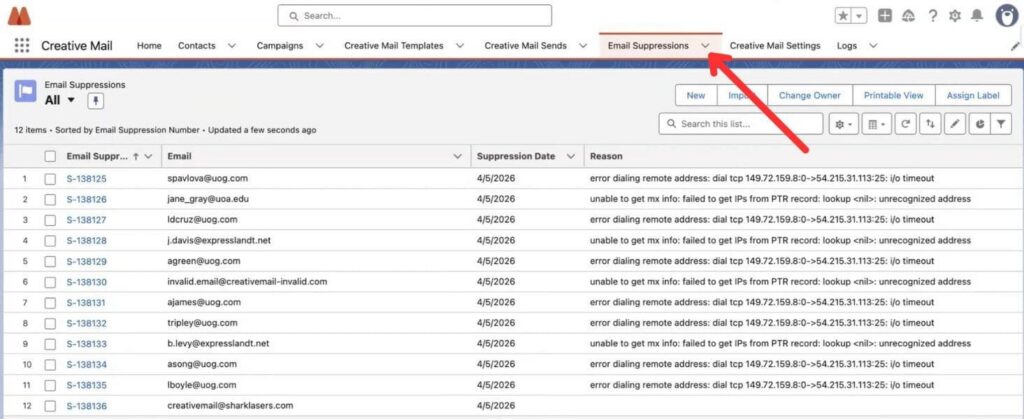
This is important because email sending is not only about design. A team also needs to respect opt-outs, avoid repeatedly sending to bad addresses, and keep campaign lists clean enough for future communication.
7. Syncing Templates with Account Engagement
Creative Mail can also sync templates with Marketing Cloud Account Engagement. This is useful for teams that already use Account Engagement but want to build templates in Creative Mail first.
The sync action asks for Account Engagement details such as Business Unit ID, Tracker Domain ID, and Campaign ID. After that, the template can be sent into Account Engagement and used there.
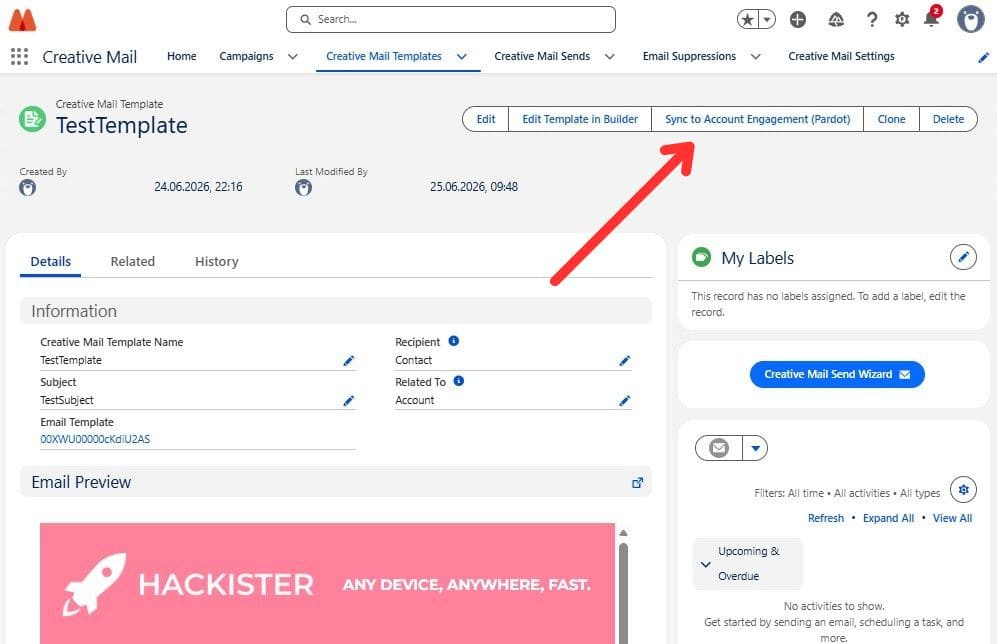
This does not mean every Creative Mail customer must use Account Engagement. The app can still be used for creating templates and sending from Salesforce. But for teams that already have Account Engagement in their setup, this connection can reduce duplicate template work and keep design work closer to Salesforce.
Typical Use Cases for Creative Mail as a Salesforce Mass Email App
Creative Mail makes the most sense when the audience is already managed in Salesforce. If your Leads, Contacts, Campaigns, and activity history are already there, then email becomes part of the same working process instead of a separate task in another tool.
For teams that send regular updates, donor communications, or customer newsletters, it can work as a Salesforce newsletter builder where the audience, Campaign, and activity history stay connected.
Here are the use cases where I see the app fitting well:
- Nonprofit donor newsletters. A nonprofit team can send updates to donors, volunteers, or supporters from Campaign records and keep communication history close to each Contact.
- Event invitations and reminders. For webinars, conferences, open days, or local events, Creative Mail can help prepare an email, send it to the selected Campaign audience, and review engagement after the send.
- Product updates and customer announcements. A B2B company can use Salesforce data to send updates to existing customers, partners, or selected account groups.
- Partner communications. Teams working with channel partners can build reusable email templates and send messages to partner-related Campaign audiences.
- ABM (account-based marketing) and lifecycle emails. For account-based marketing or customer lifecycle messages, Creative Mail can use Salesforce record data to personalize email content.
I see Creative Mail as more than a design tool. It also works as a Salesforce email campaign tool for teams that want to prepare, send, and review campaign emails near the CRM records they already use.
When Creative Mail May Be the Best Salesforce Email Marketing App
Creative Mail fits teams whose audience already lives in Salesforce and who want email work to stay close to CRM records. I would look at it first when a team needs better-looking templates, recipient-level tracking, and a way to send emails without moving lists into another platform.
For this kind of setup, Creative Mail can be the best email marketing app for Salesforce because the main work happens where the data already is. The builder, Send Wizard, analytics, and suppression records all stay connected to Salesforce.
The video below is useful if you want to see the builder and sending workflow before opening the Test Drive Org:
Why I Loved Creative Mail During Testing
What I liked most about Creative Mail is that the app follows the way Salesforce teams already think about email. You start with a template, connect it to Salesforce data, send it to your audience, and then review the result on Salesforce records. There is no need to explain a completely separate process to users.
- From an admin point of view, the app structure is also easy to understand. The main tabs are not confusing: Creative Mail Templates, Creative Mail Sends, Email Suppressions, and Creative Mail Settings. After a short look around, it becomes clear where to build, where to send, and where to check list health.
- The email template builder was the part I wanted to test first. I could work with content blocks, rows, preview modes, and merge fields without touching HTML. For a marketer or nonprofit user who needs to prepare a good-looking email quickly, that matters.
- I also liked that Creative Mail respects Salesforce logic. It sends to your audience in Salesforce, connects results to send records, and can show recipient-level email activity near the related Salesforce records. This makes the app easier to explain to people who already work in Salesforce every day.
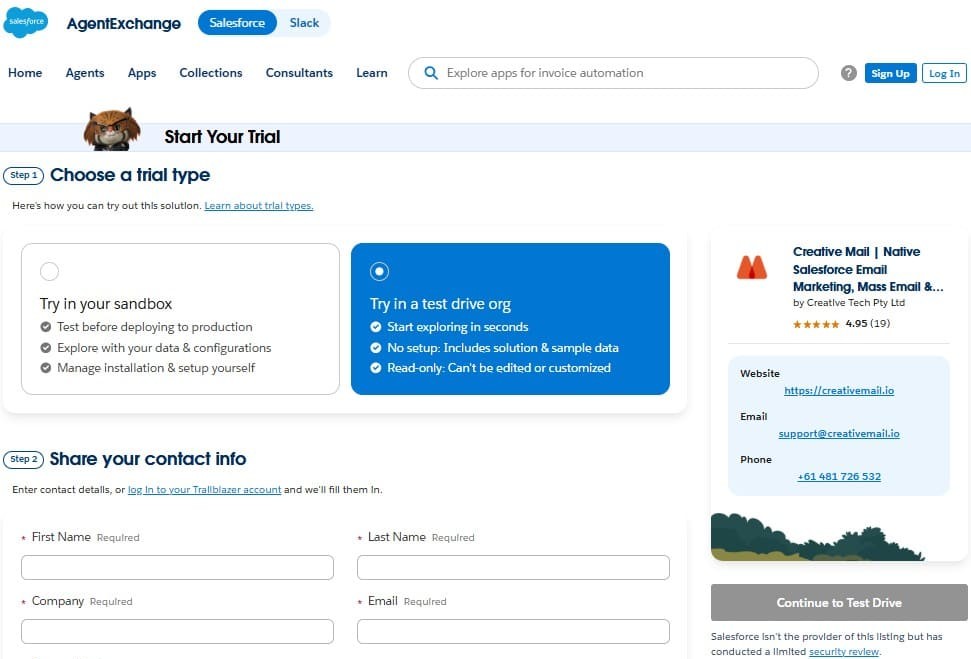
Another small but useful detail is the trial experience. Creative Mail provides visible information about the trial period, and the Test Drive option on AppExchange gives potential users another way to explore the app before installing it.
What Other Users Say About Creative Mail
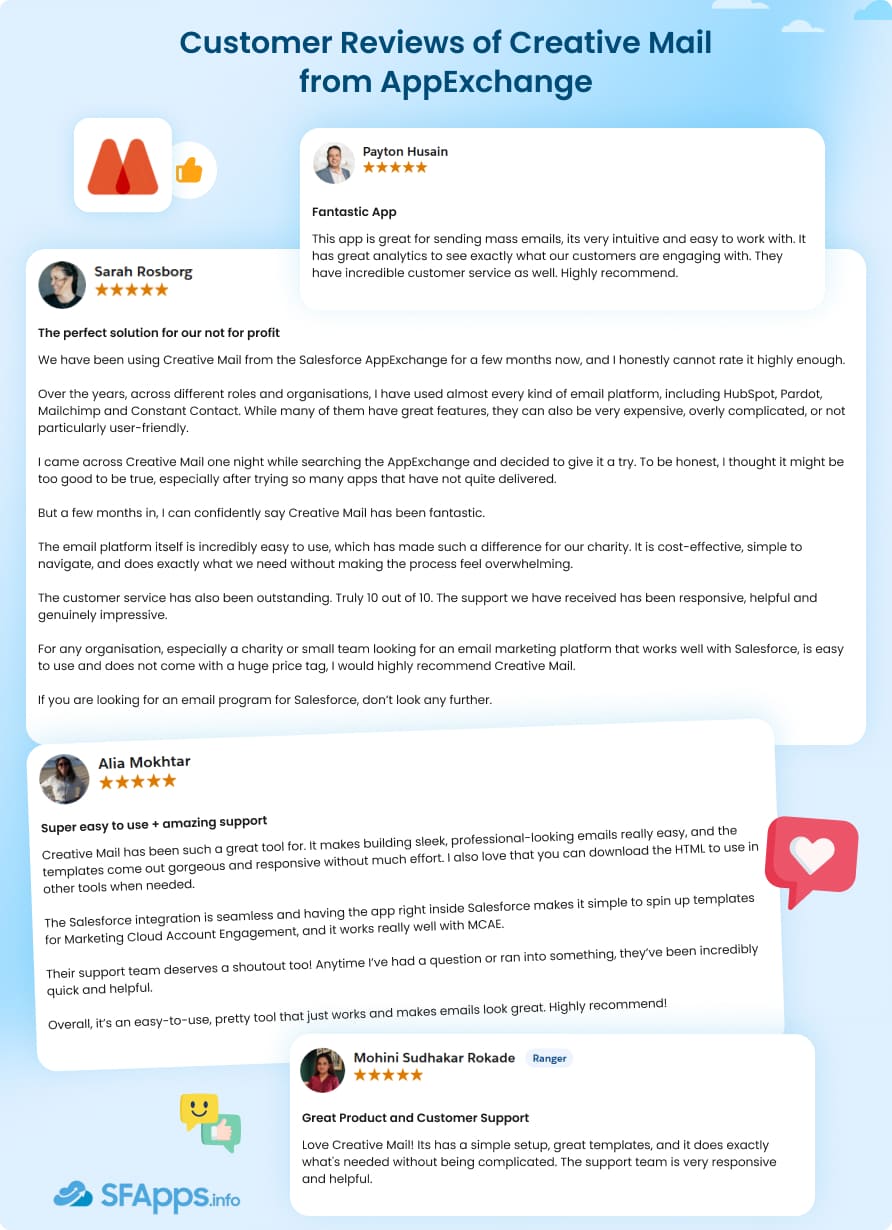
AppExchange reviews are useful here because they show how the app works for real Salesforce users after installation. At the time of writing, Creative Mail had a 4.95 rating from 19 reviews.
- Ease of use. Reviewers mention simple setup, clear templates, intuitive work with mass emails, and better-looking Salesforce emails without manual HTML work. One user even pointed out that the app helped save time because they no longer needed to code designed emails by hand.
- Support. Several users mention quick or helpful responses from the Creative Mail team. For an AppExchange app, this matters. Admins can usually handle many setup steps themselves, but it is still important to know that support is available when something does not work as expected.
- Fit for nonprofits and smaller teams. Some reviewers mention charities, donor communications, and nonprofit clients. That matches the value I also noticed during testing: the app gives teams a way to create professional emails in Salesforce without taking on the cost or setup weight of a larger marketing platform.
- Salesforce-specific value. Reviewers also mention Lightning Email Templates, Salesforce templates and list emails, Account Engagement, mass emails, and analytics. There is even a useful product feedback example: one reviewer wanted merge fields to be easier to find, and Creative Mail later replied that merge fields can now be searched by typing @ inside a text element.
Pricing and Trial: What Creative Mail Costs
With Creative Mail, the pricing model is easier to read than many marketing tools because it separates user access from email volume. The base Creative Mail license costs $25 per user per month. This license includes the Salesforce-native builder, sending infrastructure, analytics, support, and 1,000 emails per month.
The email volume is handled through add-on plans:
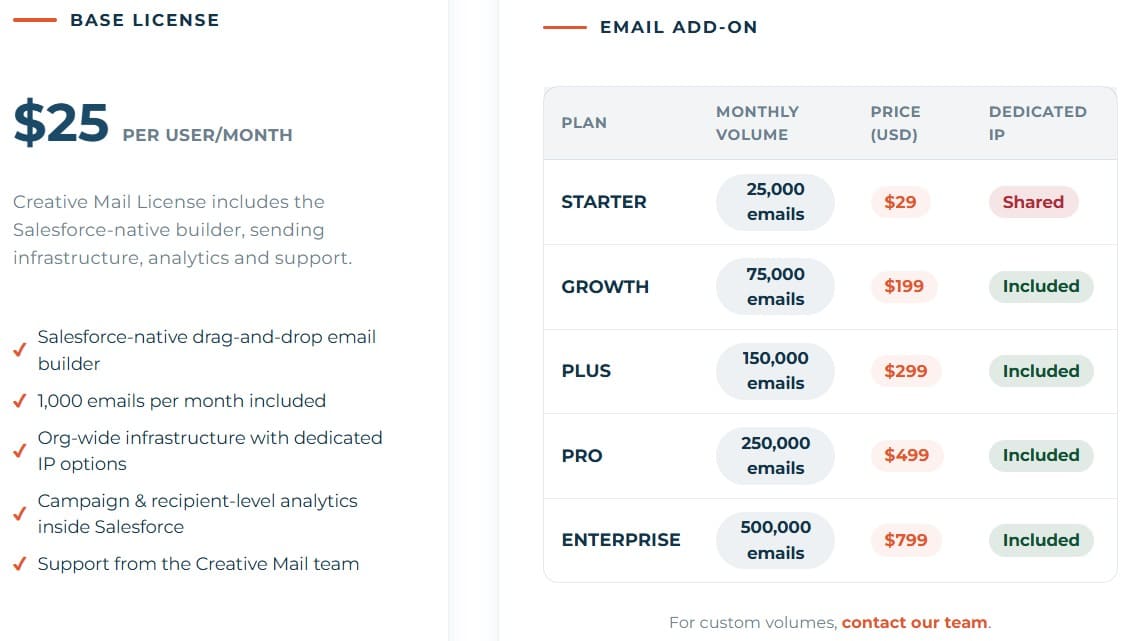
This structure is useful because a small team does not need to start with a large email package right away. They can begin with the base license and move to a higher volume plan as their campaign email volume grows.
Creative Mail also offers a 15-day free trial. Discounts are available for nonprofits, and annual discounts or volume pricing are available by request.
One practical detail is licensing. Licenses are required only for users who access the app. Other Salesforce users can still use Lightning Email Templates and view sent emails across the platform.
FAQs About Creative Mail
Before choosing any email tool, teams usually have a few practical marketing automation questions about templates, sending, tracking, unsubscribes, and trial access. Here are the main points I would check for Creative Mail.
Does Creative Mail work with Lightning Email Templates?
Yes. Creative Mail can publish designs to Lightning Email Templates, so the templates can be used in Salesforce after they are created in the builder.
Can Creative Mail send Salesforce mass email?
Yes. Creative Mail can send campaign emails to your audience in Salesforce through the Creative Mail Send Wizard. This makes it useful when a team needs to send one campaign email to many recipients without exporting data to another platform.
Does Creative Mail support Marketing Cloud Account Engagement?
Yes. Creative Mail can sync templates with Marketing Cloud Account Engagement. This is useful for teams that already use Account Engagement and want to prepare templates in Creative Mail first.
Can Creative Mail personalize emails with Salesforce data?
Yes. Users can add merge fields into templates. Creative Mail supports Lead, Contact, and User recipient options, and it can also use a Related To object.
Does Creative Mail manage unsubscribes and bounces?
Yes. When emails are sent through Creative Mail, unsubscribes, bounces, blocks, and invalid recipients can be tracked in Salesforce. Unsubscribes can also update the Email Opt Out checkbox on Lead or Contact records.
Is there a free trial?
Yes. Creative Mail offers a 15-day free trial, and AppExchange also provides a Test Drive option.
Final Recommendation: A Native Email Tool That Keeps Work Close to Salesforce
After going through Creative Mail, my main impression is simple: the app is built for teams that want email work to stay inside Salesforce. It does not try to replace every marketing platform on the market. Instead, it focuses on a clear set of Salesforce email needs:
- template design,
- audience-based sending,
- merge fields,
- email tracking,
- unsubscribes,
- bounces,
- Account Engagement sync.
Creative Mail is especially relevant for nonprofits, SMBs, and B2B teams that already manage their audience in Salesforce and want better email design without moving contacts to another system. The app feels practical because it follows Salesforce logic. Templates connect to Salesforce records, sends go to your audience in Salesforce, and results return to places where users can actually see them.
For teams that need email, templates, sending, and clear reporting inside Salesforce, Creative Mail can be the best email marketing software for Salesforce. To see how it works in practice, open the Creative Mail Test Drive Org and check the builder, Send Wizard, and reporting flow.

Mykhailo is a Salesforce Certified Platform Administrator with development experience in the fintech field. Since 2021, he has gained the Double Star Ranger rank on the Salesforce Trailhead education platform, where he acquired 26 Superbadges in Business Administration, Process Automation, Security, and more. With a decade of expertise in consulting and compliance, he aspires to translate complex technical concepts into accessible content, helping organizations make the most of Salesforce. Mykhailo is passionate about using technology for everyday needs, enjoys reading sci-fi and non-fiction books, and playing video games. He also has an interest in history and outdoor activities such as hiking, camping, and kayaking.
 Previous Post
 Next Post