



When Salesforce Has the Invoice Data, but QuickBooks Still Needs Manual Entry
At some point, a Salesforce record can make you ask a very practical question: the invoice data is already here, so why does someone still need to type it again in QuickBooks?
This is a pretty common situation where the sales and finance departments use different systems. Salesforce may already contain the Account, products, quantities, prices, discounts, and custom fields needed for billing. But if QuickBooks does not receive that data automatically, someone still has to open another system and rebuild the invoice by hand.
That manual step may look small when you think about one invoice. But it becomes a serious problem when invoice volume grows, or when every invoice has different line items.
Insight:
Manual invoice work is still common, even in teams that already use modern business systems.
The Accounts Payable Automation Trends 2025 report found that 63% of AP teams spend more than 10 hours per week processing invoices, and 66% still manually enter invoice data into ERP systems.
One logistics company with a high-volume, variable billing process shows how quickly this problem can grow. The team handled more than 250 invoices per month across several business lines. Their billing model was variable, so invoices could not simply repeat every month. Each invoice had to be created from actual usage data. The line item data was already in Salesforce, including names, prices, quantities, and markups. Still, the invoice had to be recreated manually in the accounting system.
That meant opening a Salesforce report, checking each line item, writing down or copying the details, then entering the same information again for the invoice. One invoice took around 20 to 30 minutes. Across hundreds of invoices, this turned into up to 15 work days per month spent on invoicing alone.
In that situation, integrating Salesforce and QuickBooks starts to look like a practical business question, not only a technical one.
When invoice data sits in Salesforce, but finance has to rebuild it in QuickBooks, several things can happen:
- Invoices are created later than expected.
- Line item mistakes become easier to make.
- Payment collection can start later.
- Account managers cannot quickly see if a customer has paid.
- Finance becomes the only team that can answer invoice questions.
For a Salesforce admin, this type of process is interesting because the problem is visible in the data model. The required data already exists somewhere in CRM. The missing part is the connection between the sales record and the accounting invoice.
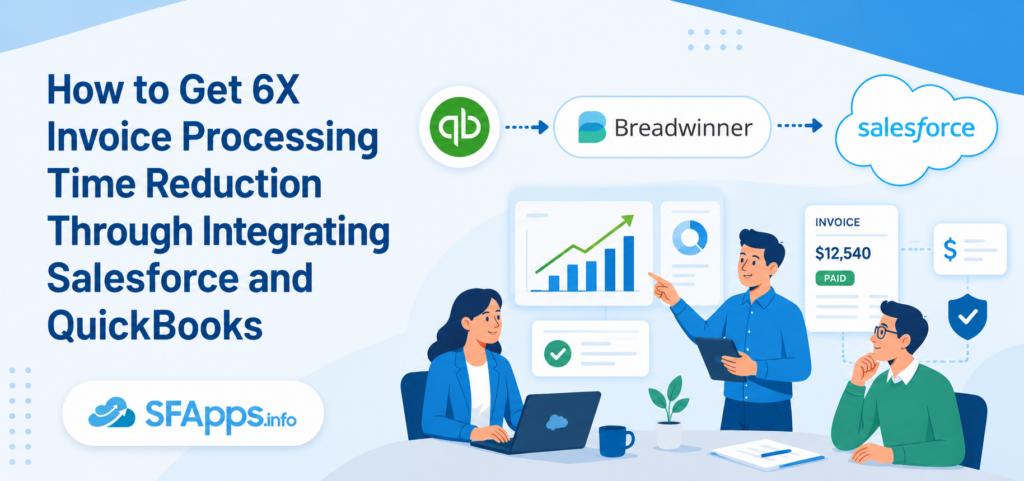
So the real question is: how can we use the Salesforce data we already trust to create QuickBooks invoices faster and with fewer manual steps? Let’s check it out.
- Common Ways to Connect Salesforce and QuickBooks Before Choosing an App
- Finding Breadwinner on AppExchange as a Salesforce QuickBooks Integration
- How to Install Breadwinner and Integrate QuickBooks with Salesforce
- How Invoice Work Changes After Integrating Salesforce and QuickBooks
- Typical Issues to Check Before Go Live
- Best Practices for Salesforce Integration with QuickBooks
- FAQs About Salesforce and QuickBooks Invoice Processing
- 1. Can Salesforce users create QuickBooks invoices?
- 2. Does every sales user need QuickBooks access?
- 3. Can invoice status appear in Salesforce?
- 4. Can invoices be created from custom Salesforce objects?
- 5. Is this the same as a finance chatbot or Slack setup?
- 6. What should teams check before connecting QuickBooks Online?
- 7. What if the finance stack changes later?
- Final Thoughts: What Changes When Invoice Work Moves Closer to Salesforce
Common Ways to Connect Salesforce and QuickBooks Before Choosing an App
Before choosing any tool, it helps to pause and look at the options. There is rarely only one way to solve a Salesforce and QuickBooks problem. The better question is: which option gives the team enough control without creating too much work later?
| Comparison of Salesforce and QuickBooks Integration Paths | |||
|---|---|---|---|
| Option | How it works | When it may fit | Main thing to watch |
| Manual export and import | Users move data from Salesforce to QuickBooks by file or by hand. | Very small invoice volume or a temporary process. | It gets slow and risky as invoice volume grows. |
| Custom API connection | Developers build a direct connection between both systems. | Companies with specific logic and developer resources. | The company owns testing, monitoring, and future fixes. |
| Middleware or iPaaS | A platform moves data between Salesforce, QuickBooks, and other tools. | Teams are already using integration platforms. | Invoice line items, payments, and matching rules can add complexity. |
| AppExchange app | A ready Salesforce app connects QuickBooks data with Salesforce records. | Teams that want a faster path with less custom development. | Setup, data review, permissions, and training still matter. |
- Manual export and import is the simplest option. It may work when a company has only a few invoices each month. But it does not give Salesforce users live payment visibility, and it becomes hard to trust when invoices have many line items.
- A custom API connection gives more control. Developers can build the logic around the company’s process. The trade-off is ownership. If a field changes, an API response changes, or the business process changes, someone has to maintain the integration.
- Middleware or iPaaS can also work. Tools such as MuleSoft, Workato, or Zapier are useful when the company needs to connect several systems, not only Salesforce and QuickBooks. But invoice creation is rarely just one record moving from one system to another. Customers, products, line items, taxes, payments, and statuses all need attention.
- The fourth option is an AppExchange app built for this use case. This is usually the path Salesforce admins check when they search how to connect QuickBooks Salesforce data without building the whole connection manually.
For this article, this fourth path is the most relevant one. The goal is to make invoice work easier for Salesforce users, while finance can still keep QuickBooks as the accounting system.
Insight:
Salesforce’s State of Sales, 7th Edition reports that sales reps spend 60% of their time on nonselling work like data entry and prospecting.
When account managers have to ask finance for invoice status or payment context, this adds another small but repeated task to the customer workflow. Bringing payment visibility closer to Salesforce records can help reduce that back-and-forth.
Finding Breadwinner on AppExchange as a Salesforce QuickBooks Integration
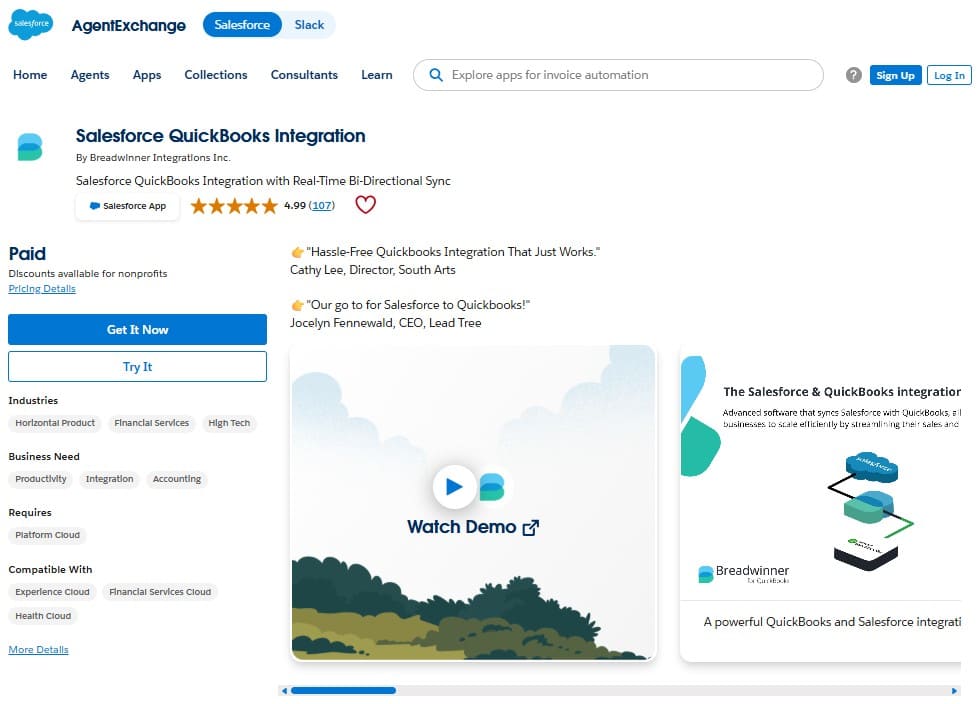
After comparing the main connection paths, the AppExchange (now AgentExchange) option is the one I would check first as a Salesforce admin. Treat AppExchange research as a practical checkpoint: does the app solve the exact invoice process you are trying to improve?
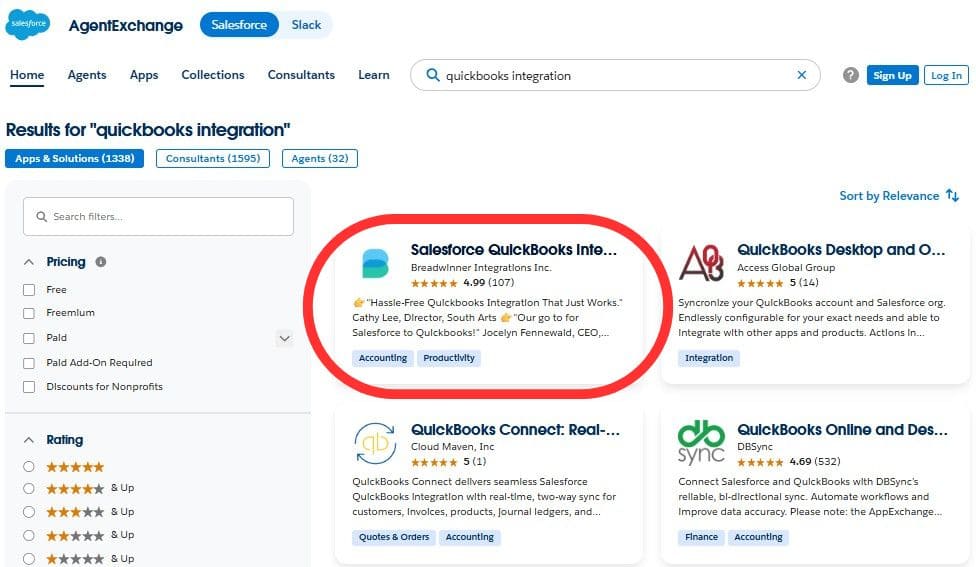
When reviewing AppExchange options, one relevant solution is Salesforce QuickBooks Integration by Breadwinner Integrations Inc. The listing presents the app as a Salesforce solution for real-time bi-directional sync between Salesforce and QuickBooks. It also highlights invoice creation from Opportunities, Accounts, or custom objects, plus invoice status tracking for overdue, due, and paid invoices.
When reviewing this type of app, I would not stop at the rating. Ratings are useful, but the more practical question is whether the app supports the daily workflow that caused the problem in the first place. For our logistics example, that means checking whether the app can work with Salesforce records that already contain invoice details, especially line items, products, quantities, and customer data.
The AppExchange listing points to several areas worth checking:
- Can users create QuickBooks invoices from Salesforce records?
- Can invoice status return to Salesforce?
- Can teams see payment and overdue information without asking finance?
- Can access be controlled through Salesforce permissions?
- Can the app support custom objects if the invoice process does not start from a standard Opportunity?
These points matter because the goal is not only to connect two databases. The goal is to reduce repeated invoice work and give Salesforce users useful financial visibility without giving every user direct QuickBooks access.
For this reason, Breadwinner becomes a relevant option for the invoice process we described earlier. The logistics team did not only need a background sync. They needed Salesforce data to become usable during invoice creation, and they needed account managers to see payment context later.
How to Install Breadwinner and Integrate QuickBooks with Salesforce
Once the AppExchange review looks promising, the next question is very practical: what does setup look like inside Salesforce?
Breadwinner is installed from Salesforce AppExchange like other managed packages, but it is still worth checking the basic requirements before setup.
For the installation itself, I would choose Install for Admins Only. This approach gives the admin time to check the package, connect QuickBooks, review objects, and decide who should see accounting data before making it available to users.
A simple setup path looks like this:
- Install Breadwinner from AppExchange.
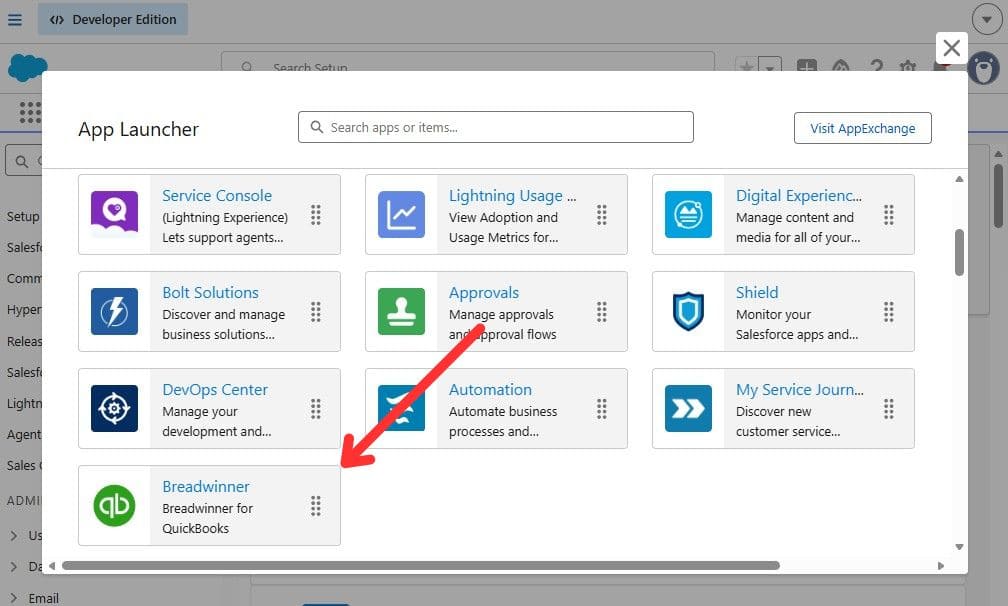
- Open the Breadwinner app from the Salesforce App Launcher.
- Connect the QuickBooks org from the Breadwinner setup page.
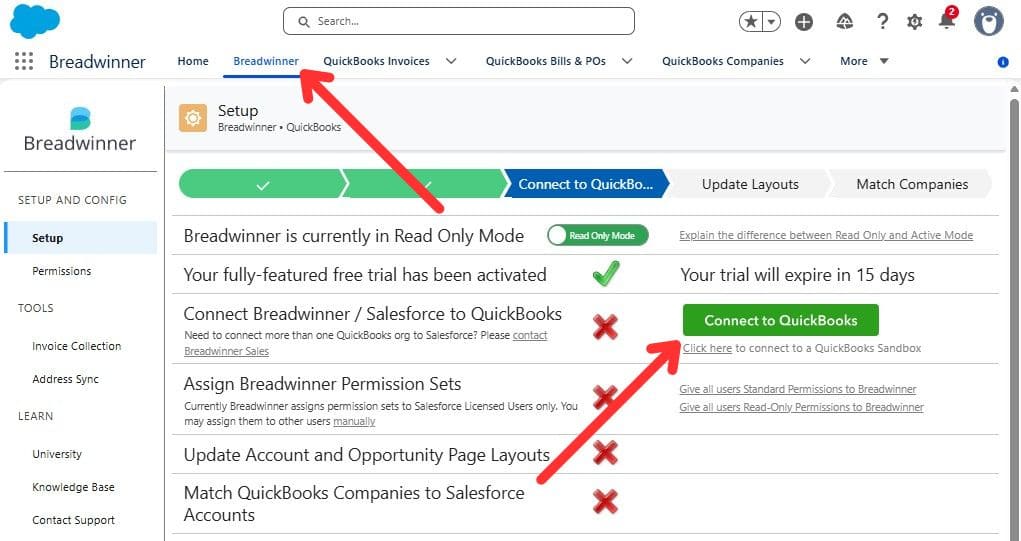
- Wait for QuickBooks data to start importing into Salesforce.
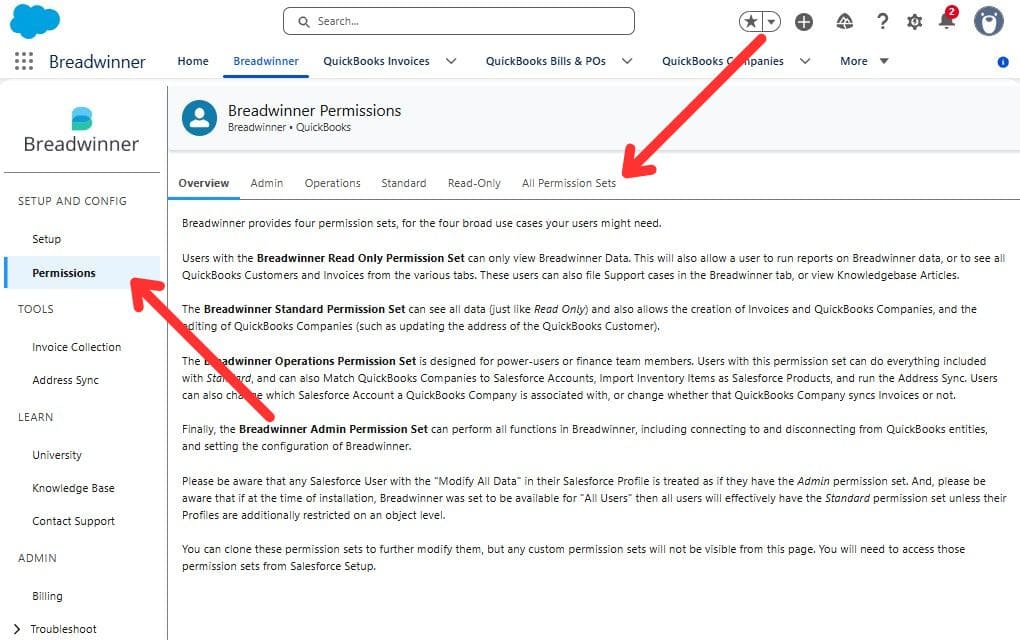
- Assign Breadwinner permission sets to the right users.
- Update Salesforce page layouts so users can see Breadwinner data on records.
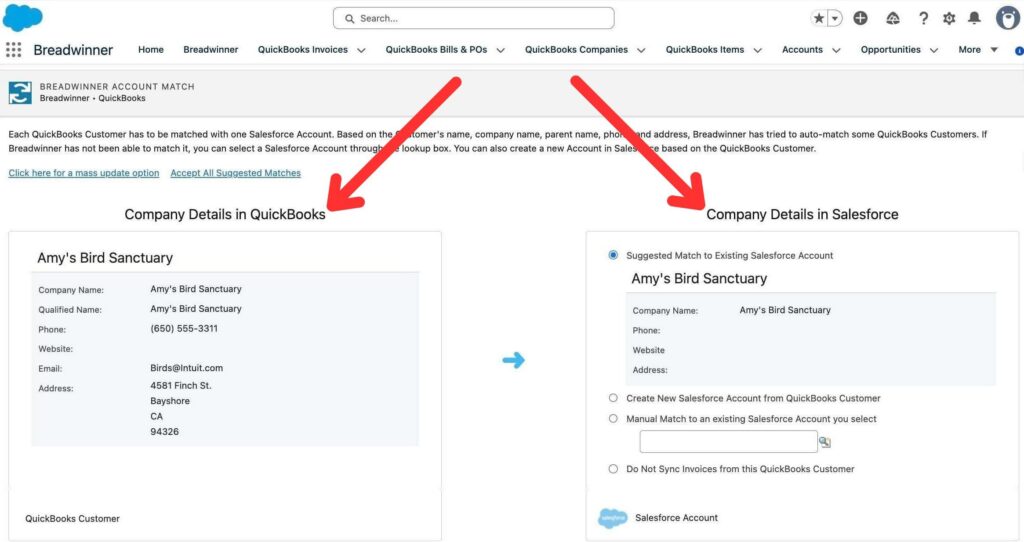
- Match QuickBooks Customers with Salesforce Accounts.
The Customer Match step is one of the parts I would not rush. If Salesforce Accounts and QuickBooks Customers are not aligned correctly, users may see invoices under the wrong customer or miss records they expected to see. Breadwinner lets admins map QuickBooks Customers to existing Salesforce Accounts, create new Accounts, match manually, or ignore records that should not be connected.
Permissions also need attention. Breadwinner provides permission sets such as Breadwinner Admin, Operations, Standard, and Read-Only. Every Salesforce user who needs access to Breadwinner data should have the right permission set assigned. This matters because finance data usually should not be visible to everyone in the org.
After the connection is made and layouts are updated, QuickBooks data starts appearing in Salesforce through Breadwinner objects and related tabs. At that point, admins can begin testing with real examples: an Account with invoices, an Opportunity with products, a paid invoice, an overdue invoice, and a customer record that needs matching.
How Invoice Work Changes After Integrating Salesforce and QuickBooks
Setup is only the first part. The real value appears when users begin creating invoices from the Salesforce records they already work with every day.
Let’s return to the logistics example from the opening section. The team already had the invoice details in Salesforce: customer data, line item names, prices, quantities, and markups. Before the systems were connected, someone still had to open a Salesforce report, read through the invoice details, and manually recreate the invoice in the accounting system. That is why one invoice could take 20 to 30 minutes.
With Breadwinner, the process looks different. A user can start from a Salesforce record, such as an Account, Opportunity, Order, or custom object, and create a QuickBooks invoice from there. With Breadwinner’s Guided Wizard, users can review the invoice details before sending them to QuickBooks.
A practical invoice flow may look like this:
- Open the Salesforce record that holds the billing data.
- Click New Invoice.
- Confirm the related QuickBooks Customer or create a new one.
- Pull invoice line items from Salesforce data, such as Opportunity Products.
- Review invoice details before creating the invoice.
- Create the invoice in QuickBooks from Salesforce.
- See the invoice record and its status back in Salesforce.
The biggest change is that users no longer need to rebuild the invoice from a report. Salesforce data becomes the starting point for the QuickBooks invoice. The user still reviews the details, which is important, but the repeated typing is removed from the process.
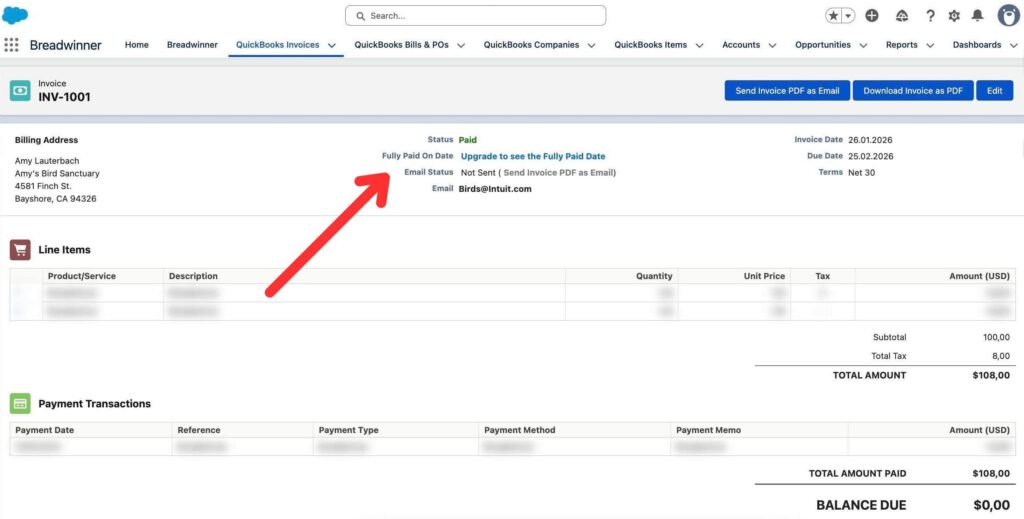
This is also why the time reduction makes sense. If line item data is already stored in Salesforce and can flow into invoice creation, the work changes from “retype everything” to “review and confirm.” In our logistics company example, that shift helped reduce invoice creation from 20 to 30 minutes per invoice to about 5 minutes.
There is another benefit that appears after the invoice is created. The invoice does not disappear into QuickBooks, where only finance can see it. Breadwinner brings invoice information back into Salesforce, including status such as paid, due, or overdue. That means account managers and other approved Salesforce users can check invoice context from the customer record instead of asking finance every time.
This matters in daily work. If an account manager is preparing for a customer call, they can see whether there are unpaid invoices. If finance wants sales to avoid selling more to an overdue customer, Salesforce can show that context closer to the Account or Opportunity. If leadership wants better visibility into cash flow signals, they do not have to depend only on separate accounting reports.
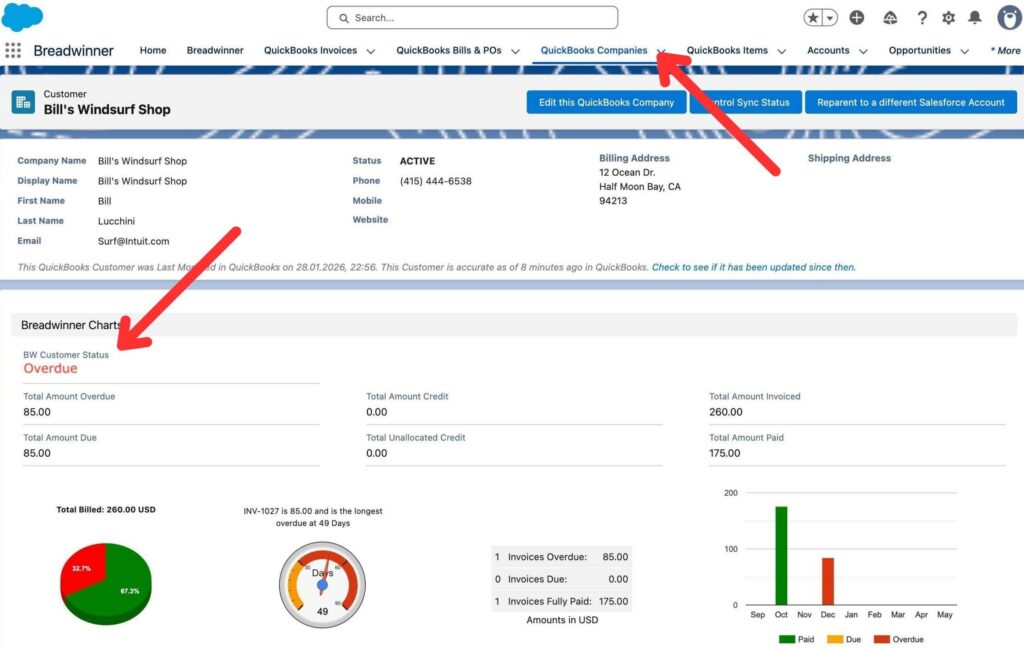
When integrating Salesforce with QuickBooks in this way, the invoice process becomes easier to understand for both teams:
- Sales keeps working in Salesforce.
- Finance keeps QuickBooks as the accounting system.
- Invoice data does not need to be typed twice.
- Payment status becomes visible closer to customer records.
- Users can review the invoice before it is created.
The 6X improvement becomes easier to believe when you look at the steps that disappeared. It is not magic. It comes from removing repeated manual work, using Salesforce data that already exists, and giving users invoice status in the same place where they manage customer work.
Insight:
QuickBooks’ 2025 US Small Business Late Payments Report found that 56% of surveyed small businesses were owed money from unpaid invoices, with an average of $17.5K per business.
The same report says 47% of businesses had at least some invoices overdue by more than 30 days.
This is why invoice status in Salesforce can matter beyond basic reporting:
teams need to know which customers have open or overdue invoices before follow-up, renewal, or upsell conversations.
Typical Issues to Check Before Go Live
After the app is installed and the first test invoices look good, it may be tempting to open access to everyone. I would pause here. Most go-live problems are not caused by the package install itself. They usually come from data, permissions, matching, or user habits.
1. Account and Customer Matching
Start with Salesforce Accounts and QuickBooks Customers. If names, addresses, or related contacts are messy, users may not trust what they see later.
This is especially important for a Salesforce QuickBooks contact sync integration, because users expect customer and contact details to appear near the right Salesforce record. Before going live, check duplicates, inactive customers, missing addresses, and Accounts that may match more than one QuickBooks Customer.
2. Decide Where Key Fields Should Be Edited
Before launch, agree where users should edit key data. Salesforce can be the place for Account details, Opportunity Products, quantities, prices, and custom fields used before invoice creation.
QuickBooks should usually remain the trusted place for final accounting values, such as invoice number, payment status, paid amount, balance due, taxes, and payment terms.
This prevents a simple problem: sales changes one value in Salesforce, finance changes another value in QuickBooks, and nobody is sure which one is correct.
3. User Permissions
Not every Salesforce user needs the same finance access. Some users may only need to see invoice status. Some may need to create invoices. Finance users may need wider access.
Before going live, review Breadwinner permission sets and test access with real user profiles.
4. Real Invoice Scenarios
During testing, use the types of records users will actually work with. For example, open an Account with several invoices and confirm that the right invoices appear under the right customer. Create an invoice from an Opportunity with Products and check whether line items, quantities, and prices look correct. Also test paid and overdue invoices to confirm that payment status appears correctly in Salesforce.
If your team creates invoices from a custom object, include that path in testing too. The goal is simple: users should be able to create invoices, find the right customer, and understand payment status without confusion.
5. User Training
Users should know where to click, what to review, what they can edit, and when they still need finance. A connected system helps only when users understand the new process.
Best Practices for Salesforce Integration with QuickBooks
Once the connection is working, the next goal is to keep it easy to use. A good setup can still become confusing if users are not sure what to do, where to look, or which system they should trust. Here are the best practices I would keep in mind.
1. Keep the invoice path simple. Users should not need to guess where invoice creation starts. Decide whether your team will create invoices from Accounts, Opportunities, Orders, or custom objects. Then document that path in simple steps.
For example: open the Opportunity, check Products, click New Invoice, review the details, and create the invoice in QuickBooks.
2. Build views around invoice status. Payment visibility is one of the main reasons to bring QuickBooks data into Salesforce. So it helps to create simple views or reports that users can actually use. For example, teams may want to see:
- Unpaid invoices by Account.
- Overdue invoices by account owner.
- Recently paid invoices.
- Customer balance before renewal or upsell work.
This turns invoice sync into something useful for sales, finance, and account management.
3. Start with a simple unpaid invoice follow-up process. Once payment status is visible in Salesforce, decide what should happen when an invoice becomes overdue. For example, finance may review unpaid invoices once a week, or account managers may check overdue balances before renewal or upsell conversations. The point is to use invoice status in daily work, not only display it on the record.
4. Keep automation small until the process is stable. It can be tempting to create tasks, alerts, and notifications as soon as invoice data appears in Salesforce. I would wait until users confirm that the invoice path, customer matching, and status visibility work as expected. Then start with one useful automation, such as a weekly reminder to review invoice activity or a task to check newly created high-value invoices.
5. Review the process after the first month. After launch, check what users actually do. Are invoices created faster? Are users still asking finance the same questions? Are Accounts and Customers matched correctly?
Small fixes after the first month can protect the time saving that made the project worth doing.
FAQs About Salesforce and QuickBooks Invoice Processing
Salesforce and QuickBooks invoice processing can look simple at first, but the details matter. Here are the common questions about using Salesforce and QuickBooks together for invoice creation, invoice visibility, payment status, and user access.
1. Can Salesforce users create QuickBooks invoices?
Yes. With Breadwinner, users can start invoice creation from Salesforce records such as Accounts, Opportunities, Orders, or custom objects. The user reviews invoice details in Salesforce, then creates the invoice in QuickBooks from the same process.
2. Does every sales user need QuickBooks access?
Not necessarily. One reason to bring QuickBooks data into Salesforce is to let approved users see invoice and payment context without logging in to QuickBooks. For example, an account manager may only need to see whether an invoice is paid, due, or overdue.
3. Can invoice status appear in Salesforce?
Yes. Invoice and payment information can appear in Salesforce after the systems are connected. This helps users check payment status, invoice history, customer balance, and overdue amounts from the customer record instead of asking finance each time.
4. Can invoices be created from custom Salesforce objects?
Yes, if the process is configured correctly. If your billing process starts from a custom object instead of Opportunity or Account, test that path before launch. Check whether the right fields and line items appear during invoice creation. This requires Custom Guided Wizard setup, and the invoice path should still connect back to an Account.
5. Is this the same as a finance chatbot or Slack setup?
No. A QuickBooks Slack integration is a different type of use case. It may support finance-related questions in Slack, but it is a separate communication-layer use case. It does not replace the Salesforce invoice creation flow described in this article.
6. What should teams check before connecting QuickBooks Online?
Before starting a Salesforce QuickBooks Online integration, teams should confirm the QuickBooks environment, Salesforce access, user permissions, and the records they want to test first. It is better to test Accounts, Customers, Products, invoices, and payment status before opening access to a wider group.
7. What if the finance stack changes later?
The same planning logic applies to any accounting software integration with Salesforce. Teams still need to know where invoice data starts, where final accounting records live, who can see finance data, and which users need invoice or payment visibility inside Salesforce.
Final Thoughts: What Changes When Invoice Work Moves Closer to Salesforce
At the start, we looked at a simple but common situation: Salesforce already has the invoice data, but someone still has to recreate the invoice in QuickBooks.
That is the real problem to solve. Manual work is not always bad, but repeated copying becomes expensive when invoice volume grows. In the logistics example, one invoice used to take 20 to 30 minutes. After the process changed, invoice creation took about 5 minutes.
The reason is easy to understand. Customer details, line items, prices, quantities, and markups were already in Salesforce. Once that data could be used during QuickBooks invoice creation, the work changed from typing everything again to reviewing and confirming the invoice.
Faster invoice creation is only part of the result. Sales and account teams can also see invoice status and payment context closer to the customer record, while finance can keep QuickBooks as the accounting system. For a growing team, that can mean fewer routine questions, fewer manual mistakes, and a cleaner process between sales and finance.
If your team already uses Salesforce and QuickBooks, but invoice work still depends on manual re-entry, Breadwinner is worth exploring.

Mykhailo is a Salesforce Certified Platform Administrator with development experience in the fintech field. Since 2021, he has gained the Double Star Ranger rank on the Salesforce Trailhead education platform, where he acquired 26 Superbadges in Business Administration, Process Automation, Security, and more. With a decade of expertise in consulting and compliance, he aspires to translate complex technical concepts into accessible content, helping organizations make the most of Salesforce. Mykhailo is passionate about using technology for everyday needs, enjoys reading sci-fi and non-fiction books, and playing video games. He also has an interest in history and outdoor activities such as hiking, camping, and kayaking.
 Previous Post
 Next Post